1
w w w. d e l l . c o m | s u p p o r t . d e l l . c o m
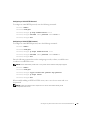
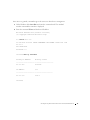
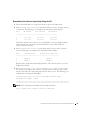
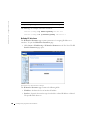
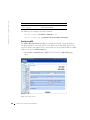
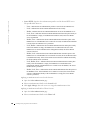
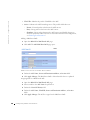
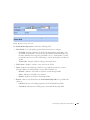
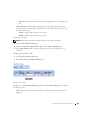
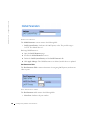
Adding new VLANs:
1
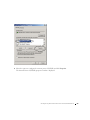
Open the VLAN Membership page.
2
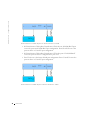
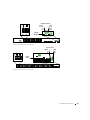
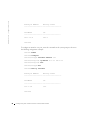
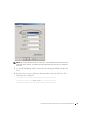
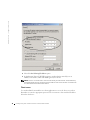
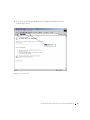
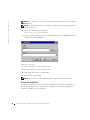
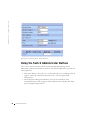
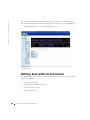
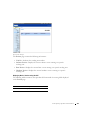
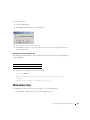
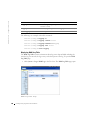
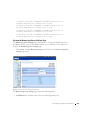
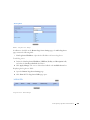
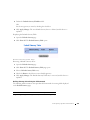
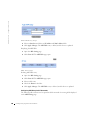
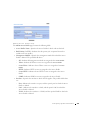
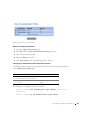
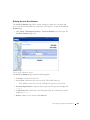
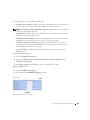
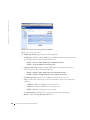
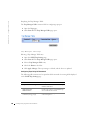
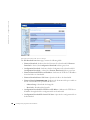
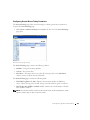
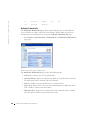
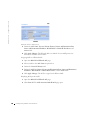
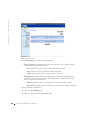
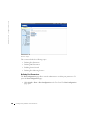
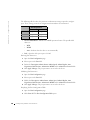
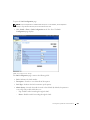
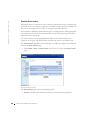
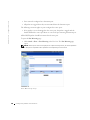
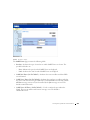
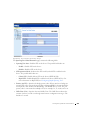
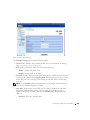
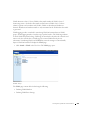
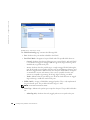
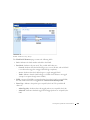
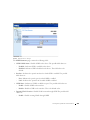
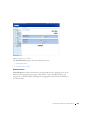
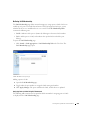
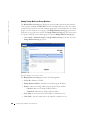
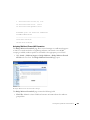
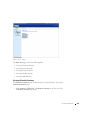
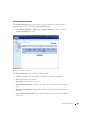
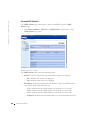
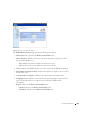
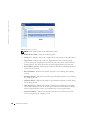
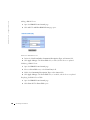
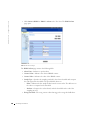
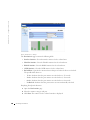
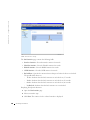
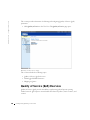
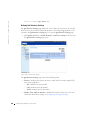
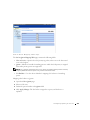
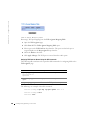
Click Add. The Create New VLAN page opens:
Create New VLAN Page
3
Define the VLAN ID and VLAN Name fields.
4
Click Apply Changes. The new VLAN is added, and the device is updated.
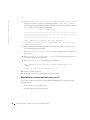
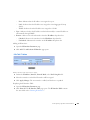
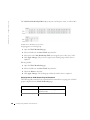
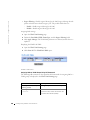
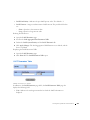
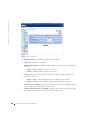
Modifying VLAN Name Groups:
1
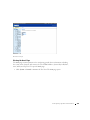
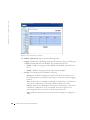
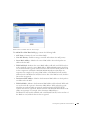
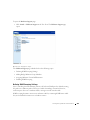
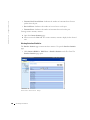
Open the VLAN Membership page.
2
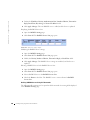
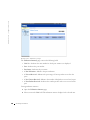
Select a VLAN in the Show VLAN field.
3
Modify the VLAN Name field.
4
Click Apply Changes. The VLAN membership information is modified, and the
device is updated.
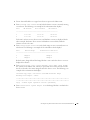
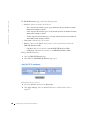
Deleting a VLAN:
1
Open the VLAN Membership page.
2
Select a VLAN in the Show VLAN field.
3
Check the Remove check box.
4
Click Apply Changes. The VLAN is deleted, and the device is updated.
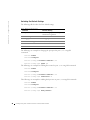
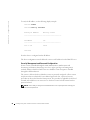
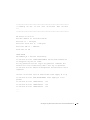
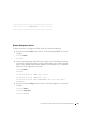
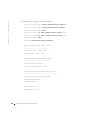
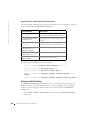
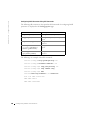
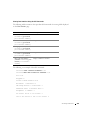
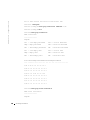
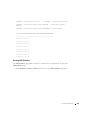
Defining VLAN Membership Groups Using CLI Commands
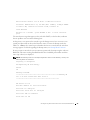
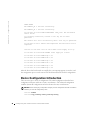
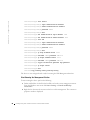
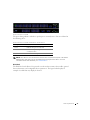
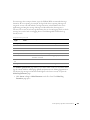
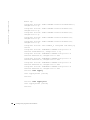
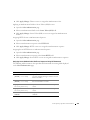
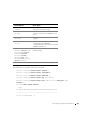
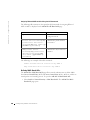
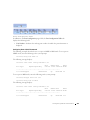
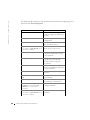
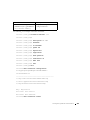
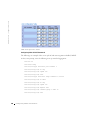
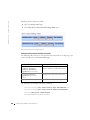
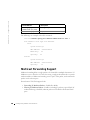
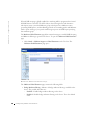
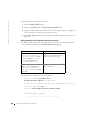
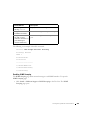
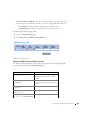
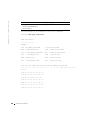
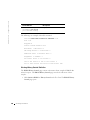
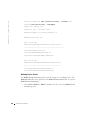
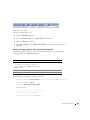
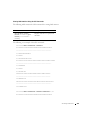
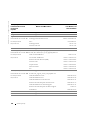
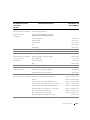
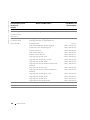
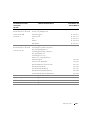
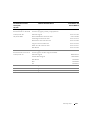
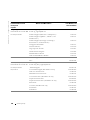
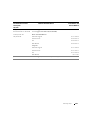
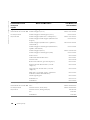
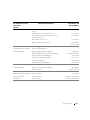
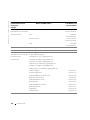
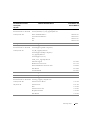
The following table summarizes the equivalent CLI commands for defining VLAN
membership groups as displayed in the VLAN Membership page.
258
Configuring Switch Infor m ation