1
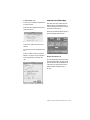
6 If you do not want Pro Tools to respond to remote track arming commands, select Ignore
Track Arming.
7 Click OK when you are done.
9-Pin Commands
In Remote Mode, Pro Tools with MachineControl can respond to the following 9-pin
commands:
8 In the Pro Tools Transport window, select Remote as the Transport master.
• Play
9 Put Pro Tools online.
• Pause
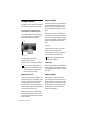
Online Status Display
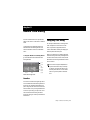
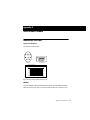
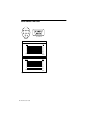
When online in Remote mode, the Online button flashes until Pro Tools and the machine establish communication. When MachineControl
and Remote mode are enabled and communication is established, the Online button will remain highlighted.
• Stop
• Rewind
• Forward
• Cue To
• Poll Time Code
• Record Arm Track
• Set In/Out Point (for Auto Edit)
• Set Pre/Post Roll (for Auto Edit)
Alternate Machine Types
• Perform Auto Edit Record
By default, MachineControl lets Pro Tools emulate a Sony BVW-75 when the ID is 0x2025. If
you use a machine that follows a different 9-pin
command set, you can configure Pro Tools for
its machine description in the Peripherals dialog.
• Perform Punch-In/Punch-Out Record (requires QuickPunch mode and voices)
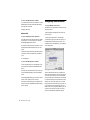
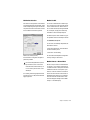
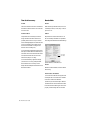
To change the emulation type:
Playback in 9-Pin Remote Mode
1 Choose Operations > Preferences, and select
the MachineControl window.
Pro Tools will only play back audio when the received command requires audio play back at 1X
speed in the forward direction. Reverse playback
and varispeed playback are not supported in
Pro Tools.
2 Enter an appropriate hex value for your device
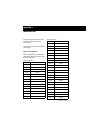
in the Machine Type field. For a listing of supported machines and their IDs, see Appendix C,
“Machine IDs.”
14
MachineControl Guide
• Return Status -Online, State, Tracks Armed
• Servo Lock
• Clear “In” Point