
1
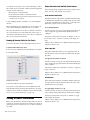
To nudge the track focus with the Scrub/Shuttle wheel:
To focus a plug-in in the Dynamics or EQ section:
1 Hold Control (Windows) or Command (Mac) and press the
left or right Nudge 1 switch.
1 Focus the plug-in’s track on the Focus Channel Strip by
2 While holding the Nudge1 switch, turn the Scrub/Shuttle
wheel.
Focusing Tracks when Soloing
pressing the track’s Select switch. The first dynamics and EQ
plug-ins on that track are automatically focused in the corresponding D-Control section.
2 Press the Cycle switch in the Dynamics or EQ section to focus successive dynamics or EQ plug-ins on that channel. (The
No Insert option is always available.)
To set D-Control to automatically focus a track when it is soloed:
1 Press the Operation switch repeatedly to display the page
that includes the Focused Track Follows Solo preference (SoloFc).
2 Press the Soft Key that corresponds to “SoloFc” until its
value is “Yes.”
To focus a plug-in in the Custom Faders section:
1 Focus the plug-in’s track on the Focus Channel Strip by
pressing the track’s Select switch. The first plug-in that is not a
dynamics or EQ plug-in is automatically focused, and its name
appears in the Custom Faders display.
2 In the Custom Faders section, press the Bank/Cycle switch
Focusing a Plug-In
Focusing a plug-in on D-Control brings the plug-in’s controls
to channel strip encoders and faders for convenient editing.
You can focus a plug-in in several ways: on the encoders of its
channel; on the encoders of the Focus Channel Strip, and in
the Custom Faders section.
With dynamics and EQ plug-ins, you can also focus plug-in
parameters on the dedicated Dynamics and EQ sections of
D-Control.
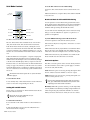
To focus a plug-in on a channel strip:
1 Press the Inserts switch on the channel. The plug-in names
are displayed in the channel’s encoders.
2 Press the Select switch under the name of the plug-in you
to cycle through the plug-ins on the focused channel. (The No
Insert option is always available.)
The plug-in whose name appears in the Custom Faders display
is then available for Custom Fader Plug-In mode. (See “Plug-In
Mode” on page 130.)
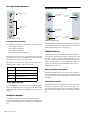
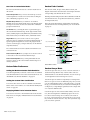
Automation Safe Mode
The Automation Safe switch invokes a mode in which the Bypass/Mute/Pre switch for each encoder and the channel Select
switch become Automation Safe switches. While in this mode,
pressing a Bypass/Mute/Pre switch on a plug-in or send protects any automation on that plug-in or send from being overwritten. Pressing a channel Select switch protects any automated parameters on that track from being overwritten.
3 If there is more than one page of parameters for the plug-in,
In Automation Safe mode, the Automation Safe switch is lit.
While in this mode, the Bypass/Mute/Pre switch for any protected insert or send is lit, and the channel Select switch for
any protected channel is lit.
the Page Up or Page Down switches light. To move through
parameter pages, press the corresponding switch.
To toggle Automation Safe mode on and off:
want to focus. The plug-in parameters are displayed in the
channel’s encoders.
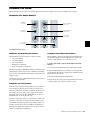
To focus a plug-in on the Focus Channel Strip:
1 Focus the plug-in’s track on the Focus Channel Strip.
2 Press the Inserts switch on the channel. The plug-in names
are displayed in the channel’s encoders.
3 Press the Select switch under the name of the plug-in you
want to focus. The plug-in parameters are displayed in the Focus Channel Strip’s encoders.
4 If there is more than one page of parameters for the plug-in,
the Page Up or Page Down switches light. To move through
parameter pages, press the corresponding switch.
122 D-Control Guide
1 Press the Automation Safe switch.
2 Press the channel Select switch on the tracks for which you
want to toggle automation safe status.
3 Press the Bypass/Mute/Pre switch for the plug-ins or sends
for which you want to toggle automation safe status.
4 Press the Automation Safe switch again to exit Automation
Safe mode.

































![D-Control Guide v7.3 - akmedia.[bleep]digidesign.](http://vs1.manualzilla.com/store/data/006638518_3-22bc31a56bb7c920ddb184f9348826e8-150x150.png)