
1
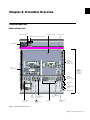
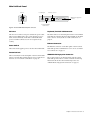
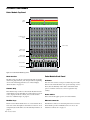
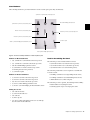
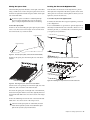
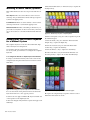
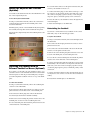
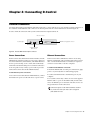
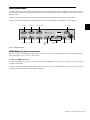
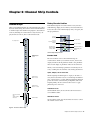
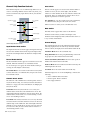
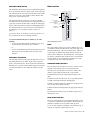
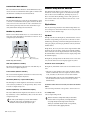
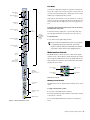
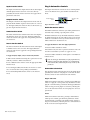
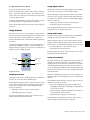
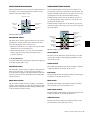
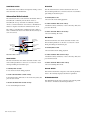
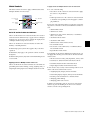
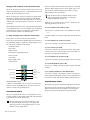
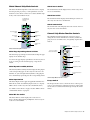
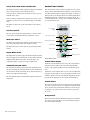
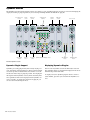
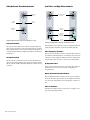
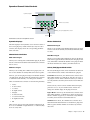
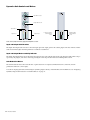
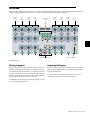
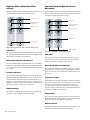
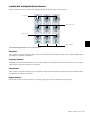
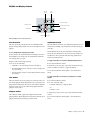
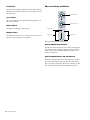
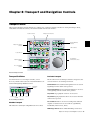
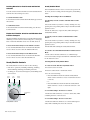
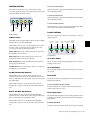
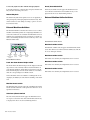
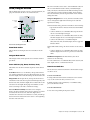
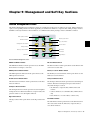
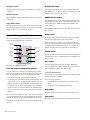
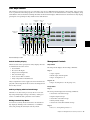
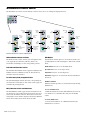
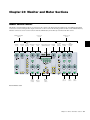
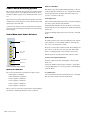
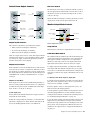
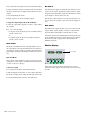
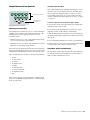
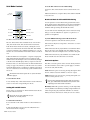
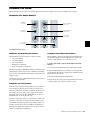
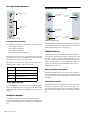
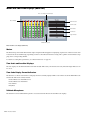
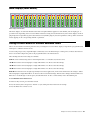
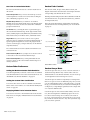
Custom Fader Mode Indicator The Custom Fader Mode indicator (a blue LED marked CF), located to the left of each channel’s fader, lights to indicate that the channel is currently in Custom Fader Mode. AutoMatch Indicators The AutoMatch indicators (green arrow-shaped LEDs), located to the left of each channel’s fader, light to indicate the direction you need to move the fader in order to match the automation level previously written for that track. This is especially useful when editing fader automation. Modifier Key Switches Each D-Control Fader Module has a set of four switches in its lower left corner that duplicate the function of the Pro Tools computer keyboard modifiers. Channel Strip Master Section The Channel Strip Master section (Figure 2) is a set of channel-related controls that appears on both the left and right sides of the D-Control Main Unit, allowing easy access to these controls from any mixing position. The operation of each control in this section is mirrored on both sets of controls at all times. Flip Switches The six yellow Flip switches in the Channel Strip Master section correspond to the six horizontal rows of rotary encoders on the D-Control channel strips. Flip Mode The Flip switches invoke Flip mode, which transfers controls from the corresponding rotary encoder to the fader on each channel strip, allowing convenient editing and automation of send, pan, plug-in, and mic pre parameters directly from the channel faders. In Flip mode, the rotary encoder control swaps with the channel fader; the encoder Select switch swaps with the channel Select switch; the encoder Bypass/Mute/Pre switch swaps with the channel Mute switch; and the encoder display swaps with the channel display. Shift Control Win (Start) (Windows) Alt (Windows) Option (Mac) a (Command) (Mac) Modifier Keys (Fader Module) Shift Switch (Windows and Mac) The Shift switch duplicates the function of the Shift key on the D-Control computer keyboard. Control Switch (Windows and Mac) The Control switch duplicates the function of the Control key on the D-Control computer keyboard. Win Switch (Windows) or Option Switch (Mac) The Win/Option switch duplicates the function of the Windows (Start) key (Windows) or the Option key (Mac) on the D-Control computer keyboard. In Flip mode, the Flip switch for the affected row of encoders is lit, and the affected encoder displays appear in yellow. Instrument Tracks and Flip Mode In Flip mode, Instrument track controls are transferred as follows: • The fader on each channel controls the parameter (MIDI Volume or MIDI Pan) that was assigned to the bottom encoder, and the bottom encoder controls track Volume. • The channel Mute switch controls the MIDI Mute function, and the B/M/P switch on the bottom encoder controls channel mute. To transfer controls from a row of rotary encoders to the channel faders: Alt Switch (Windows) or Command Switch (Mac) The Alt/Command switch duplicates the function of the Alt key (Windows) or the Command key (Mac) on the D-Control computer keyboard. The order of the modifier keys on the Fader Module reflects the order of the corresponding keys on a Windows or Mac keyboard, from left to right. 54 D-Control Guide Press the Flip switch that corresponds to the encoder row. To exit Flip mode: Press a lighted Flip switch. When D-Control is in Flip mode and you enter Make Inactive mode or Assign mode, it is temporarily taken out of Flip mode, but the Flip switch remains lit. When you exit Make Inactive mode or Assign mode, controls return to their flipped positions.
































![D-Control Guide v7.3 - akmedia.[bleep]digidesign.](http://vs1.manualzilla.com/store/data/006638518_3-22bc31a56bb7c920ddb184f9348826e8-150x150.png)