1
Troubleshooting
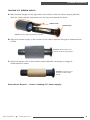
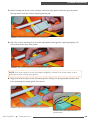
C. Run the swab back and forth across the platen roller several times to remove any
buildup.
D. Replace platen roller.
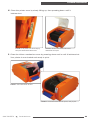
E. Let the platen roller dry for a few minutes, then reload ribbon and supply. Your
DuraLabel PRO/PRO 300 is now ready to use.
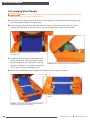
To maintain optimal performance, the DuraLabel PRO/PRO 300 printer should
be cleaned after every two rolls of supply. The print head, cutter mechanism and
platen roller should be cleaned with alcohol swabs to remove buildup of adhesive,
dust and other substances. Always turn the printer OFF before cleaning, performing
maintenance or loading supplies.
NOTE: Visit DuraLabel.com/duralabel-pro-300/dlp300-support.php to view proper
cleaning procedures.
11. Troubleshooting
The following solutions address some of the most common printing challenges.
Please call Graphic Products if your problem is not discussed here.
11.1 LED is Solid Red.
11.1.1 POSSIBLE CAUSE: Cover is not latched properly.
Solution: Turn printer off. Open cover all the way, then slowly close it. Press
firmly on front corners to ensure both latches are secure.
11.2 Printing Suddenly Stops and LED Blinks Red.
11.2.1 POSSIBLE CAUSE: Printer is out of ribbon or label supply.
Solution: Replenish ribbon or label supply.
11.2.2 POSSIBLE CAUSE: Ribbon spindles are loaded backward.
Solution: Ensure ribbon spindles are facing in the right direction. The
spindle flanges should be on the right side of the printer. Refer to Section
4.3 for detailed ribbon-loading instructions.
11.2.3 POSSIBLE CAUSE: Media sensor error occurred.
Solution: Re-initialize the media and gap sensor:
A. Turn power OFF and wait 5 seconds.
B. Hold down the Feed button and turn the power ON.
C. After the LED blinks red three times in a row, release the Feed
button.
D. If this doesn’t work, cover the media sensor with a strip of
supply that’s less transparent so the sensor “sees” the media.
800.788.5572 DuraLabel.com
41