1
1. Default the Printer’s Settings
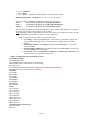
Note: do not skip this step. It returns the printer to the original factory default settings, and ensures that you
are starting from a “clean slate” when making the configuration settings described below. Skipping this step will
result in unexpected behavior of the printer.
1.
2.
3.
4.
5.
Plug in the printer power cord.
Power on the printer and load paper or stock.
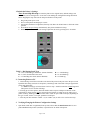
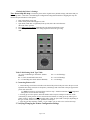
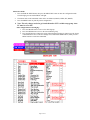
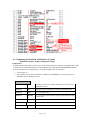
Open Panel (small door on right hand, front top side). Place the "Print Features”
dial in the "Host” position
Press Menu+Accept+Change simultaneously (the printer should emit a beep).
Return the print features dial to the setting required for the stock type being
used.
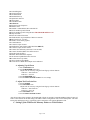
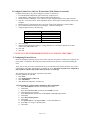
Table 5: Dial Setting Stock Type Table
A = 3.25" Cardboard Type ATB Stock. (Burster
Enabled)
B = 7" (TAT) Transitional Ticket Stock
C = 3.5" Boarding Pass Stock. (Burster Enabled)
D = 11" LLI/Hardcopy
E = 14" LLI/Hardcopy
F = 12" Hardcopy
2. Connecting Printer to PC
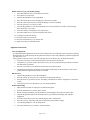
1. Attach the large end of the serial cable to the back of the printer in the port next to the power cord.
If parallel cable being used (not a ticket printer), attach larger end of the cable to the port opposite the
power cord on the back.
(** NOTE: If setting up as Ticket Printer. Refer to step 7. Parallel connection is NOT supported
when printer is to be used for ticketing!)
2. If setting up as a ticket printer, attach the smaller end to an open COM port on the back of the
workstation pc (ticket printers must be connected to Serial Ports). If setting up as any other type of
printer (itinerary, hardcopy) attach the smaller end to either an open COM or LPT port, depending on
the type of cable, serial to a com port, parallel to an LPT port.
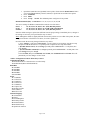
3. Note the port name cabled to: COM1 = (A) or COM2 = (B), or LPT1 to be used in a later step.
3. Verifying/Changing the Printer Configuration Settings
Page 8 of 23