1
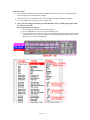
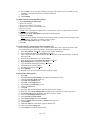
4G#MK
4G#ME
4G#ML
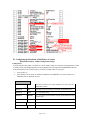
Access HELP 4G and INFO 4G in the mainframe help system for additional information and
specific inputs to update the AIR table.
2. Pocket Itinerary Settings – Genicom 1600 Printer
The CAP field in the AIR table must be set to 003G, in order to print Pocket Itineraries.
The EZ Options field must be updated to include P for Pocket Itinerary, if used.
If these are not set correctly, contact the Worldspan Technical Support Center (TSC) to have set.
3. Ticket and Invoice Number Tables
The ticket number table (4GS) for the ticket printer (whose address is the dial-in printer queue’s
address) must be updated with the proper Stock Control Numbers (SCNs).
The invoice number table (4GI) for the itinerary/invoice printer (whose address is the dial-in printer
queue’s address) must be updated with the proper invoice numbers.
4. E-Pricing Accesses
The DIAL PP AUTH field must be set to the number of agents expected to be using E-Pricing (Power
Products) at the same time, typically the same as the number of workstations associated with the SID
(at the base office and offsite). This is accomplished through activation inputs.
See INFO 4PLIACT for information on activation inputs. Move Down (MD) several times, and
look for the line DIAL-IN USERS - ALL TIERS AVAILABLE, for information specific to dialin (Internet) connections to Worldspan.
See HELP 4PLIACT for specific inputs. Move Down (MD) to the inputs for DIAL IN USER.
The number of activations must not exceed DIAL PP AUTH setting in the AIR table. If the number of
activations exceeds the number of authorizations, contact your Worldspan representative to have the
number of authorizations increased.
M. Accounting System File Settings (Back Office Accounting setup for Go! Res)
This installation document will assume the agency location is already set up with the hardware, servers, and
connections to properly operate the accounting system which it uses. This document does not cover the
initial installation and configuration of accounting systems, only the changes which are necessary to
accommodate a transition to Go! via the Internet/LAN.
1. Logair.DAT File Location (Go! Res setup)
The file Logair.DAT collects the individual TAIR messages generated by host ticketing transactions.
The back office accounting systems read this file in order to get the financial data from ticketing
transactions.
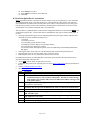
1. Determine the back office set. On that PC, while logged into Go! Res
2. Select Tools on the Navigation bar.
3. Click Printer Configuration.
4. Select printer queue number 5
5. Click the Add button
6. Select a market. (North and South America, or European, Middle Eastern, Africa and Asia)
7. Select Print to File.
8. Click OK to accept the default location
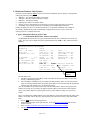
9. Go down to the Windows task bar and click on Start, then click on My Computer.
10. Double click on C drive.
11. Double click on the Wspan folder
12. Double click on the HostPrt folder
13. Right click on the Tairs folder
14. Click Sharing and Security…
15. Click to check Share this folder on the network.
16. Click OK.
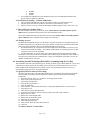
To connect other PC’s in the Office:
Page 21 of 23