1
1640XL.book Page 30 Wednesday, November 19, 2003 8:46 PM
Windows XP
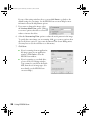
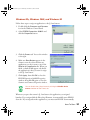
Follow these steps to assign an application to the a Start button on the scanner:
1. Click the Windows Start button, then click
My Computer.
2. Right-click the EPSON Expression 1640XL
icon, and then click Properties.
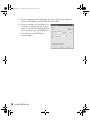
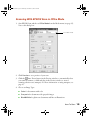
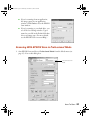
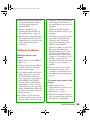
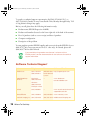
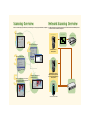
3. Click the Events tab. You see the window to
the right.
4. Make sure the Start Button is selected in the
Select an event box.
5. Click Start this program and select a
program from the list.
If the Start this program option is grayed out, start the application
you want to assign to the Start button, and then follow these steps
again.
You can disable the a Start button by clicking the Take no action
checkbox on the Events tab.
6. Click OK to close the dialog box.
Whenever you press the scanner’s a Start button, the application you assigned
launches. If you assigned Adobe Photoshop Elements, it automatically starts EPSON
Scan and Photoshop Elements. If you assigned another application, you must start
EPSON Scan manually.
30
Using the a Start Button