1
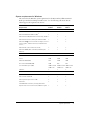
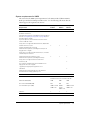
Edition
Operating systems
Macromedia JRun 4
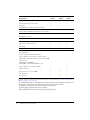
Windows NT 4.0 Server SP6A
Windows 2000 Professional SP2
Windows 2000 Server SP2
Windows 2000 Advanced Server SP3
Windows XP Professional
Windows 2003
Red Hat Linux 7.2, 7.3, 8.0, 9.0
RedHat Advanced Server 2.1
SuSE Linux 7.3
Turbo Linux 8 (JA only)
Solaris 7, 8, 9
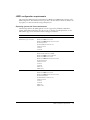
Sun ONE Application Server 7 Windows NT 4.0 Server SP6A
Windows 2000 Server SP2
Windows 2000 Advanced Server SP2
Windows XP
Red Hat Linux 7.2, 7.3
Solaris 8
Solaris 9
To use third-party JDBC type 4 drivers, see “Connecting to an external JDBC Type 4 data
source” on page 65. The installation instructions also describe how to provide ODBC database
support on Windows.
Installation considerations
This section lists considerations for installing or upgrading to ColdFusion MX 6.1.
Note: To use VisiBroker for CORBA connections in ColdFusion MX, see “Enabling CORBA
support” on page 60. To install ClusterCATS, see Using ClusterCATS.
Installation considerations for all platforms
The following are installation considerations for all platforms:
• Macromedia supports upgrading to ColdFusion MX 6.1 from ColdFusion MX (the
•
•
•
16
installation functions as an updater), ColdFusion 4.5, and ColdFusion 5. If you are upgrading,
you must back up your existing ColdFusion applications first.
If you have previously installed a Beta version of ColdFusion MX 6.1, you must uninstall it
before you install the release version.
Macromedia recommends using the built-in (internal port-based) web server for development,
but not in a production environment.
If you have ColdFusion 4.5 or 5 installed on your computer, you can upgrade to ColdFusion
MX (which disables ColdFusion 4.5 or 5), or you can install ColdFusion MX separately, in coexist mode. If you install ColdFusion MX separately, your ColdFusion 5 installation remains
the same and ColdFusion MX installs with its built-in web server. This is because ColdFusion
MX and ColdFusion 5 cannot use the same web server.
Chapter 1: Essential Information