1
GParted
WinPE,
Ultimate Boot CD
BartPE
This is an extremely powerful tool, especially to the IT professional who has to work on a
range of systems that may not have working optical drives, or simply doesn't want to carry
10+ discs around with them at all times.
Over the next few posts, I will give instructions on how to create these bootable USB drives.
The majority of these instructions come from various sources on the Internet, mainly the
forums at msfn.org. I will list the sources I used as I go along, although I apologise in
advance if I do not credit somebody for their work - I do not recall where I got all of the
information from. So, that's the preamble and scenario dealt with; onto the guide!
Part one: prepare the USB drive
Essential items & software for this step:
A USB drive (either flash memory or external hard drive - either will work) large enough to
hold your OS installers and/or tools. In this example, I am going to use a 4GB flash drive.
The HP USB Disk Storage Format Tool - available from here and various other sources on the
Internet.
Time - at least 15 minutes for this step
There are certain things you must do to prepare your USB drive for booting. The first is to
format it correctly, and the method to do this varies depending on the type of drive you are
using. If you are using a flash memory drive the easiest way to do format it is to use the HP
USB Disk Storage Format Tool. If you are using an external hard disk drive, you can format it
using Disk Management in the Computer Management MMC.
Obviously, formatting your drive will destroy any data currently stored on it, so if you want
to keep that data make sure you transfer it somewhere before you proceed. I do not want
to be blamed for any loss of important data, no matter how obvious this should be!
Part 1.1a - Format your USB flash drive
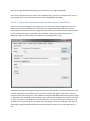
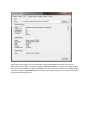
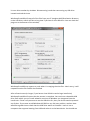
Connect your USB drive and then launch the HP USB Disk Storage Format Tool. You should
see a list of all of the removable drives on your computer. Unless you have more than one
USB drive connected, or a card reader, you should see that your USB drive is the only device
in the Device list and is already selected. If not, select the correct drive now. Under File