1
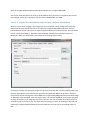
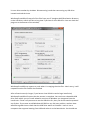
system select NTFS. Change the Volume label to Multiboot or something similar, to make
identification easier later. Finally, tick the Quick Format option. The panel should look
something like this:
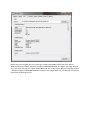
Click Start to accept these settings, and when prompted click Yes to confirm that you want
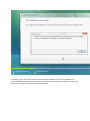
to proceed with the format. After a few moments, the format should be completed and you
will be shown various information regarding the volume serial number, how many bytes are
available etc.. Click OK and then close the HP USB Disk Storage Format Tool.
Part 1.1b - Format your USB hard disk drive
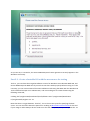
Connect your USB hard disk drive and launch the Disk Management MMC either by opening
Computer Management from the control panel, or running "diskmgmt.msc" from the run
dialogue. You will see a list of all of the drives in your computer, including all of the fixed
ones. Locate your USB hard drive and delete the existing partition(s) on it by right clicking
them and selecting Delete Volume. Although you can use the entire drive as a single large
partition, it makes sorting your data difficult as your personal files will be combined with the
files required for the multiboot - it can get messy very quickly, so it's best to use at least to
partitions. Once you have deleted any existing partitions, right click the empty space and
select New Volume (note - if you are using Windows XP then you will probably see New