1
HD Express Manual Win Page 19 Wednesday, April 13, 2011 4:03 PM
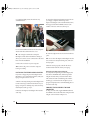
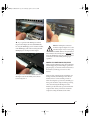
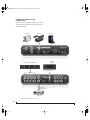
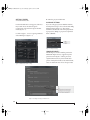
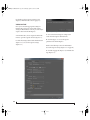
Figure 4-3: Connecting the HD Express to the computer.
☛
If you purchased the HD Express with an
ExpressCard adapter, the included HDMI cable
has a regular HDMI plug at one end and a smaller,
mini-HDMI plug at the other end. Plug the miniHDMI plug into the ExpressCard adapter.
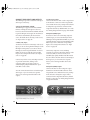
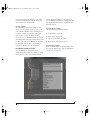
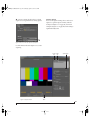
Figure 4-4: Making the connection from the computer to the
HD Express.
☛When making the connection
from the computer (Figure 4-3) to the
interface (Figure 4-4), be sure to plug
the HDMI cable into the jack labeled
PCIe CARD, as shown in Figure 4-4. DO NOT plug
it into the HDMI OUT jack. The computer must be
connected to the PCIe CARD jack for proper
operation.
POWER-UP/POWER-DOWN SEQUENCE
When using the HD Express rack-mount interface
with the laptop ExpressCard adapter, operation is
plug-and-play: you can disconnect and reconnect
the interface, and freely power it on or off as
desired.
2 Plug the other end of the HDMI cable into the
HD Express I/O “PCIe CARD” jack as shown
below in Figure 4-4.
However, when using the PCIe card adapter on a
desktop machine, the HD Express rack-mount
interface must be connected and powered on
before the computer is powered on. Similarly, you
must power down the computer before powering
off or disconnecting the HD Express. If the
interface gets disconnected or powered off before
computer shut-down, you’ll need to restart the
computer to bring the interface back online.
19
INSTALLING THE HD EXPRESS HARDWARE