1
Red Hat CloudForms 2 .0 Management Engine 5.1 Q uick St art G uide
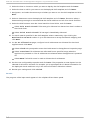
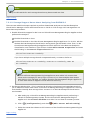
5. Select the host or cluster on which you want to deploy the OVF template and click Next.
6. Select the host on which you want to run the deployed OVF template, and click Next.
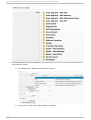
7. Navigate to, and select the resource pool where you want to run the OVF template and click
Next.
8. Select a datastore to store the deployed OVF template, and click Next. Ensure to select a
datastore large enough to accommodate the virtual machine and all of its virtual disk files.
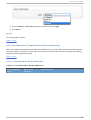
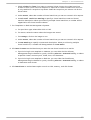
9. Select the disk format to store the virtual machine virtual disks, and click Next.
Select T hi n P ro vi si o ned if tThe storage is allocated on demand as data is written to
the virtual disks.
Select T hi ck P ro vi si o ned if all storage is immediately allocated.
10. For each network specified in the OVF template, select a network by right-clicking the
D esti nati o n Netwo rk column in your infrastructure to set up the network mapping and
click Next.
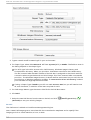
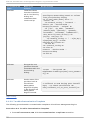
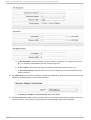
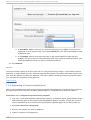
11. On the IP Al l o cati o n page, configure how IP addresses are allocated for the virtual
appliance and click Next.
Select Fi xed to be prompted to enter the IP addresses in the Appliance Properties page.
Select T ransi ent if IP addresses are allocated from a specified range when the
appliance is powered on. The IP addresses are released when the appliance is powered
off.
Select D HC P if a D HCP server is used to allocate the IP addresses.
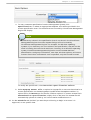
12. Set the user-configurable properties and click Next. The properties to enter depend on the
selected IP allocation scheme. For example, you are prompted for IP related information for
the deployed virtual machines only in the case of a fixed IP allocation scheme.
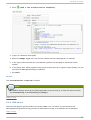
13. Review your settings and click Fi ni sh.
R esu lt :
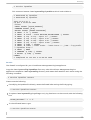
The progress of the import task appears in the vSphere Client Status panel.
14