1
3.5.2 Pinging the DUT
When pinging a DUT such as a
phone or other type of wireless
appliance, it's important to note that
you can log a DUT Ping because the
data travels through the RF link. Set
the observation point to IP, start
logging, and then perform the ping
below.
1. Press the Ping Setup (F1) key
again.
2. In the Ping Setup table set the
device to Ping to DUT. Because
it may take a phone over five
seconds to respond, set the
Ping Timeout Value to ten
(seconds).
3. Verify that the test set's active
cell field indicates “Attached”.
4. Press the phone’s Menu key
briefly.
30
5. When the display shows
“Access Internet / Select?”,
press the OK key to select.
6. Hold down the Menu key for
about three seconds and
release. On the test set, in the
bottom center of the display,
the active cell box should show
“PDP Active” or“Transferring”.
This is required in order to
ping. (Note: “PDP Active” is the
same as “PDP_Context Active”.)
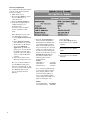
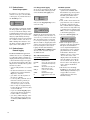
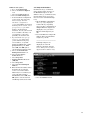
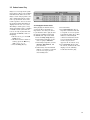
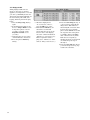
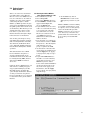
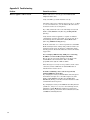
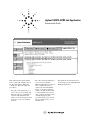
7. Press the Start Ping (F3) key. A
correct response looks like the
image above. This indicates a
functioning IP connection exists
between the test set and the
phone via the RF link. Note that
the response time of the phone
is variable. (Ignore any GPRS
data connection errors.) If the
DUT does not respond, try
turning the phone off, then back
on and then repeat steps 4
through 7.
8. Press the Stop Ping (F3) key. If
you started a protocol log, stop
it and look at the data.