1
2-Button Panic Keys
The Panic key function of the keypads allows
users to send Panic, Emergency, or Fire reports
to the central station. The user must press and
hold the two Select keys for two seconds until
a beep from the keypad is heard. At the beep,
the panel sends an alarm report to the central
station with the following zone numbers:
19 = Panic, 29 = non-medical Emergency, and 39 = Fire.
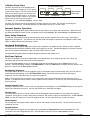
Top Row Select Keys
Police
Emergency
Label shows
icons only
Fire
Figure 2: Panic Key Label
The Panic key function must be programmed if the Panic keys are to be used. See the back of this page for
programming instructions. Install the supplied icon label below the top row of Select keys.
Internal Speaker Operation
The 690/790 keypad speaker emits standard tones for key presses, entry delay, and system alerts. When used with
the XR200 Command Processor™ Panel, the speaker also provides burglary, fire, zone monitor, and prewarn tones.
Entry Delay Prewarns
The 690 and 790 keypads provide an alternative entry delay prewarn cadence that occurs when a zone alarm is
displayed in the status list. This function only operates when the keypad is connected to an XRSuper6, XR20, XR40,
XR200, or XR200-485 Command Processor™ panel.
Keyboard Backlighting
The keyboard on the 690/790 lights every time a key is pressed or the speaker sounds. During an alarm condition,
the keyboard also illuminates in Red to visually alert people on the site. The Red backlighting is turned off when all
areas in the system are disarmed or when the Sensor Reset function is used.
The keyboard backlighting dims to medium brightness whenever the speaker is on.
End-User Options
The 690/790 keypads provide three adjustments to the keypad that can be made by the end-user. Below is a
description the options and instructions on their operation.
To access the User Options portion of the keypad, press and hold the Back Arrow and COMMAND keys for two
seconds. The keypad display changes to SET BRIGHTNESS. Press the COMMAND key to display the next option or the
Back Arrow key to exit the User Options function.
Backlighting Brightness
This option allows the user to set the brightness level of the keypad's Liquid Crystal Display (LCD), AC LED, and the
Green keyboard backlighting. At the SET BRIGHTNESS display, use the left Select key to lower the keypad
brightness. Use the right Select key to increase the brightness.
Note: If the brightness level is lowered, it will temporarily revert back to maximum intensity whenever a key is
pressed. If no keys have been pressed, and the speaker has not sounded for 30 seconds, the user selected brightness
level is restored.
Internal Speaker Tone
This option allows the user to set the tone of the keypad's internal speaker. At the SET TONE display, use the top left
Select key to make the tone lower. Use the right Select key to make the tone higher.
Volume level
This option allows the user to set the volume level of the keypad's internal speaker for key presses and prewarn
conditions. During alarm, trouble, and prewarn conditions, the volume is always at maximum level. At SET VOLUME
LEVEL, use the left Select key to lower the keypad volume. Use the right Select key to raise the volume.
Model Number
The LCD displays the keypad's model number as well as the firmware version and date. The information cannot be
changed by the user.
Keypad Address
The LCD displays the keypad's current address as programmed the Keypad Address option discussed below. The
information cannot be changed by the user. Press the Back Arrow key to exit the User Options function.
690/790 Keypad Installation Sheet
2
Digital Monitoring Products