1
LAN/WAN Destination Library Operations
The following sections describe the destination library operations for LAN/WAN libraries available
to the user.
Several operations also apply to SAN destination libraries and are explained in SAN Destination
Library Operations:
• “Monitoring Destination Library Status” on page 95
• “Placing a Library Offline or Online” on page 99
• “Forcing a Replication Job” on page 99
Exporting Data to Physical tapes for Tape Initialization
NOTE:
Before beginning the export process, verify that the physical tape library exporting the data uses the
same number of barcode characters as the physical tape library that will import the data. If the
barcodes do not match exactly, the import process will not work. See your tape library user manuals
for information on checking and configuring the number of barcode characters used.
1.
Create a LAN/WAN replication target on the remote site. See “Creating a LAN/WAN Replication
Target” on page 107.
2.
Create a virtual library on the source site. See “Creating a Virtual Library” on page 160.
3.
On the source site, create an echo copy pool on the newly created LAN/WAN replication target.
See “Creating an Echo Copy Pool” on page 82. Be sure to check the “Initialize via Tape Transport”
box.
4.
From the Copy Pools screen, select the newly created copy pool to open the Echo Copy Pool
Details screen. Note that the state of the copy pool is “Awaiting Initialization.”
5.
Allow your regularly scheduled full backups to complete. Cartridges that need to be transported
via physical tape become “Out of sync.”
6.
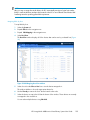
From the task bar, select Initiate Tape Transport. The Create Tape Export Pool screen opens.
7.
From the SAN Automigration Library list, select the physical library from which you want to copy
the tapes.
8.
Enter a Start and End Slot from the available slot range.
9.
Select Submit. The status of the copy pool changes to “Exporting.”
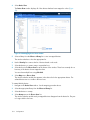
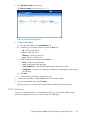
10. From the navigation tree, select Import/Export Pools, and then select the newly created export
pool to see the Tape Export Pool Details screen.
The data from the selected library slots is copying to the physical tapes. When the data has
finished exporting to the tapes, the status of the copy pool changes to “Importing.” The screen
prompts you to load empty tapes and unload full tapes as needed.
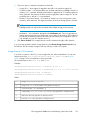
11. Once the export is finished, select Import Handling Instructions from the task bar. This produces
information needed for the data import process. Print this information and ship it to the remote
location with the physical tapes.
HP StorageWorks 6000–series Virtual Library System User Guide
105