1
To avoid accidentally recording over program
material, experiment with Assemble and Insert
modes on a dispensable tape to familiarize yourself with the edit capabilities of your deck.
Assemble mode replaces all the elements on
the target tape deck—audio, video and time
code. Use this mode with caution.
Rules for On-Screen Selections
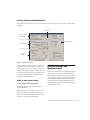
The Record Protocol buttons allow you to
choose between the two different record protocol choices described above (Auto Edit and
Punch In/Punch Out). Regardless of which
choice is used, however, Pro Tools follows these
rules for record selection:
If there is an on-screen selection, recording
will take place over the period of the selection
and punch out at the end of the selection.
◆
If pre- or post-roll is enabled, recording takes
place only in the selection area, not during preor post-roll.
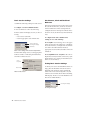
Arming Tracks Remotely for
Layback
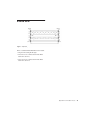
To arm tracks remotely for layback, you need to
first configure Track Arming for your machine.
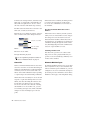
To configure Track Arming:
1 Make sure your machine is properly con-
nected and configured to slave to Pro Tools.
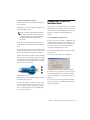
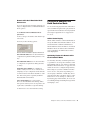
2 Open the Track Arming window.
3 Select a Record Protocol (Auto Edit or Punch
In/Out).
4 Select a Record mode (Insert or Assemble).
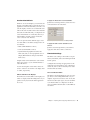
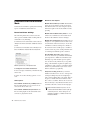
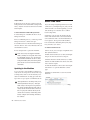
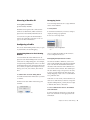
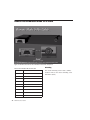
Once the Track Arming options are configured, you can change the Track Arming
window to “small view” and still see the
track arm buttons.
◆
If there is no selection (only a start location),
recording will continue until it is manually
stopped.
◆
If you make a selection in Pro Tools that
crosses the “midnight” boundary (00:00:00:00),
make sure your deck can handle this situation.
Experiment with a dispensable tape to familiarize yourself with the crossover capabilities of
your deck.
To perform a layback:
1 In Pro Tools, select the audio to lay back, or
place the playback cursor at a start point.
2 In the Remote Track Arming window, arm the
appropriate tracks on the machine.
◆
3 Select Transport > Machine in the Pro Tools
Transport window.
4 Make sure the Pro Tools Transport is online.
5 Click Record in the Transport window to arm
recording.
6 Click Play in the Transport window.
Your machine will cue to the selection start minus all relevant pre-roll, then begin to play back.
Pro Tools will then sync to the deck, and the target deck will record as determined by your settings for Record Protocol and Record mode. If
you did not create an on-screen selection, deck
recording will continue until you manually stop
playback.
Chapter 5: Remote Track Arming
33