1
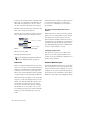
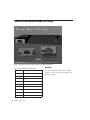
Transport = Pro Tools
Transport = Remote (or Remote LTC)
In this mode, the controls in the Transport window are focused on Pro Tools playback and recording.
◆ In Remote 9-Pin Deck Emulation mode, when
the transport is online, Pro Tools responds to
commands sent by the master 9-Pin machine.
Many Pro Tools commands, including transport
controls, are inactive.
◆ When the transport is online, the machine
slaves to Pro Tools, and the session locks to the
machine’s time code. The machine follows Preferences for Machine Chase and Online Record
(see “Record and Chase Settings” on page 16).
◆ When the transport is offline, the Pro Tools
Transport window controls Pro Tools only.
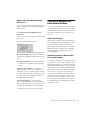
Transport = Machine
In this mode, the controls in the Transport window are focused on the machine connected and
enabled for Serial Control mode. Record commands are sent to the machine only.
◆ When the transport is online, Pro Tools slaves
to the machine. The Pro Tools Transport controls the machine, and Pro Tools chases and
locks to the machine.
In addition, when Auto Spot is turned on, regions are spotted to the current machine time,
and the Trimmer tool trims to the current machine time.
Refer to the Pro Tools Reference Guide for
details on Auto Spotting.
When the transport is offline, the Pro Tools
Transport window controls the machine only.
◆
Toggling the Transport while Online
When the transport is online, toggling the
Transport Master selector between Pro Tools
and your machine will also toggle their master/slave relationship.
Pro Tools can generate time code, or chase LTC
when online in Remote 9-Pin Deck Emulation
mode.
◆ In Remote 9-Pin Deck Emulation mode, when
the transport is offline, Pro Tools operates in Local mode and ignores commands from the 9-pin
master. Pro Tools responds only to requests from
the 9-pin master for machine type and status,
and responds that it is in Local mode.
For more information, see Chapter 4, “Remote
9-Pin Deck Emulation Mode.”
Using the Transport
To play or cue your machine independently of
Pro Tools:
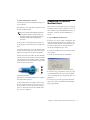
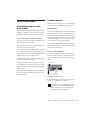
1 Select Transport > Machine in the Pro Tools
Transport window.
2 Make sure Pro Tools is not online (the Online
button in the Transport window is not flashing).
3 Click any of the buttons in the Pro Tools
Transport window to control your machine.
Pro Tools always displays incoming LTC or 9pin time in the Incoming Time field during fastwind, and switches during playback to display
the current positional reference.
To synchronize Pro Tools and machine playback
from the Pro Tools Transport:
1 Select Transport > Pro Tools in the Pro Tools
Transport window.
2 Put Pro Tools online.
18
MachineControl Guide