1
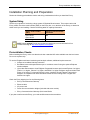
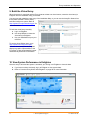
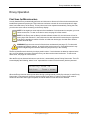
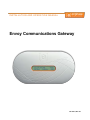
Envoy Installation and Operation Installation Planning and Preparation Review the following preinstallation checks and sizing considerations before you install the Envoy. System Sizing The Envoy is capable of monitoring a large system of Enphase Microinverters. This number varies with Envoy model. Check the model number (SKU) on the Envoy box, or on the back of the Envoy, to determine which model you are installing. Check the following table for capacity information: Envoy model number (SKU) Number of microinverters monitored ENV-120-01 ENV-120-02 600 IEMU-03 (previous model) 250 NOTE: When multiple Envoys are required at a single site, see our technical brief on commercial design at http://www.enphase.com/support. Preinstallation Checks Before installing the Envoy, make sure that the site has a standard AC outlet available near the load center. Do not use a power strip. To use the Enlighten web-based monitoring and analysis software, additional requirements are: Always-on broadband Internet connection Broadband router with spare Ethernet port or a wireless router if using the optional Enphase wireless adapter. Up-to-date web browser to view Enlighten. Supported browsers are Internet Explorer 8 or higher, Firefox 11 or higher, Chrome 5 or higher, and Safari 5 or higher. Enlighten requires Adobe Flash Player 10 or higher. For Internet Explorer 8 users, install the Google Chrome Frame plug-in. Enlighten is compatible with Internet-enabled mobile devices running iOS 5 or higher and Android 4 or higher. Check the Envoy shipping box for the following items: Envoy Communications Gateway Ethernet cable AC power cord Power line communication bridges (included with some models) Envoy Communications Gateway Quick Install Guide If you plan to wall-mount the Envoy, you need two #8 screws and a screwdriver. 8 2014 Enphase Energy Inc. 141-00011 Rev 05