1
The
BandLuxe
C180
User
Series
Manual
PN: 65004900031 Rev.B
Contents
Chapter 1
Getting Started
3
Chapter 2
Connecting
8
Chapter 3
SMS
11
Chapter 4
Settings
13
Chapter 5
Statistics & Information
16
Chapter 6
Q&A
18
Chapter 7
Important Safety Information and
Glossary
21
The BandLuxe C180 Series
Chapter 1
Getting Started
4
Chapter 1 Getting
Started
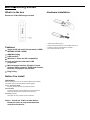
What’s in the box
Hardware Installation
BandLuxe C180 USB dongle modem
1. Remove the USB cap. (fig.1)
2. Follow the arrow direction to insert the SIM card. (fig. 2)
Features
●
●
●
●
●
●
●
Supports 2G, 3G and 3.5G standards ( HSPA /
WCDMA / EDGE / GPRS )
SMS Messaging
USB Interface
Windows 7, Vista and XP compatibility
Does not interfere with other USB
peripherals
Multi language interface (English, French,
German, Italian, Spanish, Traditional Chinese,
Russian, Portuguese and Finnish)
Plug & Play
Before You Install
Information
Before installing the C180, we recommend obtaining the following
information from the SIM Card Mobile network operator:
Access Point Name (APN)
- For many carriers, the APN may simply be Internet.
Phone Number
- The Phone Number to dial to establish a network connection.
BandLuxe software helps input this number correctly.
Password (Optional)
- Some (but not many) carriers require a password.
Notice: BandLuxe C180 is a radio device.
Please be aware to keep metal materials
away from the device.
3. Insert the C180 into the USB port of computer.
4. The LED should light up solid.
5
Chapter 1 Getting
Started
Software Installation
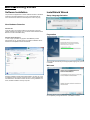
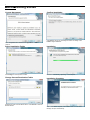
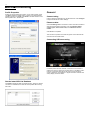
InstallShield Wizard
The process and appearance of certain software elements in Windows
Vista will be somewhat different than in XP. These differences are
minor and should not limit the functionality of the C180 in any way.
Setup Language Selection
New Hardware Detection
Windows XP
Once the C180 is connected, a dialog box should pop up from the
Toolbar Hardware Connection Icon. The device will be identified as the
BandLuxe C180 3.5G HSDPA Utility.
Preparation
Windows Vista/ Windows 7
In Vista, a pop-up window may appear. Click Allow to proceed.
After the first pop-up, all other aspects for software installation will be
identical in all compatible versions of Windows.
The C180 will automatically use the appropriate language for your OS,
if available.
Welcome
Software installation should proceed automatically. If it does not, it may
be initiated from My Computer, where the C180 will be identified as a
CD-ROM device. Sometimes a restart will occur during installation. If it
does, reinitiate installation from My Computer.
The Setup Wizard window opens automatically. The first page contains
OS compatibility and legal disclaimers. Click Next to continue.
6
Chapter 1 Getting
Started
License Agreement
Click I accept the terms in the license agreement > Next to
continue.
Confirm Installation
Click Back to change any preceding information or settings. Click
Install to begin installation.
Select Installation Folder
Installation
Click Change to manually select a folder.
Installation time will vary, depending on the computer.
Change Current Destination Folder
Installation Complete
Highlight the folder and click OK to select it. Click Cancel to close the
Browse window.
When installation is complete, click Finish to exit. The Connection
Manager will open automatically.
7
Chapter 1 Getting
Started
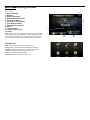
Home Screen
1. Signal Strength
2. Minimize
3. Radio Technology
4. Mobile Network Operator
5. Connection Status
6. Connection Time Elapse
7. Total Data Uploaded
8. Total Data Downloaded
9. Menu
10. Home Screen
11. Connect/Disconnect
12. Close
Note: The Home screen only indicates 3G (internet) connection status.
After installation, the C180 automatically initiates 2G (SMS) functions
upon successful connection to the computer. Text messages can be
sent or received, even if the Home screen indicates no connection.
Menu Screen
SMS: Text message folders such as Inbox, Draft, etc.
Setting: General, SMS, SIM, Radio and Network preferences.
Statistics: Upload/Download graphs, totals and connection log.
Contacts: C180, SIM Card and Outlook Contact lists.
Profile: Connection profile setup/options.
Information: Device, Version and USSD, STK.
1
2 12
3
4
5
6
8
7
9
10
11
The BandLuxe C180 Series
Chapter 2
Connecting
9
Chapter 2 Connecting
Establishing a Connection
With the C180 fully installed, an online connection can now be made.
The C180 will automatically scan your system and create a default
profile, which should work in the vast majority of cases. To test it,
simply click the Connect button.
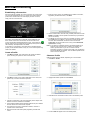
7. Enter the phone number for establishing the wireless connection,
supplied by the SIM card carrier; click Save.
8. On the Profile window, click the newly created profile and then click
Default. Click OK to set this profile as the default (only the default
can be connected).
Connection should take about 5 seconds. When established, the
Home screen should show Connected, with the onscreen clock
running and the Download/Upload tallies running. The toolbar icon
will also change color to indicate the connection protocol (same as
LED indicator). See Specifications for details.
If connection is unsuccessful, check if the device and SIM card are
properly connected and inserted. If they are, a new internet profile may
need to be created.
Create a Profile
1. Click Menu > Profile. The profile menu will contain the default
profile, showing the operator's name of the SIM card.
9. The BandLuxe C180 is now ready for a wireless connection. Click
the Connect icon to establish it. Connection should take about 5
seconds. When established, the Home screen should show
Connected, with the onscreen clock running and the Download/
Upload tallies counting.
Note: If you switch to a different SIM card, the default profile will no
longer be valid. You will have to create a new profile in the
manner just described. If you can not access to all the
information necessary to create a new profile, just uninstall and
reinstall the BandLuxe software. The new default profile should
work for the new SIM card.
Choose a Profile
Different profiles may be needed, depending on current location.
1. Click Menu > Profile.
2. Click New to create a new profile. Depending on the carrier, all 5
spaces may not need to be filled to proceed.
2. Highlight the desired profile and click Default.
3. Click OK on the confirmation window if this is the desired profile.
3. Choose a Profile Name. The name is arbitrary and is helpful when
different connection methods are available.
4. Inquire with the Mobile network operator (SIM carrier) as to whether
the User Name and Password are required.
5. The Password can be any combination of letters, numbers or
symbols and is case sensitive.
6. Enter the Access Point Name (APN) supplied by the SIM card
carrier.
4. The word YES will appear next to the default profile.
10
Chapter 2 Connecting
Profile Properties
General
Profiles can be fine tuned after creation. In the Profile window, simply
click Edit to adjust the default profile. To adjust a non-default profile,
highlight it and then click Edit. Click Detail on the Edit window to view
the Properties menu, General Tab.
Connect using
If other modems are available, they will be listed here. Click Configure
to adjust the BandLuxe modem settings.
Phone number
Check Use dialing rules to access the Location Information window to
add more specific dialing information such as tone/pulse dialing,
current region, area & carrier code, and outside line access
number.
Click OK when completed.
This and other Properties menu tabs are generic to the Windows OS
and will not be discussed further.
Connecting & Disconnecting
If a default profile has been selected, a connection can be made or
ended at any time by clicking the Connect button on the Menu screen.
However, connection status will not be obvious unless the Home
screen is displayed. The Statistics or Signal Information windows also
clearly display connection status.
Get the latest APN List Database
The Profile provides the APN List Update function. When the network
connection is established, the APN List will be updated after clicking
this button.
The BandLuxe C180 Series
Chapter 3
SMS
12
Chapter 3 SMS
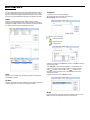
The Connection Manager allows the same standard SMS options as
any other mobile device. Each message stored in the Inbox, Outbox,
Sent and Draft folders displays the Name and Number of the contact,
the body text of the message and the date it was stored in the folder.
Compose
Contains all tools for creating messages.
To: Contains the Phone Number of the recipient.
Message Body: Key in the content.
Inbox
Contains received messages. Save, Delete or Reply to Inbox
messages by highlighting them and pressing the appropriate button.
Highlight a message to make it scroll open above. Unread messages
are closed envelopes while read messages are open.
Press to see contact lists.
- SIM Card Contacts
- Outlook Contacts
- C180 Contacts
Highlight a Contact and click Select to choose it. Click Exit to return to
the Compose screen.
Click Template to view all stored templates, or create/delete one.
Highlight a template and click Select to insert it into the message.
Sent
Click New to create a new template. Click Save to add the new
template to the list of existing ones. Click Cancel to return to the
Template list window.
Highlight a template and click Delete to erase it.
Contains all successfully sent messages. Highlight a message and
press Delete to erase it.
Outbox
Contains completed but unsent messages. Send or Delete messages
by highlighting them and pressing the appropriate button.
Draft
Contains saved but unfinished messages. Highlight a draft and click
Edit to send the message back to the Compose window.
The BandLuxe C180 Series
Chapter 4
Settings
14
Chapter 4 Settings
General
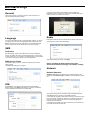
Check Auto connect on startup to have the C180 connect to the
internet automatically during startup.
If a PIN code is enabled, it will be asked for during SIM card
initialization. After 3 incorrect PIN code entries, the SIM card will be
locked. Contact your operator to unlock it.
Language
Radio
The Connection Manager offers multi languages interface. To choose
a language, click the menu and highlight & select a language. Click
Save to implement the chosen language. The Connection Manager
will then return to the Home Screen with the chosen language.
Dual Mode- Features various network search options. Note that 3G
(including 3.5G) First is the default setting.
SMS
Preference
New SMS Notify: Check to be notified when a new text message
arrives. If enabled, the Toolbar Connection Manager Icon will change
to an Envelope Icon. An envelope icon will also appear in the upper left
corner of the Home screen when a new message arrives.
SMS Service Center
Use default number in phone: Uncheck to manually input service
center number.
After making changes to either, click Apply.
Notice: 2G/3G/3.5G data transferring will be
disconnected when you apply new “Radio” setting.
Click Save after making any changes.
Network
Network Selection
Standard (auto) Search for networks in the order specified in the
Prefer list. Click Standard (auto) > Next to view and adjust the Prefer
list.
SIM
Enable/Disable or change the SIM card Personal Identification
Number (PIN). Press Apply after making any changes. A SIM card
must be inserted for this function to be activated.
The top list is the Prefer list; the bottom lists all available networks.
Click Scan to bring up the list of all available networks.
In the Prefer list, highlight a network and click the up arrow to the left to
move it up the list (increase its preference); clicking the down arrow
does the opposite. Clicking the red icon removes the highlighted
network from the Prefer list.
In the bottom list, highlight a network and click the up arrow above to
move that network to the Prefer list.
15
Chapter 4 Settings
If changes are made, click Save.
Manual
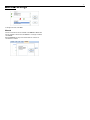
Choose a network from all the available. Click Manual > Next to see
the list. Highlight a network and click Select. If no change is needed,
click Cancel.
Note that Network can only be accessed when the C180 is not
connected to a network.
The BandLuxe C180 Series
Chapter 5
Statistics & Information
17
Chapter 5 Statistics
& Information
Statistics
Information
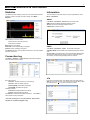
The Statistics screen displays a graph of recent upload and download
activities. If there is no data, the C180 is offline. Click Menu >
Statistics.
The Information screen offers version or signal specifications. Click
Menu > Information.
About
Click Menu > Information > About tab to see version data.
IMEI: International Mobile Equipment Identity number
Version: Connection Manager Software Version
F/W Version: Firmware Version
Time: Elapsed Connection Time
- Returns to zero upon disconnection
- Reset does not affect it
Max: Maximum Throughput
Download: Current Downloading Throughput
USSD
Upload: Current Uploading Throughput
Click Menu > Information > USSD
Click Reset to end the current graphs and start over. This will not affect
the actual connection.
Available USSD: Present USSD code of detected operators via SIM
card.
Connection log
Service Code: Click USSD code in the list of Available USSD section.
The selected USSD code will present in Service Code. After press
Send button, corresponding message will show off below.
tab to USSD information.
Click Menu > Statistics > Connection log to see data counting by
each and total connection status
STK
Each data counting
- DateTime: The date and time of connection log
- Operator: Telecom network operator
- Download(KB): Downloaded Throughput
- Upload(KB): Uploaded Throughput
Total data counting
- Download: Total Downloaded Throughput
- Upload: Total Uploaded Throughput
Click Reload to reload the latest data information.
clear all data counting information
Click Clear to
* The data counting here is only for reference, please check
operator for real data throughput if any.
If the Sim card supports STK, it will display STK menu after clicking
STK tab. Key-in the “item No.” from the menu, then press “OK” to enter
the selected menu. “Å” is to return to the previous layer.
The BandLuxe C180 Series
Chapter 6
Q&A
19
Chapter 6 Q&A
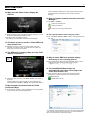
Q: Why does the Home screen display No
Device?
Radio and Network settings are in order, please check the signal
strength indicator in the upper left corner of the Connection
Manager.
Q: How do I import contacts into the Connection
Manager?
A: Click Menu > Contacts >
- Import from the SIM Card.
- Import from Outlook.
- Import from the C180 Contacts folder.
A: Make sure that the C180 is plugged in/inserted correctly. If it is, and
No Device is still displayed, check the LED.
Q: Can I prevent others from using my C180?
If the LED is not lit, the problem could be:
A: Yes. Click Menu > Setting > SIM to enable or change the SIM card
PIN code.
- The USB port is not activated. Check the Device Manager.
Q: The Home screen is stuck on Initial SIM Card,
what should I do?
A: Replug/reconnect the C180. If this does not work, restart the
computer. If this does not work, check the SIM card, which may
have a poor connection or be locked.
Q: The SIM card is working. Why can’t the C180
make a connection?
Signal
Strength
Indicator
Q: Why do some SMS text symbols display
incorrectly on the receiving phone?
A: This is related to the different decoding schemes used by various
mobile phone brands. Known problem symbols include:
~!@#$%^&*()_+`-={}|:“<>?[]\;‘,./
Q: The InstallShield Wizard does not
automatically open when I first plug in the
C180, what should I do?
A: In My Computer, right click on the drive with the Connection
Manager icon and select AutoPlay. This should initiate the
InstallShield Wizard.
A: Check the profile information; click Menu > Profile. See Chapter 2
for details.
BANDLUXE C180 (H:)
If profile settings are in order, the radio or network settings may
need adjustment. Click Menu > Setting. See Chapter 4 for details. If
Q: My computer cannot boot with the C180
connected. Why?
A: As discussed in Chapter 1, during installation the C180 is displayed
in My Computer as a portable storage device.
The computer treats the C180 as if it were a CD drive. Because of this,
your computer may be trying to boot from it, as if it were expecting a
Boot CD. Disconnect the C180 before booting.
20
Chapter 6 Q&A
Q: How do I view the .pdf Quick Start Guide and
User Manual?
A: Click Start > Programs > BandLuxe > BandLuxe HSDPA utility
R11 and choose either document. Both require Adobe Acrobat
6.0+.
Q: The Connection Manager is having troubles
running on Vista. What should I do?
A: You may be having a problem with Vista’s user control functions.
1. Open the Connection Manager folder.
2. Right click CManager.exe > Properties > Compatibility tab.
3. Check Run this program as an administrator.
4. Click Apply > OK.
The BandLuxe C180 Series
Chapter 7
Important Safety
Information and Glossary
22
Chapter 7 Important
Safety Information and Glossary
Safety Information
Regulations
Important Notice
CE Marking
Due to the transmission and reception properties of cellular
communications, data can occasionally be lost or delayed. This can be
due to the variation in radio signal strength that results from changes in
the characteristics of the radio transmission path.
Complies with the essential requirements of Article 3 of the R&TTE
Although data loss is rare, the environment where you operate the
C180 may adversely affect communications. Variations in radio signal
strength are referred to as fading. Fading is caused by several different
factors including signal reflection, the ionosphere, and interference
from other radio channels.
1.
BandRich Inc. or its partners will not be held responsible for damages
of any kind resulting from the delays or errors in data transmitted or
received by the BandLuxe C180, or failure of the BandLuxe C180 to
transmit or receive such data.
1999/5/EC Directive, if used for its intended use and that the following
standards have been applied:
Applied Standard(s):
EN62311: 2008
2.
Safety (Article 3.1(a) of the R&TTE Directive)
Applied Standard(s):
EN 60950-1:2006+A11:2009
IEC 60950-1:2005 (2nd Edition)
BandLuxe™ is a registered trademark of BandRich Inc.
3.
Electromagnetic compatibility (Article 3.1 (b) of the R&TTE
Directive)
Potential Hazards
Applied Standard(s):
Do not operate the BandLuxe C180 in an environment that may be
susceptible to radio interference resulting in danger; specifically:
Areas where prohibited by the law.
- Follow any special rules and regulations and obey all signs and
notices. Always turn off the host device and remove the C180
from the card slot when instructed to do so, or when you suspect
that it may cause interference or danger.
Health (Article 3.1(a) of the R&TTE Directive)
EN 301 489-1 V1.8.1/
EN 301 489-7 V1.3.1/
EN 301 489-24 V1.4.1
4.
Radio frequency spectrum usage (Article 3.2 of the R&TTE
Directive)
Where explosive atmospheres may be present.
- Do not operate your C180 in any area where a potentially
explosive atmosphere may exist. Sparks in such areas could cause
an explosion or fire resulting in bodily injury or even death. Be
aware and comply with all signs and instructions.
All the reports of the applied standards have the Positive Opinion of
-
Users are advised not to operate the C180 while at a refueling point
or service station. Users are reminded to observe restrictions on
the use of radio equipment in fuel depots (fuel storage and
distribution areas), chemical plants or where blasting operations
are in progress.
Notified Body:
Areas with a potentially explosive atmosphere are often but not
always clearly marked. Potential locations can include gas stations,
below deck on boats, chemical transfer or storage facilities,
vehicles using liquefied petroleum gas (such as propane or butane),
areas where the air contains chemicals or particles, such as grain,
dust or metal powders, and any other area where you would
normally be advised to turn off your vehicle engine.
15.21 Federal Communications Commission
(FCC) Statement
-
Near Medical and life support equipment.
- Do not operate your C180 in any area where medical equipment,
life support equipment, or near any equipment that may be
susceptible to any form of radio interference. In such areas, the
host communications device must be turned off. The C180 may
transmit signals that could interfere with this equipment.
On an aircraft, either on the ground or airborne.
- In addition to FAA requirements, many airline regulations state that
you must suspend wireless operations before boarding an airplane.
Please ensure that the host device is turned off and your C180 is
removed from the card slot prior to boarding aircraft in order to
comply with these regulations. The C180 can transmit signals that
could interfere with various onboard systems and controls.
While operating a vehicle.
- The driver or mobile network operator of any vehicle should not
operate a wireless data device while in control of a vehicle. Doing
so will detract from the driver or mobile network operator’s control
and operation of that vehicle. In some countries, operating such
communications devices while in control of a vehicle is an offense.
Applied Standard(s):
EN 301 511 V9.0.2
EN 301 908-1 / -2 V3.2.1
CETECOM, Untertuerkheimer Str. 6 – 10 66117 Saarbruecken
Identification mark:
0682 (Notified Body) CE
You are cautioned that changes or modifications not expressly
approved by the part responsible for compliance could void the user’s
authority to operate the equipment.
15.105(b) Federal Communications
Commission (FCC) Statement
This equipment has been tested and found to comply with the limits for
a Class B digital device, pursuant to part 15 of the FCC rules. These
limits are designed to provide reasonable protection against harmful
interference in a residential installation. This equipment generates,
uses and can radiate radio frequency energy and, if not installed and
used in accordance with the instructions, may cause harmful
interference to radio communications. However, there is no guarantee
that interference will not occur in a particular installation. If this
equipment does cause harmful interference to radio or television
reception, which can be determined by turning the equipment off and
on, the user is encouraged to try to correct the interference by one or
more of the following measures:
-
Reorient or relocate the receiving antenna.
-
Increase the separation between the equipment and receiver.
-
Connect the equipment into an outlet on a circuit different from that
to which the receiver is connected.
-
Consult the dealer or an experienced radio/TV technician for help.
You are cautioned that changes or modifications not expressly
approved by the party responsible for compliance could void your
authority to operate the equipment.
23
Chapter 7 Important
Safety Information and Glossary
Operation is subject to the following two
conditions:
Glossary
2G: Second-generation mobile networking technology. Represents a
switchover from analog to digital; most 2G networks use GSM.
1) this device may not cause interference and
2) this device must accept any interference, including interference that
may cause undesired operation of the device.
3G: Third-generation mobile networking technology that enables
simultaneous transfer of voice and non-voice data; most 3G networks
use WCDMA.
FCC RF Radiation Exposure Statement:
3.5G/ HSPA: A more recent standard of mobile networking technology;
generally uses HSDPA and HSUPA
1. This Transmitter must not be co-located or operating in conjunction
with any other antenna or transmitter.
2. This equipment complies with FCC RF radiation exposure limits set
forth for an uncontrolled environment. This equipment should
be installed and operated with a minimum distance of 0.4
centimeters between the radiator and your body
APN (Access Point Name/Network): Provides GPRS routing
information. Consists of:
Network ID: Identifies the external service requested by a GPRS
user.
Mobile network operator ID: Specifies routing information.
SAR compliance has been established in a laptop computer with side
USB port configuration as tested in this filing, and can be used in
laptop computers with substantially similar physical dimensions,
construction, and electrical and RF characteristics. Compliance of this
device in all final host configurations is the responsibility of the Grantee.
End-users must be provided with specific information required to
satisfy RF exposure compliance for all final host devices.
ARFCN (Absolute Radio Frequency Channel Number): The
specific ID numbers for all radio channels used in cellular mobile
communications.
Max. SAR levels: 0.866 mW/g(1g) in avoid of radio interference,
please do not use this device close to another transmitters.
DHCP (Dynamic Host Configuration Protocol): How devices obtain
IP addresses from a server.
EDGE (Enhanced Data GSM Environment/Enhanced Data for
Global Evolution): Advanced GPRS that delivers multimedia and
other data needing greater bandwidth at up to 237 kbps.
System Requirements
GPRS (General Packet Radio Service): Delivers data in packets at
up to 86 kbps.
Operating System: Windows 7, Vista, Windows XP SP2+
Linux Ubuntu 9.10
GSM (Global System for Mobile Communications): The most
popular cellular network, mostly operates in 850-900 or 1800-1900
MHz; the primary 2G system.
Mac OS X 10.4.x, 10.5.x, 10.6.x or later
Internet Explorer 6.0+
IMEI (International Mobile Equipment Identity): A number unique to
each GSM/UMTS device that can be used block network access by a
stolen mobile device.
LED Indicators
IP (Internet Protocol): Routes packets over a network.
Fast Flash
Searching network
Slow Flash
Camped & registered network
Solid
DNS (Domain Name System): Helps route network traffic by making
the addressing process more user-friendly.
DUN (Dial-Up Network): Windows component that enables online
access via a modem.
Specifications
Web Browser:
bps (bits per second): How data flow is measured.
HSDPA (High Speed Downlink Packet Access): Advanced WCDMA
that delivers downlink bandwidth intensive data at up to 7.2Mbps;
typically associated with 3.5G.
Connected
HSUPA (High Speed Uplink Packet Access): Advanced WCDMA
that delivers uplink bandwidth intensive data at up to 5.76Mbps;
typically associated with 3.75G.
Hardware
Dimensions:
86 x 24 x9.8 mm Typical
Kbps (Kilobits per second): A data flow measure; 1024 bits/second.
Weight:
16.4g
LAN (Local Area Network): A data network with limited range but
good bandwidth.
Onboard Memory: 64 MB NAND Flash & 32 MB SDRAM
GSM Bands:
Mbps (Megabits per second): A data flow measure; 1,048,576
bits/second.
850, 900, 1800, 1900
UMTS Bands:
UMTS Band
PPP (Point-to-Point Protocol): An internet connection method.
C180
C185
C188
C189
2100
850/1900
850/2100
900/2100
PIN (Personal Identity Number): Four to eight digital numbers SIM
card security code; allows access to the carrier’s network.
Rx: Shorthand for Reception.
SIM (Subscriber Identity Module): A small card that contains key
mobile device identification, subscription and contact information.
Connectivity
Internet:
DUN
Data Speed
in bps:
Downlink: 3.6Mbps (Max)
Uplink: 384kbps
Radio/Band Selection: 3/3.5G: 2100 Only or 850+1900 or 900+2100
or 850+2100
2G: EU+Asia (900/1800), US (850/1900)
IP Settings:
APN, DNS, DHCP vs. Static, Radius
SMS (Short Messaging Service): Allows text messages of up to 160
characters.
Tx: Shorthand for Transmission.
UMTS: Universal Mobile Telecommunications System
the third-generation (3G) cell phone technologies
is one of
WCDMA (Wideband Code Division Multiple Access): Advanced
EDGE that supports 384kbps data flow. Most 3G networks use this
standard; aka UMTS.