1
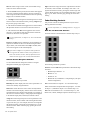
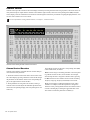
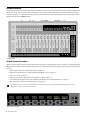
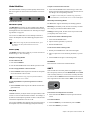
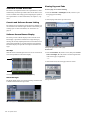
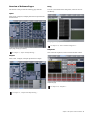
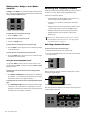
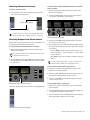
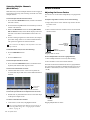
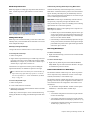
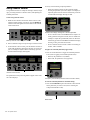
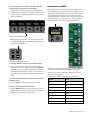
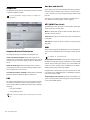
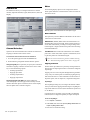
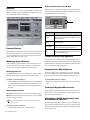
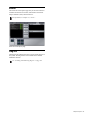
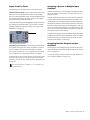
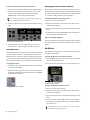
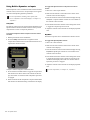
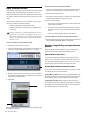
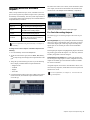
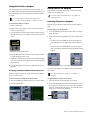
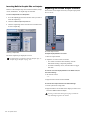
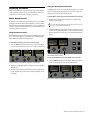
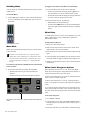
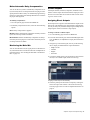
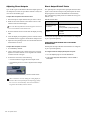
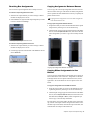
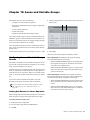
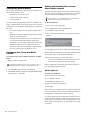
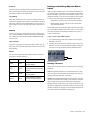
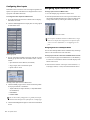
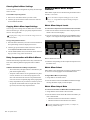
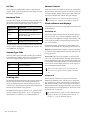
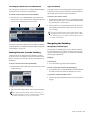
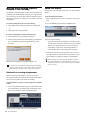
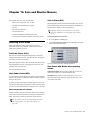
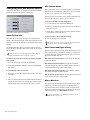
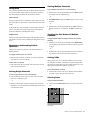
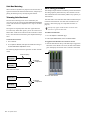
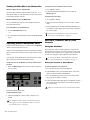
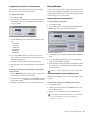
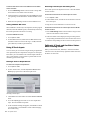
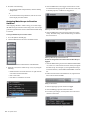
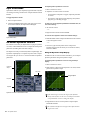
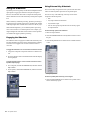
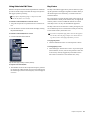
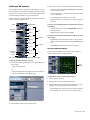
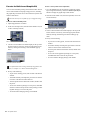
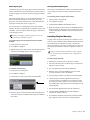
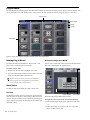
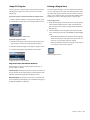
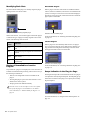
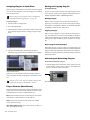
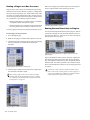
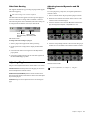
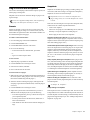
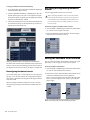
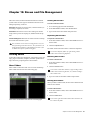
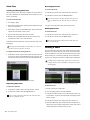
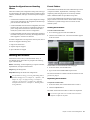
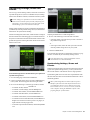
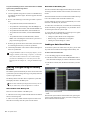
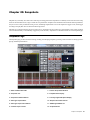
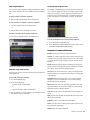
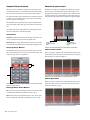
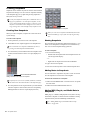
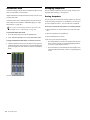
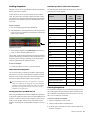
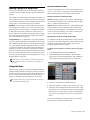
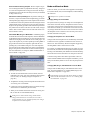
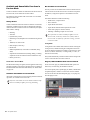
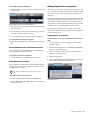
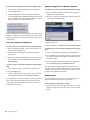
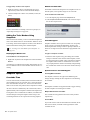
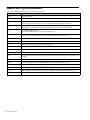
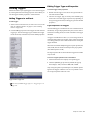
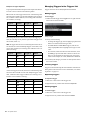
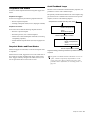
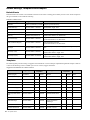
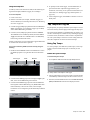
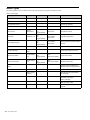
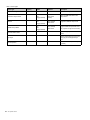
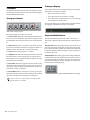
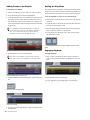
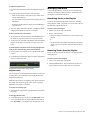
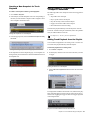
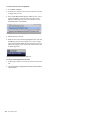
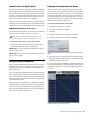
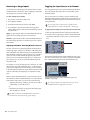
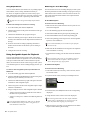
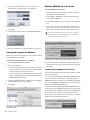
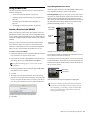
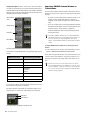
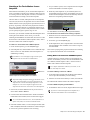
Main and Recall Safe Tabs Recall Buttons The Snapshots page provides Main and Recall Safe tabs. The Recall Previous (–) and Recall Next (+) buttons at the top of the Snapshots list cause the previous or next snapshot in the list to be targeted and recalled in one step. Main Provides the primary snapshot controls. Recall Safe Provides a matrix of channel parameters that can be globally safed (or isolated) from Recall for all snapshots. Chase MTC Snapshots List Enables or suspends automated recall of snapshots when either the MTC Read or MTC Generate option is enabled. Snapshots can be targeted, renamed, recalled, previewed, edited, locked, reordered, duplicated, searched, and deleted from the Snapshots list. Icons are provided showing the status of various snapshot attributes. Navigating the Snapshots List Snapshot Entries Green Indicates the last recalled snapshot. Each entry in the Snapshots list has a number (001–999) and name. Snapshot Attribute Icons To the right of each snapshot number and name are icons indicating the status of the available snapshot attributes. Icons can be shown or hidden The following attributes have icons: • Each snapshot provides a MIDI icon that lights if MIDI messages are included in the snapshot (See “Adding MIDI Data to Snapshots” on page 206.) • If either the MIDI Read or Generate feature is enabled, each snapshot shows a time code value, trigger indicator, or send indicator. (See “Snapshot MIDI Time Code Display” on page 232.) • If system Tempo has been enabled in Options > Misc, Tempo data can be shown for each snapshot instead of MIDI. Each snapshot shows the tempo value associated with each snapshot, along with a Tempo On/Off toggle icon. (See “Adding Tempo Data to Snapshots” on page 209.) Both MIDI and Tempo are available parameters at all times. However, the Snapshots list can only display one or the other at a time. • On systems connected to a compatible Pro Tools system with VENUE Link enabled, a snapshot can be configured to create a Marker in the Pro Tools recording when that snapshot is recalled. The diamond-shaped Markers icon toggles this feature on/off for each snapshot. (See “Creating a Pro Tools Marker from a Snapshot” on page 267.) • Each snapshot provides a Lock icon that toggles the snapshot between Locked (write-protected) and Unlocked. See “Locking Snapshots” on page 199. To show or hide snapshot attribute icons: 188 Right-Click any snapshot in the Snapshot list and select Show or Hide any of available attributes. S3L System Guide Snapshots are highlighted in color in the Snapshots list to indicate the following: Red Indicates the currently targeted snapshot. Yellow Indicates that the snapshot is both the last recalled and currently targeted snapshot. Blue Indicates that the snapshot is part of a multiple snapshot se- lection but not the last recalled or currently targeted snapshot. Recalled and Targeted snapshots can also be part of a multiple selection in the list. In this case, the sequence number is blue while the rest of the name is red, green or yellow. Snapshot Keyboard Shortcuts When the Snapshots page is displayed, you can perform the following snapshot functions with these keyboard shortcuts: Snapshot Function Keyboard Shortcut Target Next/Previous Snapshot Up/Down Arrow keys Target First Snapshot in List Home key Target Last Snapshot in List End key Target Snapshot at Top of Page Page Up Target Snapshot at Bottom of Page Page Down Select Multiple Consecutive Snapshots Shift-click snapshots Select Multiple Non-Consecutive Snapshots/Deselect any Snapshot Ctrl-click snapshots Select All Snapshots Ctrl+A Create New Snapshot Ctrl+N Recall Targeted Snapshot Ctrl+R Store Targeted Snapshot Ctrl+S Undo Ctrl+U Add or update MIDI/Plug-in data to snapshot Right-click MIDI/Plug-ins entry