1
Assigning Functions to Channel
Control
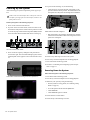
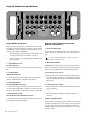
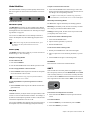
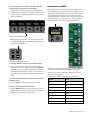
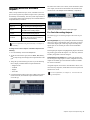
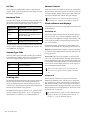
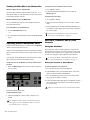
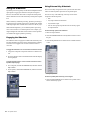
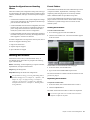
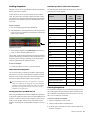
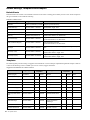
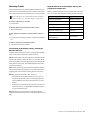
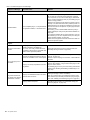
See the following sections for information on assigning and adjusting processing functions using Channel Control:
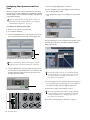
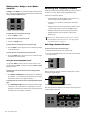
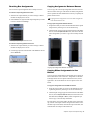
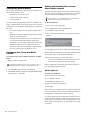
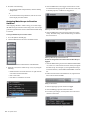
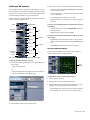
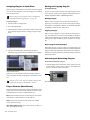
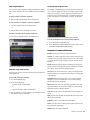
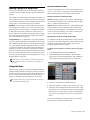
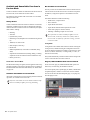
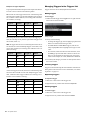
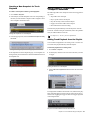
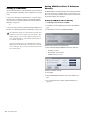
To create a custom User assignment in User Assignment mode:
1
Right-click any available encoder.
2
Select Enter User Assignment mode from the menu.
3
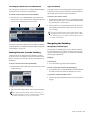
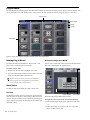
Click an on-screen encoder to assign control of the parameter
to Channel Control encoder 1.
4
Assign any other desired parameters. Subsequent parameters
are assigned to consecutive Channel Control encoders.
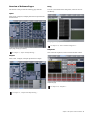
Input Parameters See “Adjusting Input Parameters” on page 77.
Some input parameters can also be adjusted from the assignable channel encoders.
EQ See “Adjusting EQ” on page 153.
Comp/Lim See “Adjusting the Built-In Comp/Lim” on page 144.
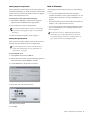
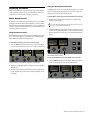
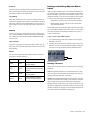
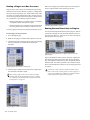
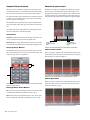
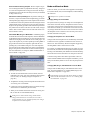
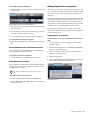
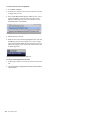
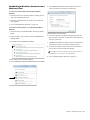
To clear a User assignment on-screen:
1
On-screen, right-click a parameter.
2
Choose Clear <parameter name> from the Channel Control
sub-menu.
Exp/Gate See “Adjusting the Built-In Exp/Gate” on page 145.
EQ, Comp/Lim, and Exp/Gate Plug-Ins You can toggle between
controlling built-in processing or a like (equivalent) plug-in inserted on the channel. See “Adjusting Inserted Dynamics and EQ
Plug-Ins” on page 173.
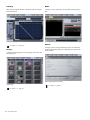
Aux and Variable Group Sends See “Adjusting Sends Using
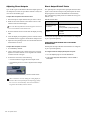
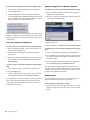
To clear all User assignments:
1
On-screen, right-click a parameter.
2
Choose Clear All Assignments.
3
Click Clear to confirm and clear all; click Cancel to cancel and
leave the User assignment unchanged.
Channel Control” on page 109.
User Assignment
You can mix and match parameters from different function types
and save it as a single Channel Control User assignment. The
User assignment is stored with each Show file.
Creating a User Assignment
Custom User assignments are made on-screen, either individually
or in User Assignment mode.
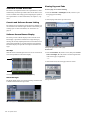
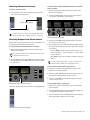
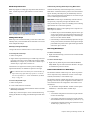
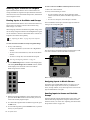
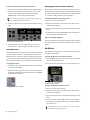
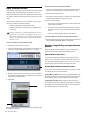
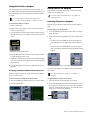
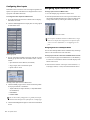
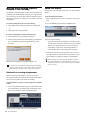
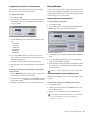
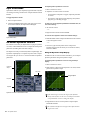
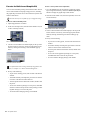
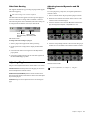
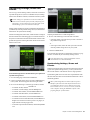
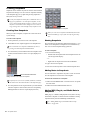
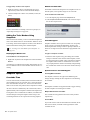
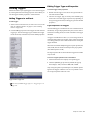
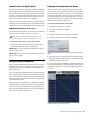
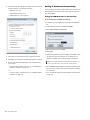
To create a custom User assignment:
1
2
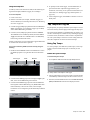
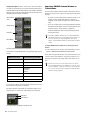
Right-click any available encoder.
Select a Channel Control encoder (1-16) from the Channel
Control menu.
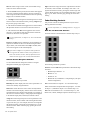
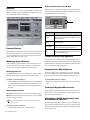
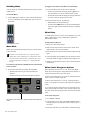
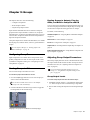
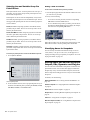
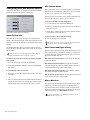
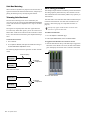
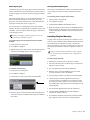
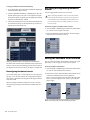
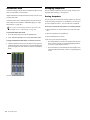
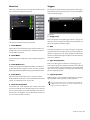
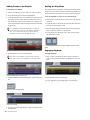
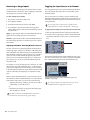
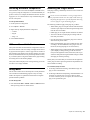
Assigning a parameter to Channel Control on-screen
54
S3L System Guide
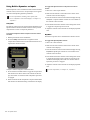
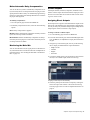
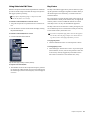
Accessing the User Assignment
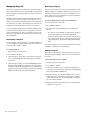
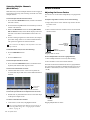
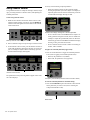
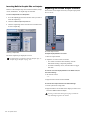
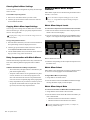
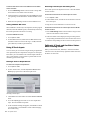
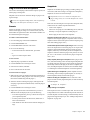
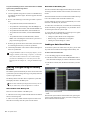
To access User assignment:
1
Select one or more channels.
2
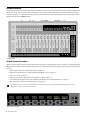
Press the Channel Control encoder under the display showing
User. Assignments made to Channel Control encoders 9–16
are accessed on the second page of the User Channel Control
parameters.