1
XTP SR HDMI • Setup Guide (Continued)
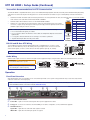
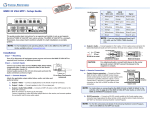
Twisted Pair Recommendations for XTP Communication
The XTP SR HDMI is compatible with CAT 5e, 6, 6a, and 7 shielded twisted pair (F/UTP, SF/UTP, and S/FTP) and unshielded twisted pair (U/UTP)
cable. Extron recommends using the following practices to achieve full transmission distances up to 330 feet (100 m) and reduce transmission
errors.
•
Use Extron XTP DTP 24 SF/UTP cable for the best performance. If not using XTP DTP 24 cable, at a minimum, Extron recommends 23 AWG,
Pins:
solid conductor, STP cable with a minimum bandwidth of 400 MHz.
TIA/EIA-T568B
12345678
T568A
T568B
Terminate cables with shielded connectors to the TIA/EIA-T568B standard.
PinPinWireWire
Color
color
Wire co
Limit the use of more than two pass-through points, which may include patch points, punch down
White-green
White-orang
1 1 White-orange
connectors, couplers, and power injectors. If these pass-through points are required, use CAT 6 or 6a
2 Green
Orange
2
Orange
shielded couplers and punch down connectors.
NOTE:
•
•
Loosely place cables and limit the use of tie wraps or hook and loop fasteners.
Insert Twisted
Pair Wires
Separate twisted pair cables from AC power cables.
RJ-45
Connector
White-brown
6 7 Green
7
8
8 Brown
White-brown
Brown
IR Device
RS-232 and IR Over XTP Wiring
To pass bidirectional serial command signals between XTP-compatible devices, connect a control
device to the three leftmost poles (Tx, Rx, and G) of the 5-pole captive screw connector. To transmit
and receive IR signals, connect a control device to the three rightmost poles (G, Tx, and Rx).
NOTE:
White-green
Blue
White-green
4 5 Blue
White-blue
Orange
5 6 White-blue
Do not exceed 40% fill capacity in conduits.
Do not comb the cable for the first 20 m, where cables are straightened, aligned, and secured in
tight bundles.
3 White-orange
4 Blue
RS-232 and IR data can be transmitted or received simultaneously.
Rx Tx G
Tx/Rx
Pins
Tx Rx G Tx Rx
•
•
3
When using CAT 5e or CAT 6 cable in bundles or conduits, consider the following:
IR
•
RS-232
•
Tx Rx G
RS-232 Device
Audio Wiring
Wire the audio output connector as shown to the right. Use the supplied tie-wrap to strap the audio cable to the extended tail of the connector.
L
Tip
Sleeves
Tip
R
R
NOTE:
The length of exposed wires is critical.
The ideal length is 3/16 inch (5 mm).
No Ground Here
Tip
Ring
Sleeves
Tip
Ring
L
ATTENTION:
For unbalanced outputs, do
not connect wires to the “-” poles.
Do not tin the wires!
No Ground Here
Balanced Audio Output
Unbalanced Audio Output
Operation
Front Panel Overview
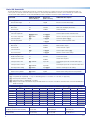
After all transmitters and connected devices are connected and powered on, the system is fully operational. If any issues arise, verify that the
cables are routed and connected properly.
NOTE:
Use the Extron XTP System Configuration software or SIS commands to configure the XTP SR HDMI (for more details, see the
XTP SR HDMI User Guide on the Extron website, www.extron.com).
a
b
c
d
XTP
CONFIG
e
f
AUDIO
g
ADJUST
ADJ
UST
SIGNAL
HBR
BITSTREAM
LPCM
HDCP
HDMI
S/PDIF
ANALOG
MENU
ENTER
XTP
X
TP SR HDMI
Front Panel
Figure 1. Front Panel Features
a
b
c
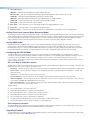
Power LED — Lights on the front and rear panels when power is applied to the device.
Config port — Connect a host device to the mini USB B port for device configuration, control, and firmware upgrades.
XTP LED indicators —
Signal LED — Lights when an active XTP video signal is received.
HDCP LED — Lights when the XTP input signal is encrypted.
2
White-blue
Green
White-brow
Brown