1
Buffer Size (Windows only)
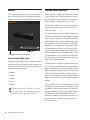
Soft Button Settings
This menu sets the size of the input and output buffers on Mbox Pro.
Press and Hold Duration
Buffers are used to help keep audio hardware and
software running smoothly by processing audio in
groups of samples rather than one sample at a time.
Due to variations between computer hardware and
software, it is impossible to recommend a single
optimum setting for all systems. It may be necessary to experiment with various settings until you
find the best buffer size for your system.
The goal of setting a buffer size is to reduce it as
much as possible without hearing any clicks, pops,
or other glitches. If the buffer size is too small, the
computer will not be able to make all the required
audio calculations on time and you will hear pops,
clicks, and stuttering in your audio streams. On the
other hand, if the buffer size is set too high, your
computer will process audio without incident, but
your software will feel sluggish and unresponsive.
To find your system’s optimum buffer size setting,
begin with a high setting and gradually reduce the
size until you begin to hear clicks, pops, or other
audible glitches in your audio. Then, raise the buffer size setting until these glitches disappear. You
may need to stop playing audio any time you
change this setting and certain applications will require you to re-launch the program before the new
buffer size settings become active.
This menu only appears on Windows systems.
Most Mac OS X applications allow to change
the buffer size from within the audio application itself. Please see your audio application’s user guide to learn how to change this
setting.
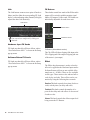
This pop-up menu gives you four choices of Press
and Hold duration for all soft buttons on the front
of the Mbox Pro. Choose between 250 msec, 500
msec, 750 msec, and 1 sec.
Use Dim LEDs for Button off State
Checking this option gives you a dim LED for all
the soft buttons that are off (so you can still discern
the LED in the dark).
High-Pass Filter Enable
A 75 Hz high-pass filter is available for each Input
channel 1–4. Enable the high-pass filter for the desired channel to reduce low-frequency rumble
caused by, for example, HVAC systems or microphone handling.
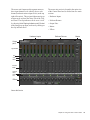
Driver Control Panel Options
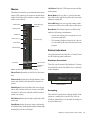
Hold Clipping Indicators until Clicked
The top section of the meters (or right section for
horizontal meters) of the Driver Control Panel feature a red clipping indicator. When this option is
selected, the clipping indicators will remain lit until they are clicked.
Load Latency and Clock Settings from Settings
Files
When this option is selected, the clock source and
buffer settings are recalled when loading a setting
file.
Post-Fader Meters
When this option is selected, fader positions will
affect the meters. Post-Fader Meters mean the meter indicate post-fader levels.
28
Avid Mbox Pro User Guide