1
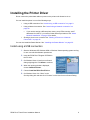
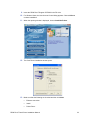
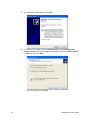
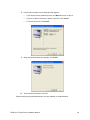
14. On the Software License Agreement, click I agree and then click Next.
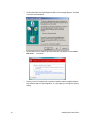
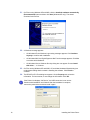
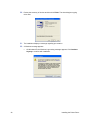
15. When the following dialog box appears, make sure all printing from the PC is
complete and then close all other Windows applications. Confirm that the printer is
ready and then click Next.
Close all active programs before installing the printer driver.
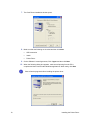
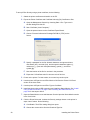
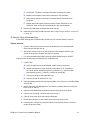
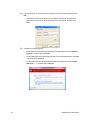
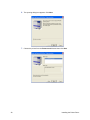
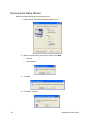
16. Select the Printer model from the list. If this is the first RP90 Plus E printer installed on
this PC, the default printer is “Datacard RP90 Plus E LAN.” For best results, use the
printer name shown.
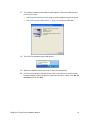
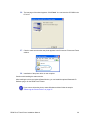
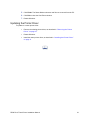
17. Check the Make this the default printer box if you plan to use only this printer from
this PC. Click Next.
24
Installing the Printer Driver