1
Using the HDC-1000
Jog Mode and Playback Navigation
Jog Mode
When the Jog Mode LED is unlit, the Jog Wheel (when in Play Mode) will
perform a Pitch Bend.
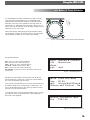
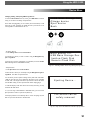
When the Jog Mode button is pressed, the LED indicator will illuminate,
and the Jog Wheel will then allow you to search (FF/REW) through each
track. The faster the Jog Wheel is moved, the faster the unit will search
through the playing track. In order to use the Jog Mode, the unit must
be in the process of playing, not paused.
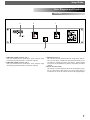
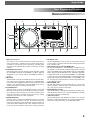
Fig 3 - Engaging Jog Mode for FF/REW using the Jog Mode button
Playback Navigation Functions
Using the Navigation keypad left & right buttons, you can search through
a track similar to using the Jog Mode function.
Using the Navigation keypad up & down buttons will allow you to skip
to the previous or next track that was found in the Search Results. For
instance, if you searched by Artist, and your Search Results displayed 10
tracks by that Artist, using the Navigation keypad up & down buttons will
allow you to skip between those tracks.
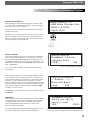
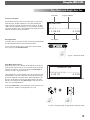
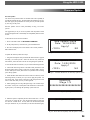
Up/Down - Track Skip
Left/Right - FF/REW Search
Fig 3.1 - Navigation keypad functions in Play mode
iPodPlaylist Support
Although there is no facility to create playlists on the HDC-1000 unit, you
can load iPod playlists that are created using iTunes® .
Once a playlist has been constructed using iTunes®, it can be loaded from
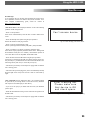
the main Search Options screen.
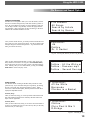
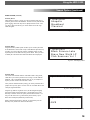
>Search by Genres
Search by Albums
S e a r c h b y St r i n g
> iPod Playlists
Fig 3.2 - iPod Playlist option from the Search Menu
Creating a Simple Playlist
When using the File Browser with Single Mode OFF, you can play all of the
files in a specified directory simply by choosing the first file and letting the
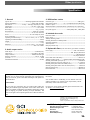
unit continue playing. If you change the filenames (via your PC) to be preceeded by a number, the HDC-1000 will play them in numeric order.
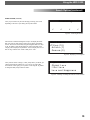
01_Calibre - Domeron.mp
02_MIST - 3 AM.mp3
03_Kubiks & Lomax - Out
04_CLS - Four Signs.mp3
Fig 3.3 - Simple Playlist by using numbered files with File Browser
19