1
Installation Instructions: ADC1000 & PC2000 (for Windows 95/98 Users)
A file open dialog box then appears. Navigate to the OOIBase32 directory, and choose the default spectrometer
configuration file -- the file with .spec as the extension, preceded by the serial number of your spectrometer. (A
default spectrometer configuration file will be named something similar to I2J613.spec.)
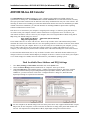
Configure Hardware Dialog Box
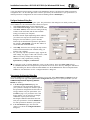
Next, the Configure Hardware dialog box opens. The parameters in this dialog box are usually set only once -when OOIBase32 is first installed and the software first opens.
1. Under Spectrometer Type, choose S2000/PC2000.
2. Under A/D Converter Type, choose ADC1000/PC2000.
3. Under Base Address, choose the same setting as the dip
switches on the A/D board (and the same available
setting you found in your computer).
Remember that the Input/output Range (Base Address)
you selected was expressed in hexadecimal. In this
dialog box, the base address is given in decimal,
followed by the hexadecimal equivalent in parenthesis.
For example, “768 (0x0300)” gives the base address as
768 decimal and 300 hexadecimal.
4.
5.
Under IRQ, choose the same setting as the dip switches
on the A/D board (and the same available setting you
found in your computer).
For your setup, only these parameters apply. (Ignore the
other settings; they apply to other A/D converters.) Click
OK. You can always change these settings once
OOIBase32 is fully operational by selecting
Spectrometer | Configure | A/D Interface.
! If you do not see the “Configure Hardware” screen, exit the software. Then select Start | Run and type
C:\windows\ooidrv.ini. Notepad will open. Edit this file for our device driver by finding the “Initialized”
entry and making sure this line reads Initialized=0. Save the OOIDRV.INI file and exit Notepad. Restart
OOIBase32. You should now see the “Configure Hardware” dialog box.
Spectrometer Configuration Dialog Box
Now that OOIBase32 is running, you need to configure your system. Select Spectrometer | Configure from the
menu. Go through each page in the Spectrometer Configuration dialog box to set system parameters. (See the
OOIBase32 Spectrometer Operating Software
Manual for details.)
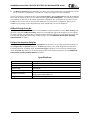
" In the Wavelength Calibration page, the
"
coefficients for each spectrometer channel in
your system have already been loaded as part of
the spectrometer configuration file that came on
a floppy diskette with your spectrometer. (See
the Note on page 2.) If you did not receive this
floppy diskette, you can enter the wavelength
coefficients of your system from the
Wavelength Calibration Data Sheet that came
with your spectrometer. Check the Enabled box
for each spectrometer channel in your system.
In the A/D Interface page, enter the same
values as you did in the Configure Hardware
dialog box.
-3-