1
5.2.2
Web Reputation
The default security level “Medium” is suitable for most users. However if you want further security, you can adjust it
to “High” level.
Web Reputation queries will go to the Smart Protection Server (if enabled) or our cloud WRS servers. It is
recommended to setup a local Smart Protection Server in house to limit the amount of internet queries required
which potentially leads to performance degradation.
If you have specific web pages to be allowed or blocked, configure them in the Exceptions tab. By default, Web
Reputation is enabled to port 80 and 8080. If you have an HTTP proxy server using other ports, configure it in the
Advanced tab.
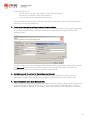
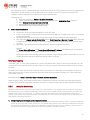
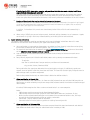
1. Create a new Port List from Shared > Port Lists including you proxy port.(Such as 3128)
2. Choose the created Port List at Web Reputation > Advanced > Ports.
Other setting recommendations:
• Block pages that have not been tested by Trend Micro: Unchecked (could cause false positives if checked)
• Include internal company URLs in the Allowed list under exceptions. Wildcards are supported.
• Ensure that your company firewall/proxy allows traffic going to ds90-en.url.trendmicro.com when using the
global smart protection server.
5.2.3
Firewall
Firewall configuration and administration must be performed carefully. There is not one set of rules that fits all
environments. This guide aims to give users best practice tips and recommendations that can be used as reference
and serve as a guideline when building your own rules.
a.
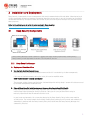
Inline vs. Tap Mode
•
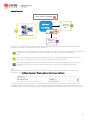
Always use Inline mode (DSM > Policies > Settings > Network Engine > Network Driver Mode)
When operating Inline, the live packet stream passes through the network engine. Stateful tables are
maintained, Firewall Rules are applied and traffic normalization is carried out so that Intrusion Prevention
rules can be applied to payload content.
•
Use “Inline mode” with rules set to “Detect” when there is a need to test the configuration and rules before
deploying them in to the production environment. This way, the real world process of analyzing the traffic
takes place without having to perform any action such as blocking/denying of packets.
Running Deep Security in Tap Mode is NOT recommended and is not the best practice to perform tests or
evaluate Deep Security. Traffic patterns in this mode are not representative of how the network will behave
should the administrator decide to switch to Inline mode.
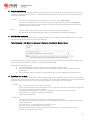
b. Firewall Rule Actions
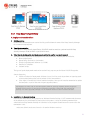
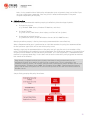
Make sure you understand the difference between the firewall rule actions before creating your rules. Each rule
can take one of the following actions:
•
Deny – this action explicitly blocks traffic that matches the rule
•
Force allow – if a packet matches a force allow rule it is passed but still filtered by Intrusion Prevention.
No events logged. This action type must be used for UDP and ICMP traffic.
•
Bypass – this allows traffic to bypass both Firewall and Intrusion prevention analysis. Should always
be created in pairs (for both incoming and outgoing traffic). Use this setting only for media-intensive
protocols.
41