1
Quadro2x Manual II: Administrator's Guide
Administrator’s Menu
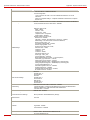
IP Line Settings
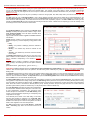
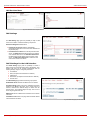
The IP Line Settings page is used to configure IP lines for IP phones to be connected to the Quadro. Quadro provides the possibility to connect
MGCP and SIP phones to its LAN side, assign the corresponding IP line to some active extension, and use MGCP and SIP phone as a simple phone
with all telephony services of the Quadro, for example, call hold, waiting, transfer, etc. 2 IP Lines are available on the Quadro2x.
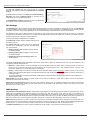
The IP Lines Settings page displays a table with the available IP lines on the Quadro. More IP lines can be enabled by entering the feature key in
the Features page.
268H
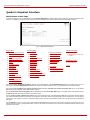
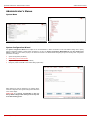
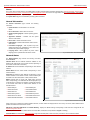
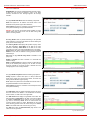
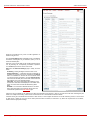
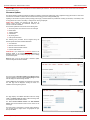
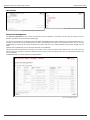
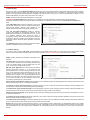
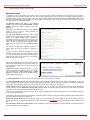
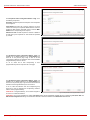
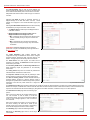
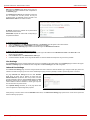
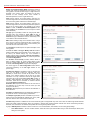
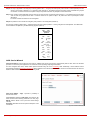
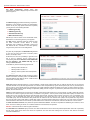
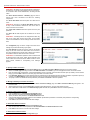
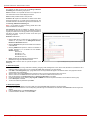
The IP Lines table lists all available IP lines with additional information
about each of them: number of the extension attached to it, information
about the phone type and the configuration details.
Each column heading in the tables is link. By clicking on the column
heading, the table will be sorted by the selected column. Upon sorting
(ascending or descending), arrows will be displayed close to the column
heading.
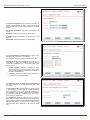
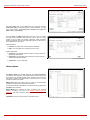
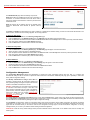
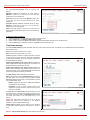
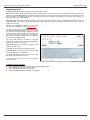
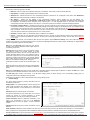
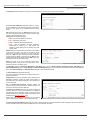
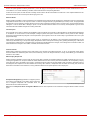
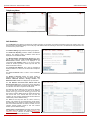
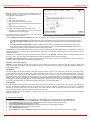
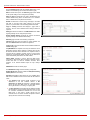
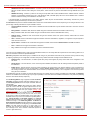
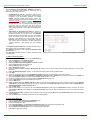
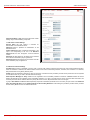
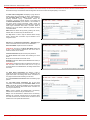
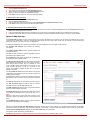
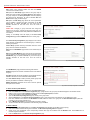
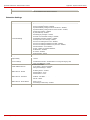
Pressing on the IP line link in the Available IP Lines column, the Edit
IP Line page specific for the current IP line is opened and offers
a group of manipulation radio buttons that allows to enable the IP line
and to configure it to for use by the SIP or MGCP phones:
Inactive - selection disables the corresponding IP line.
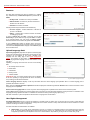
MGCP Phone - selection configures the IP line for an MGCP phone to
be connected to the Quadro’s LAN.
•
The MGCP phone’s IP Address, Gateway Name (optional)
and the Endpoint Name will be required for this selection.
Endpoint Name is defined on the MGCP phone and should
match on Quadro for the successful connection between the
MGCP device and the Quadro.
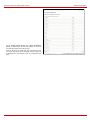
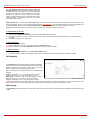
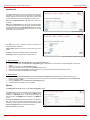
Fig. II-95: IP Line Settings page
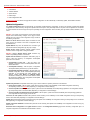
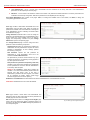
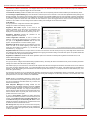
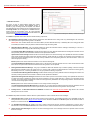
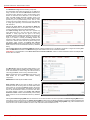
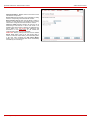
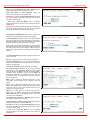
SIP Phone - selection configures the IP line for a SIP phone to be
connected to the Quadro’s LAN.
•
Phone Model drop down list is used to select the IP phone
model to be used by the receptionist. The selection other than
Other enables the MAC address text fields used to insert the
MAC Address of the corresponding SIP phone.
•
Line Appearance text field requires number of simultaneous
calls supported by the SIP phone.
•
Username and Password are required for this selection,
which should match on both the Quadro and the SIP Phone
for successful connection establishment.
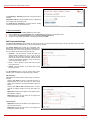
Fig. II-96: IP Line Edit page
Supported SIP Phones
Below is the list of SIP phones that can be automatically configured to work with Quadro2x:
•
•
•
•
•
•
•
Snom 190, Snom 200, Snom 220, Snom 320, and Snom 360
Polycom Soundpoint IP 300SIP
Cisco IP Phone 7960
Swissvoice IP 10S
IP Dialog SIP Tone II (ST201)
Aastra 480i
Sipura SPA-841 IP
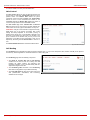
Loopback Settings
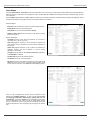
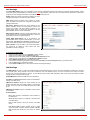
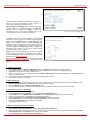
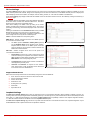
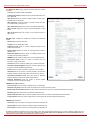
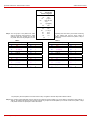
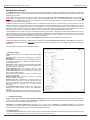
The FXS Lines Loopback Settings page is used to configure the lines for voice loopback diagnostics. When loopback is enabled on the line, any
incoming calls to the corresponding line will be automatically picked up on the first ring and any voice towards the line will be automatically sent back
to the caller, i.e., caller will hear themselves in the handset. Loopback Timeout gives a possibility to limit the voice loopback diagnostics duration,
i.e., caller will be disconnected from the Quadro when the Loopback Timeout expires.
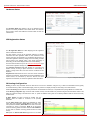
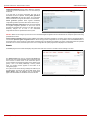
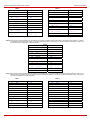
The FXS Lines Loopback Settings page shows the only table where all FXS lines of the Quadro are listed. Here, loopback diagnostics may be
enabled/disabled and the Loopback Timeout can be adjusted for FXS lines.
Quadro2x, Quadro2xi; SW Version 3.1.x
52