1
Quadro2x Manual II: Administrator's Guide
Administrator’s Menu
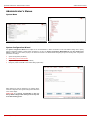
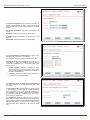
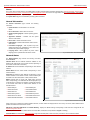
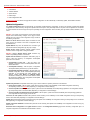
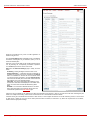
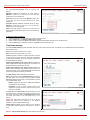
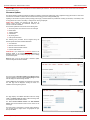
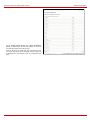
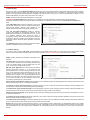
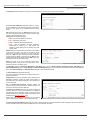
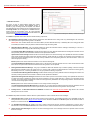
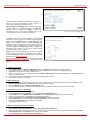
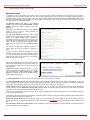
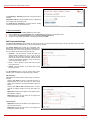
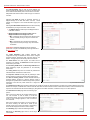
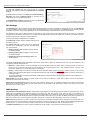
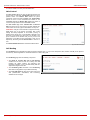
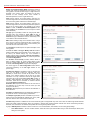
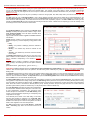
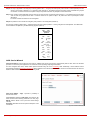
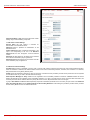
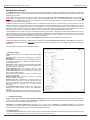
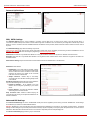
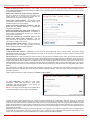
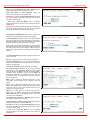
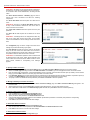
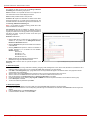
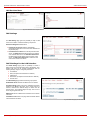
For example, the page to add a rule for Incoming Traffic/Port
Forwarding offers the following input options:
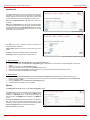
Service includes a list of possible services to be configured. All
user defined services also will be displayed in this list.
Action includes possible actions to setup the rule.
Forward to IP requires the destination IP address where traffic
should be transferred to, if it comes from the restricted host. The
IP address defined in this field will be ignored for blocked action of
the Incoming Traffic/Port Forwarding rule.
Note: It is not allowed to forward incoming packets when NAT
service is disabled on the Quadro.
Port Translation text field is available for “Allowed” action only
and optionally requires the port number that will stand instead of
original port number when incoming packet is being forwarded. If
this field is left empty, original port number will be used upon
forwarding the packet.
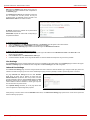
Restriction radio buttons:
•
•
•
Selecting Any blocks or allows all host IP addresses. This
selection is not present for the Management Access,
Blocked and Allowed IP List rules.
Selecting Single IP will require the IP address of the allowed
or blocked host.
Selecting IP/Mask will require the subnet to be allowed or
blocked, specified by an IP address and the Maskbits.
Maskbit examples:
255.0.0.0= /8,
255.255.0.0 = /16,
255.255.255.0 = /24,
255.255.255.255= /32
•
Group indicates the user defined groups that include IP
addresses that ought to be allowed or blocked.
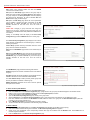
Description field is used to insert an optional description of the
filtering rule.
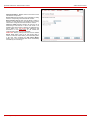
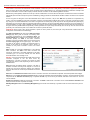
Fig. II-144: Filtering Rules - Page to add a rule for Incoming Traffic
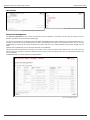
To Add a Filtering Rule
1.
2.
3.
4.
5.
6.
7.
8.
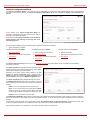
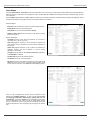
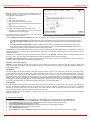
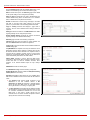
Select the Filter link (Incoming Traffic/Port Forwarding, Outgoing Traffic, Management Access, SIP Access, Blocked IP List, Allowed IP List or
Restricting IPSec) to add a rule for it. The corresponding Filter table will appear in the same window.
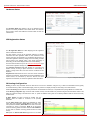
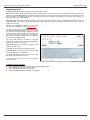
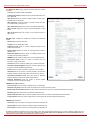
Click Add on the Filtering Rules page. A page where a new rule may be added will appear in the browser window. The page will be named
corresponding to the selected filter.
Select a service name from the Service list to configure a rule for it. If the list has a default value, leave it as is.
Select an action from the Action list that is used in the rule. If the list has a default value, leave it as is.
Enter the IP address in the Forward to IP field if an Incoming Traffic Rule is to be added.
Choose the restriction type by selecting Any, SingleIP or IP/Mask and enter the required information in the text fields or select a group.
Insert a Description, if needed.
To add a rule with these parameters press Save.
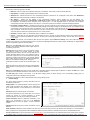
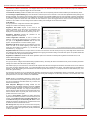
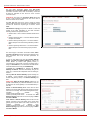
To Delete Filtering Rules
1.
2.
3.
4.
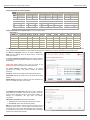
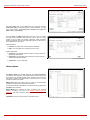
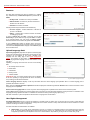
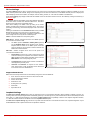
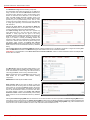
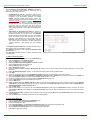
Select the Filter link to delete a rule from its table. The appropriate Filter table will appear in the same window.
Check one or more checkboxes of the corresponding rules that ought to be deleted from the rules table. Press Select all if all rules ought to be
deleted.
Press the Delete button on the Filtering Rules page.
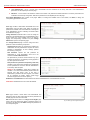
Confirm the deletion with Yes, or cancel it with No.
Quadro2x, Quadro2xi; SW Version 3.1.x
84