1
Creating the Event
Tutorial
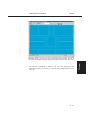
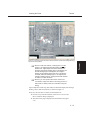
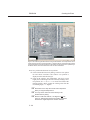
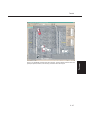
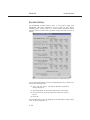
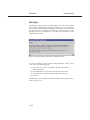
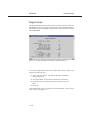
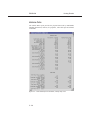
Now, note the current peak force displayed in the Damage Profile dialog. The
value is quite a bit too low (again, we want it to equal the value of 726,647
Newtons for the Ford Escort). Try a factor of 5:
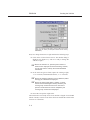
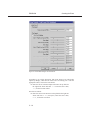
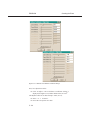
â Click A Stiffness to display the A Stiffness Coefficients dialog,
and enter 1225 (245 x 5). Press OK to remove the dialog.
â Click B Stiffness to display the B Stiffness Coefficients dialog,
and enter 250 (50 x 5). Press OK to remove the dialog.
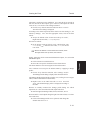
Now the force for the Nissan is quite a bit greater than the force on the Ford.
Repeat the process using a factor of 3.4:
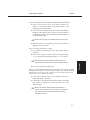
â Click A Stiffness to display the A Stiffness Coefficients dialog,
and enter 833 (245 x 3.4). Press OK to remove the dialog.
â Click B Stiffness to display the B Stiffness Coefficients dialog,
and enter 170 (50 x 3.4). Press OK to remove the dialog.
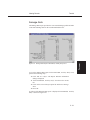
The resulting force on the Nissan is 734,667 Newtons, closely matching the
force on the Ford Escort.
â Press OK to accept the assigned the damage profile.
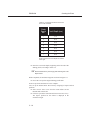
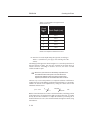
PDOF1
1
PDOF2
2
TUTORIAL
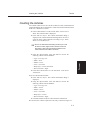
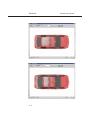
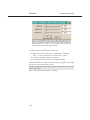
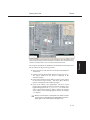
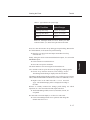
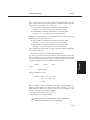
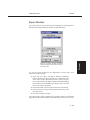
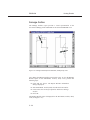
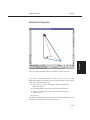
It is always a good idea to make sure that the entered impact positions and
PDOFs conform to Newton’s 3rd Law. According to Newton’s 3rd Law, the
vehicles’ PDOFs must be equal and opposite. When we apply this constraint to
our data, we find the following condition must be satisfied:
± 180
where:
= heading angle
Solving for PDOF2, we have:
PDOF2 = PDOF1 + Y1 + Y2 ± 180
= -30 + 195 - (-90) ± 180
= 75 deg
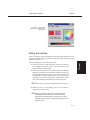
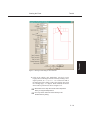
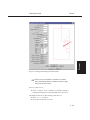
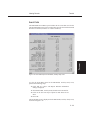
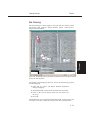
But we assigned a CDC of 02RPEW3, which has a default PDOF of 60
degrees. Our calculation above shows that to satisfy Newton’s 3rd law, we
must change the PDOF to 75 degrees. In this event, the PDOFs are not
opposite. Therefore, we will edit the PDOF:
â In the PDOF field, replace 60 with 75.
â Click Apply to accept the change.
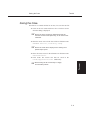
If you click on Use Newton’s 3rd Law, EDCRASH
+ NOTE:
will make this calculation for you automatically!
5 - 25