1
Creating the Vehicles
Tutorial
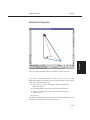
Now, let’s change the color, weight and stiffness of the Nissan Sentra:
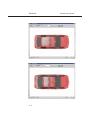
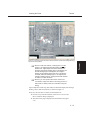
â Click on Nissan Sentra 4-Dr in the Active Vehicles list,
making it the current vehicle. The Nissan Sentra is now
displayed in the Vehicle Editor.
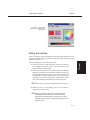
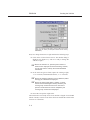
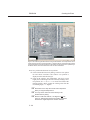
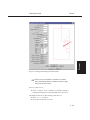
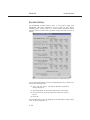
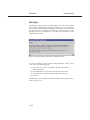
â Click on the CG and choose Color. The Vehicle Color dialog is
displayed. The vehicle’s color is fine, but we need to darken it.
To darken the vehicle, click on the intensity slider and drag it to
the middle of the range.
+ NOTE: The color chip on the left shows the current color.
â When the color is to your liking, press the Close button to
apply the new vehicle color.
Next, let’s change the Nissan’s weight:
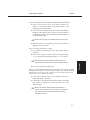
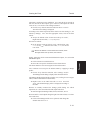
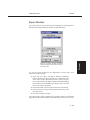
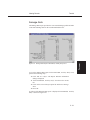
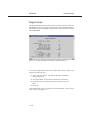
â Click on the CG and choose Inertias. The Inertias dialog is
displayed.
â In the Total Weight text field, replace the existing weight,
Again, the value displayed in the dialog may
+ NOTE:
contain extra precision, for the reasons explained earlier.
â Press OK to accept the weight value.
Finally, let’s change the stiffness on the right side of the vehicle. An SAE
moving barrier crash test (SAE J972) revealed the And B stiffness
coefficients for the side of the vehicle were 245 N/cm and 50 N/cm2,
respectively. Let’s enter the new values:
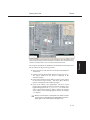
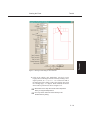
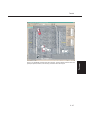
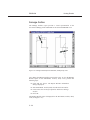
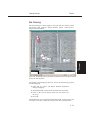
â Click on the right side surface icon (red sphere). The CG to
Right Side dialog is displayed.
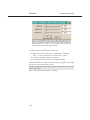
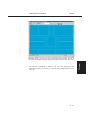
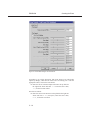
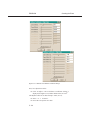
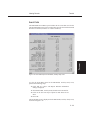
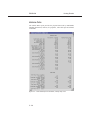
â Click Stiffness. The Stiffness Coefficients dialog for the right
side surface is displayed, as shown in Figure 5-4 on the
following page.
The Vehicle Editor assumes the stiffness is
+ NOTE:
uniform across the right side of the vehicle. If desired, we
can add hard spots using the Damage Profile dialog
during Event mode.
5-7
TUTORIAL
10858 Newtons, with the measured value, 11282 Newtons.