1
4.2
Main Menu
4.2.1 File Help
The items of menu File and Help have the same functions as in pre-processor. For details,
see 3.2.1 and 3.2.7.
4.2.2 Settings – Display
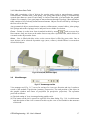
This item allows to set the width of 1D elements (bars) for showing isoareas of stress, strains
(and others) in the graphical window.
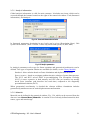
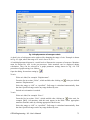
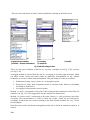
4.2.3 Settings –Settings
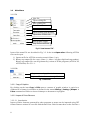
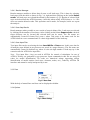
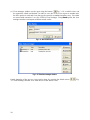
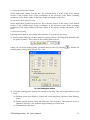
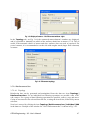
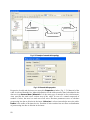
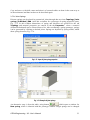
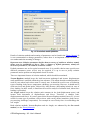
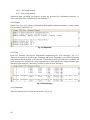
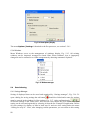
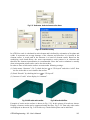
Opens a window for setting of some graphical parameters.
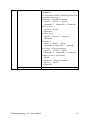
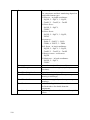
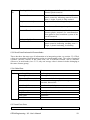
View:
Background color: white or black.
Extend of graphic during rotating and panning:
Outline (contour) only,
All objects,
All objects without text.
Graph line thickness in mm.
Output. Define dimensions of bitmap in pixels, which is used in copy or print
commands of graphics.
4.3
Analysis Steps
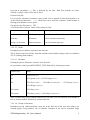
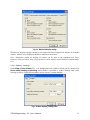
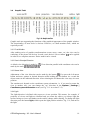
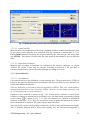
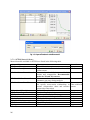
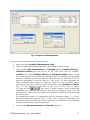
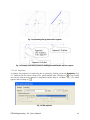
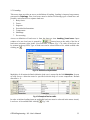
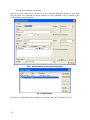
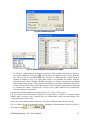
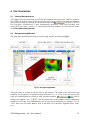
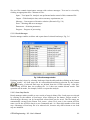
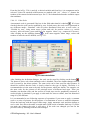
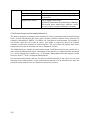
Analysis steps defined in pre-processor (see 3.7.5.2) are shown in table. Column “State of
analysis” shows if the step was analyzed and saved.
In the column “Perform analysis” it is possible to cancel analysis for a step using a check box.
In such case all following steps are also cancelled for analysis.
In the column “Save data” it is possible to save results of analysis steps. Not saving the results
reduces amount of data. Saving results can be quickly performed by the tool “Results saving”
below the table for. This command causes that data from load step are kept in memory (data
structure of ATENA) but not yet stored to a disk file.
4.4
Calculation Control
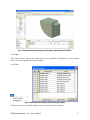
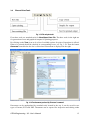
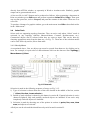
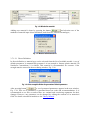
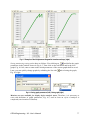
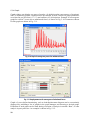
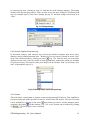
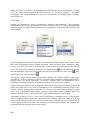
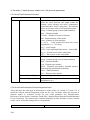
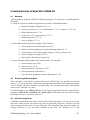
Analysis starts by clicking on
. The button changes to
. To stop
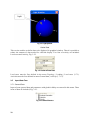
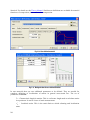
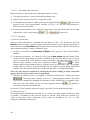
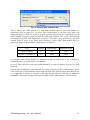
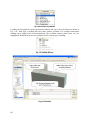
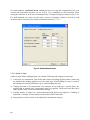
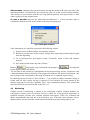
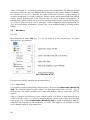
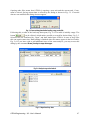
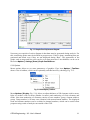
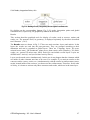
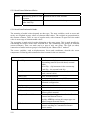
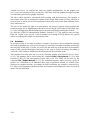
analysis click the same button again. It is possible to choose tree ways of analysis interrupt,
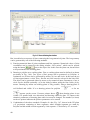
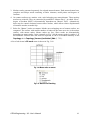
after load step, iteration and as soon as possible, as shown in Fig. 4-2. Obviously, After step
means the analysis runs until the current step is finished, i.e., converged or the maximum
allowed number of iterations is exhausted (if not stopped earlier by the iteration stop criteria,
see 3.7.5.1). This is (roughly) equivalent to unchecking the Perform analysis box for the
next step (the only difference is the step results are not stored automatically if the Save data
and Save all data after completing each step boxes are checked).
72