1
K2/Summit Server TechNote
203
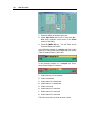
If you selected a K2 source Track, a New Clip will be created of all K2 material falling
within the currently defined boundaries of the Record Event.
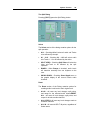
K2-Mon Tracks
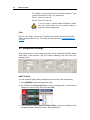
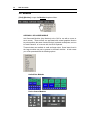
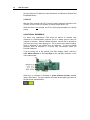
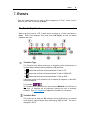
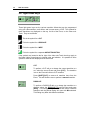
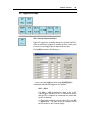
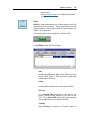
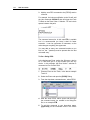
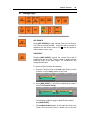
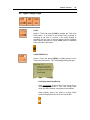
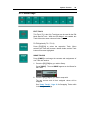
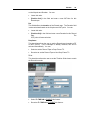
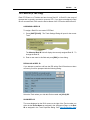
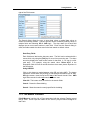
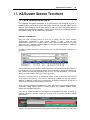
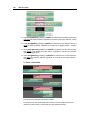
The only change to the standard edit screen is that when a Track is assigned as
K2Mon, the Track button changes to Blue as an alert to the user that there are
specific rules that pertain to this Track.
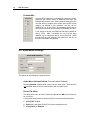
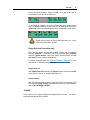
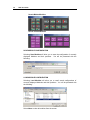
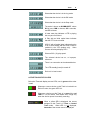
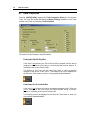
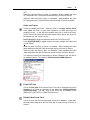
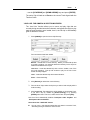
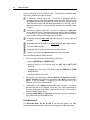
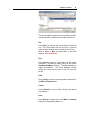
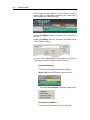
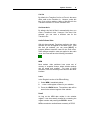
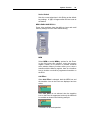
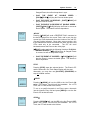
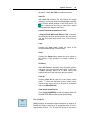
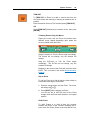
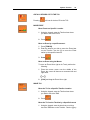
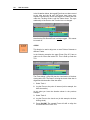
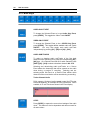
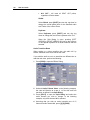
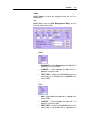
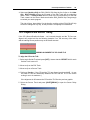
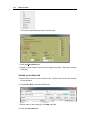
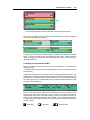
Note in the above graphic, that some source buttons are blue. This denotes that
these K2 channels are assigned as K2Mon channels in the DiVA Assignment Page.
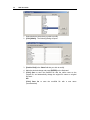
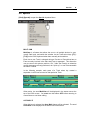
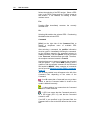
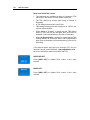
In this special mode, Clips loaded into a Playlist can be manually rolled at the K2 App
Center and [MARKed IN] prior to or during a recording so as to be added to the edit
and EDL. In the K2 mode, these buttons remain Gray.
Playback and Record Timing
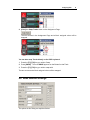
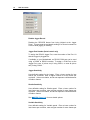
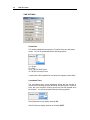
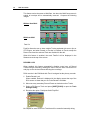
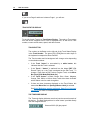
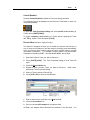
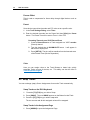
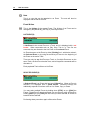
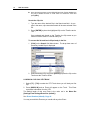
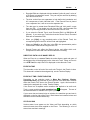
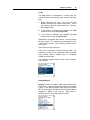
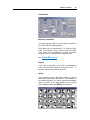
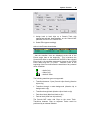
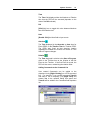
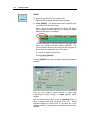
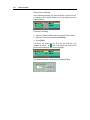
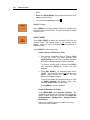
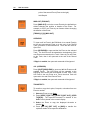
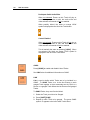
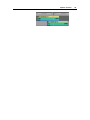
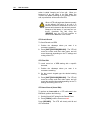
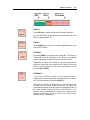
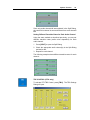
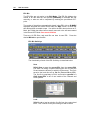
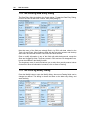
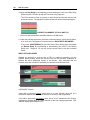
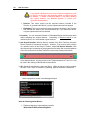
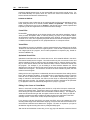
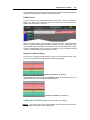
If the CPI (red, inverted pyramid) and the CTI (blue or red line down the center of the
screen) are not aligned, they might look like the following example.
[WRONG ALLIGNMENT OF CPI AND CTI]
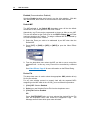
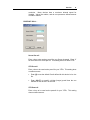
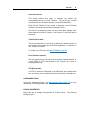
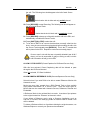
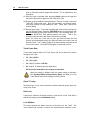
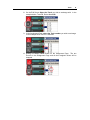
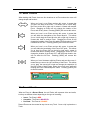
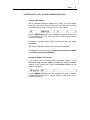
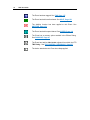
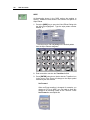
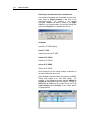
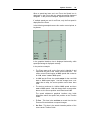
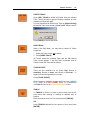
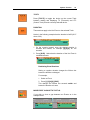
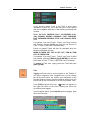
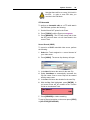
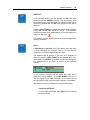
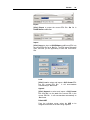
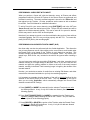
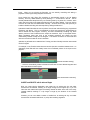
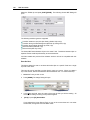
In the K2Host.ini file, you can adjust the RecDelay setting for the Record Track. The
adjusted timeline should look like the following example:
[CORRECT ALLIGNMENT OF CPI AND CTI]
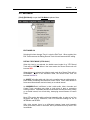
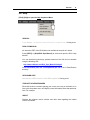
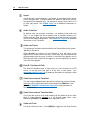
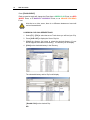
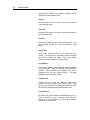
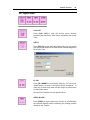
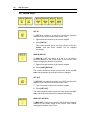
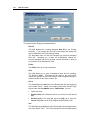
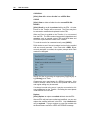
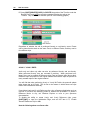
SOME DIVA FEATURES relate directly to K2 servers. For example:
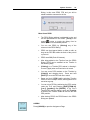
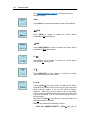
Add CC - If this item is set to Yes, Closed Caption data from the K2 source will be
inserted to the K2 Program when an edit is made.