1
SYSML PLUGIN FOR MAGICDRAW
Validation
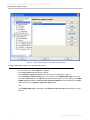
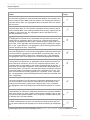
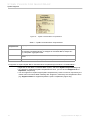
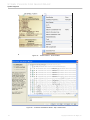
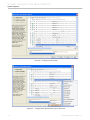
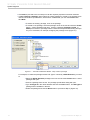
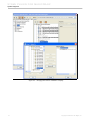
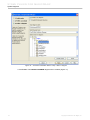
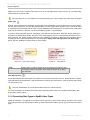
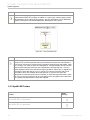
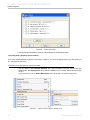
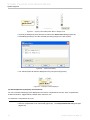
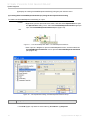
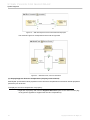
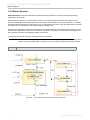
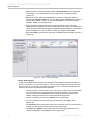
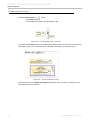
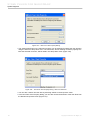
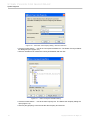
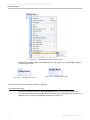
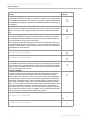
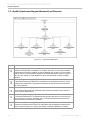
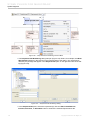
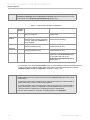
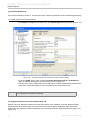
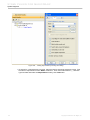
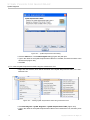
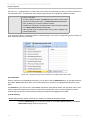
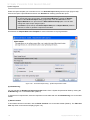
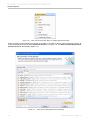
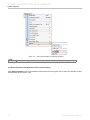
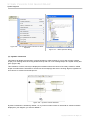
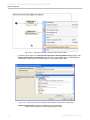
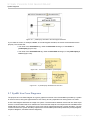
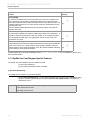
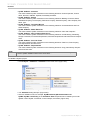
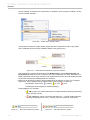
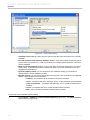
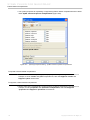
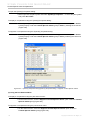
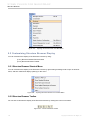
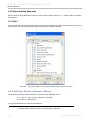
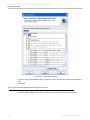
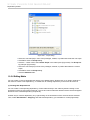
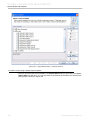
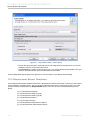
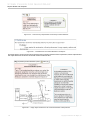
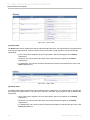
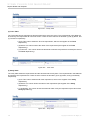
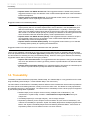
Figure 218 -- Project Option Dialog
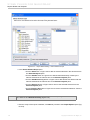
1. Validation scope (default = data): use this option to limit the scope of elements to be actively
validated.
2. Exclude elements from read-only modules (default = true): if this option is selected (selecting the check box means ‘true’), read-only modules, for example read-only profiles, will not be
actively validated.
3. Mark in tree and diagrams (default = true): if this option is selected (selecting the check box
means ‘true’), invalid elements will be marked with small icons in the Containment Tree and
highlighted in the diagrams.
4. Ignored validation suites: you can enter the active validation suite(s) you would like to
exclude from the Active Validation process.
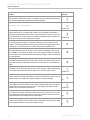
5. Minimal severity: you can specify the minimal severity level of the constraints to be validated
against. There are five levels of severities:
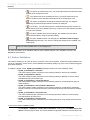
• >=debug: All constraints will be included in the active validation.
• >=info: Constraints with infos, warnings, errors, or fatal severities will be included.
• >=warning (default): Constraints with warnings, errors, or fatal severities will be
included.
• >=error: Constraints with error or fatal severities will be included.
• Fatal: Only constraints with fatal severities will be included.
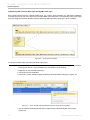
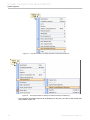
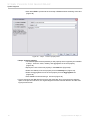
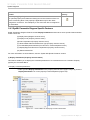
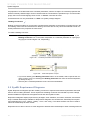
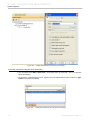
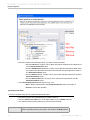
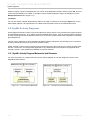
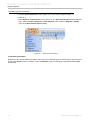
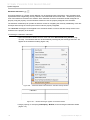
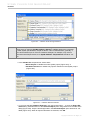
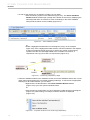
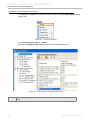
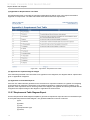
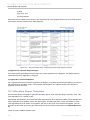
To open the Active Validation Options dialog:
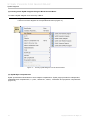
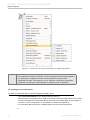
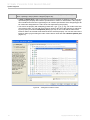
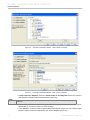
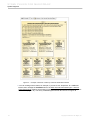
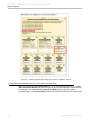
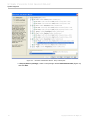
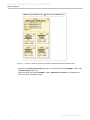
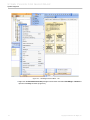
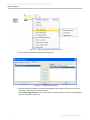
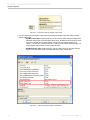
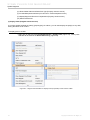
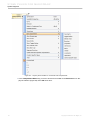
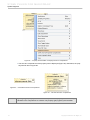
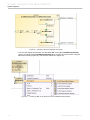
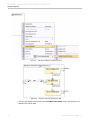
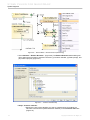
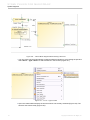
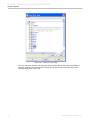
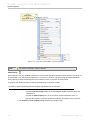
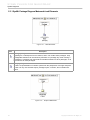
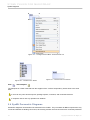
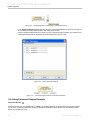
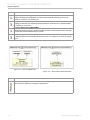
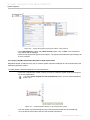
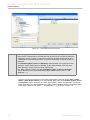
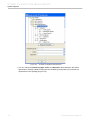
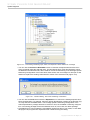
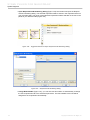
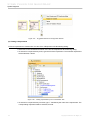
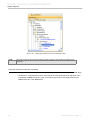
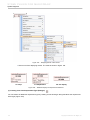
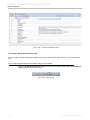
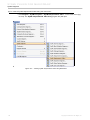
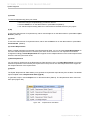
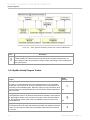
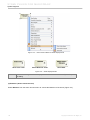
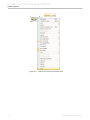
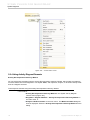
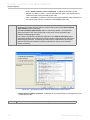
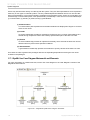
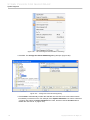
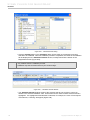
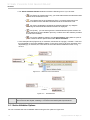
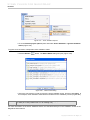
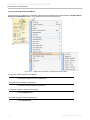
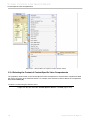
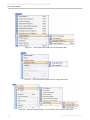
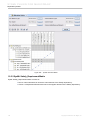
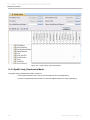
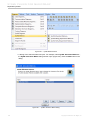
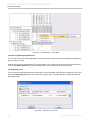
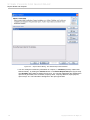
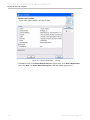
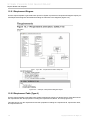
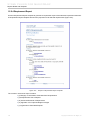
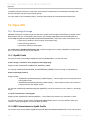
1. Click Analyze > Validation > Active Validation Options (Figure 219). The Project Options
dialog will open (Figure 218).
165
Copyright © 2006-2011 No Magic, Inc..