1
Chapter 4 : Viewing Designs
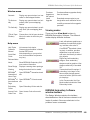
Viewing modes
many sophisticated techniques for drafting
outlines and shapes onscreen.
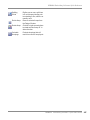
While digitizing, different viewing modes are
available for different purposes. Depending on
your product level, BERNINA Embroidery
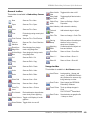
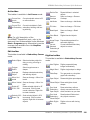
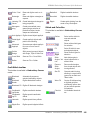
Software provides a number of viewing modes
which are accessed via the View Mode toolbar.
The application has one workspace or ‘Design
Window’ but you interact with it in separate
modes.
Art Canvas mode
Load, edit and save graphics as a
backdrops for embroidery digitizing. Includes entire suite of
CorelDRAW® Essentials 4 drawing tools. In addition, it provides
capabilities to convert vectors
and vector text directly to embroidery objects.
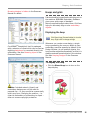
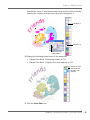
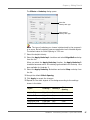
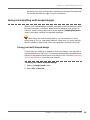
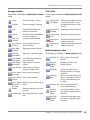
In Art Canvas mode, the View
Mode toolbar includes the Show
Embroidery button to toggle
embroidery display on or off.
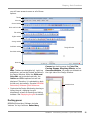
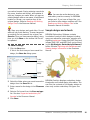
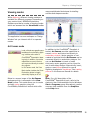
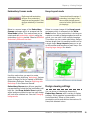
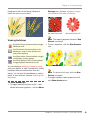
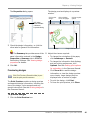
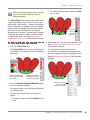
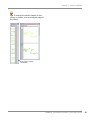
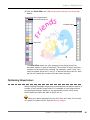
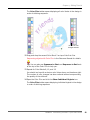
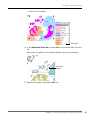
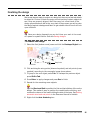
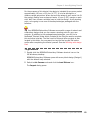
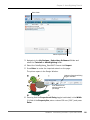
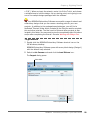
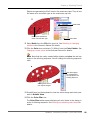
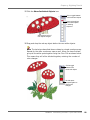
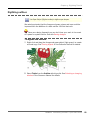
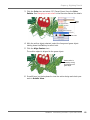
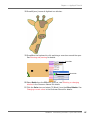
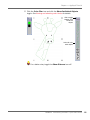
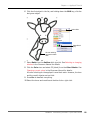
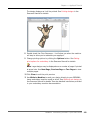
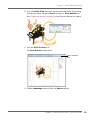
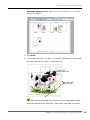
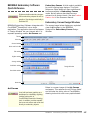
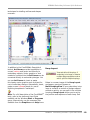
Below is a screen image of the Art Canvas
workspace which is accessed via the View
Mode toolbar. This mode allows you to create
and edit vector graphics using the
CorelDRAW® Essentials 4 toolset which offer
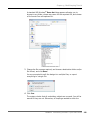
In addition to the CorelDRAW® Essentials 4
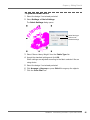
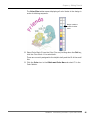
toolset, Art Canvas provides capabilities to
convert vectors and vector text directly to
embroidery objects. Vector graphics or text
created or imported into the Art Canvas can be
converted directly to embroidery designs. You
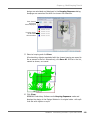
can use Art Canvas to insert or paste
third-party vector graphics such as clipart for
use in embroidery designs. Alternatively, insert,
paste or scan bitmap artwork for use as
digitizing templates or ‘backdrops’. See Loading
pictures in the Onscreen Manual for details.
Note For a full description of the
CorelDRAW® Essentials 4 tools, refer to the
electronic User Guide available via the Windows
Start > Programs group. Alternatively, use the
onscreen help available from the Graphics
mode Help menu.
BERNINA® Embroidery Software : Quick Start Guide
31