1
Chapter 7
Customizing Your G Environment
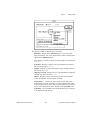
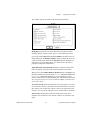
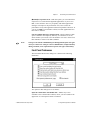
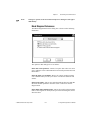
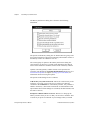
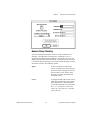
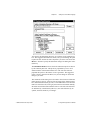
End text entry with Return key (same as Enter key)—Makes the
<Enter> (Windows); <return> (Macintosh); <Return> (Sun); or
<Enter> (HP-UX) on the alphanumeric keyboard function like the
<Enter> key on the numeric keypad, ending text entry. If you select
this option, you can embed new lines by pressing <Ctrl-Enter>
(Windows); <option-return> (Macintosh); <meta-Return>
(Sun); or <Alt-Return> (HP-UX).
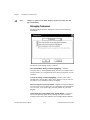
(Windows, Macintosh) Override system default function key settings—By
default, your operating system might use some function keys for system
purposes. For example, on the PC, pressing F10 is the same as pressing
the <Break> key. On the Macintosh, F1 to F4 usually are treated as
Cut, Copy, Paste, and Clear. If you turn this override option on, the
function keys are not used for system purposes but are passed instead to
G as standard function keys.
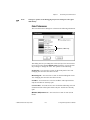
Use localized decimal point—Uses the decimal separator for the system
instead of the period. For example, in many countries, the comma is
used as a decimal point. Turn this option on if you want G to pay
attention to the way you have configured your system. Turn it off if you
want G to use periods in all cases for the decimal point.
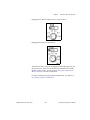
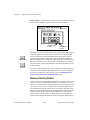
Use smooth updates during drawing—When G updates a control with
smooth updates off, it erases the contents of the control and draws the
new value. This can result in a noticeable flicker as the old value is
erased and replaced. Using smooth updates, G draws data to an
offscreen buffer and then copies that image to screen instead of erasing
a section of the screen. This avoids the flicker caused by erasing and
drawing. However, it can slow performance, and it requires more
application memory because an offscreen drawing buffer has to be
maintained.
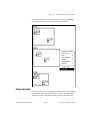
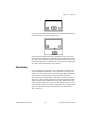
Use transparent name labels—Directs G to use labels that you can see
through.
(Sun) Support numeric keypad on Sun keyboards—Turns on support
for the Sun keyboard, including keypads, arrow keys, and the Help key.
Do not turn this option on if you are using a non-Sun keyboard (for
example, if you are using an X terminal or a PC running X software).
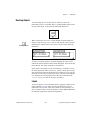
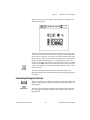
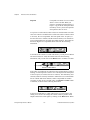
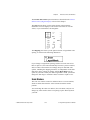
Blink speed—Sets the blinking speed for front panel objects, to the
default 1,000 milliseconds or a speed that you type in. Blinking is a
basic attribute turned on with Attribute Nodes. See Chapter 20, Attribute
Nodes, for more information.
G Programming Reference Manual
7-10
© National Instruments Corporation