1
Menu Operations
iPF6400
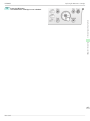
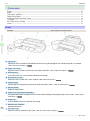
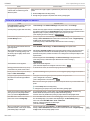
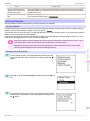
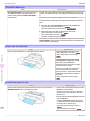
Pressing this button in menu items of each tab for which
is displayed at left will move to the lower level of
the menu item, enabling you to execute menu commands or set menu values.
Also press this button if the Display Screen indicates to press the OK button.
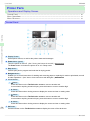
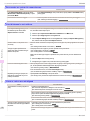
g Back button
Displays the screen before the current screen.
h Menu button
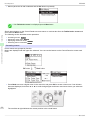
Displays the Tab Selection screen. (See "Menu Settings.") →User's Guide
i Cut button
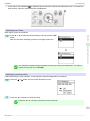
Pressing this button when rolls are loaded cuts the paper, if you have specified Automatic or Eject in Cutting
Mode in the Control Panel menu. (See "Specifying the Cutting Method for Rolls.") →User's Guide
j Feed button
Pressing this button when rolls are loaded enables you to reposition the paper. (See "Feeding Roll Paper Manually.") →User's Guide
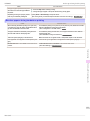
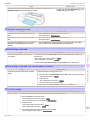
m Roll Media lamp (green)
Lit when rolls are selected as the paper source.
n Message Lamp (orange)
• On
A warning message is displayed.
• Flashing
An error message is displayed.
Operations and Display Screen
l Cut Sheet lamp (green)
Lit when Tray or Front Paper Feed Slot is selected as the paper source.
Printer Parts
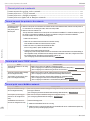
k Load button
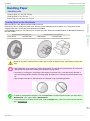
Press this button when loading or replacing paper.
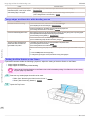
(See "Loading Rolls in the Printer.") →P.11
(See "Loading Sheets in the Feed Slot.") →P.17
• Off
The printer is off or is operating normally.
o Data Lamp (green)
• Flashing
During printing, the Data lamp flashes when the printer is receiving or processing print jobs. Otherwise,
this lamp flashes when the print job is paused or the printer is updating the firmware.
• Off
There are no active print jobs when the Data lamp is off.
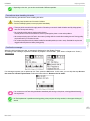
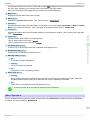
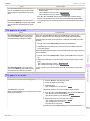
• To recover from Sleep mode, any button can be pressed on the Control Panel.
Note
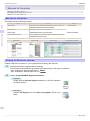
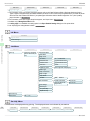
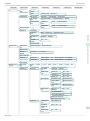
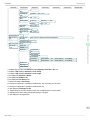
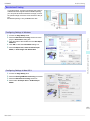
Menu Operations
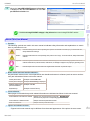
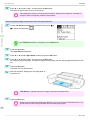
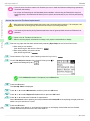
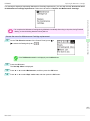
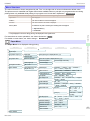
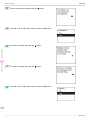
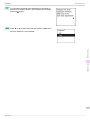
To view available menus organized on tabs, select a tab on the Tab Selection screen and press the OK button.
For details, see "Menu Settings." →User's Guide
51
Basic Guide