1
The Prototype
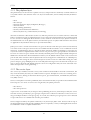
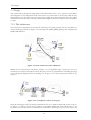
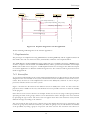
: IT SC li ent
: NetworkCli ent
:
DatabaseCl ient
: PeerNetwork
destroyApp( )
closeNetworkConnection( )
[connected] leaveGroup( )
[conne cted] close(String, S tring, Stri ng)
close(String, S tri ng, String)
storeGroups(String[][])
storeContacts(Stri ng[][])
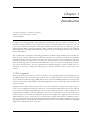
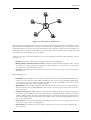
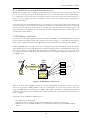
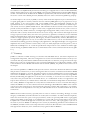
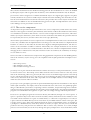
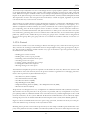
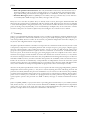
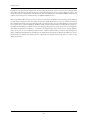
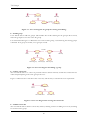
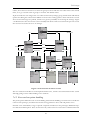
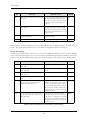
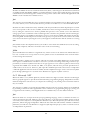
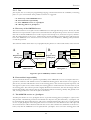
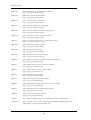
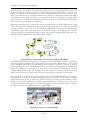
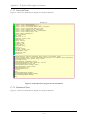
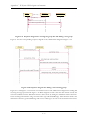
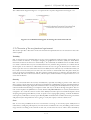
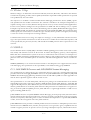
Figure 7-27 Sequence diagram for exit the application
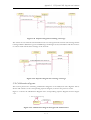
All the remaining UML diagrams can be found in appendix C.
7.4 Implementation
The prototype was implemented using J2ME Wireless Toolkit [J2MEwtk] and the supplied emulator in
this toolkit. The code was written in emacs, and includes comments to the implementation.
The J2ME Wireless Toolkit [J2MEwtk] offers a lightweight way of building and testing a MIDP project.
It comes complete with the CLDC and MIDP libraries, utilities, Javadoc documentation and example
Midlets. The toolkit runs on any Java 1.3 enabled platform and is free of charge. It also allows developers
to test their applications on different emulated target devices. The wireless toolkit is presented in more
detail in Appendix E.
7.4.1 Screen flow
To get a better understanding of the system and the implementation issues discussed next, this subsection
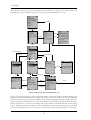
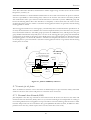
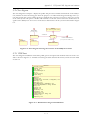
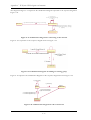
will presents the user interface of the system, and the flow between the different screens in the user interface. First, the focus is on the implemented version of the ITSSystem, and then we turn to the proposed user interface for the rest of the system.
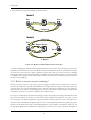
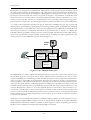
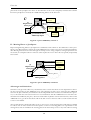
Figure 7-28 shows the flow between the different screens in ITSSystem version 1.0. The screens displayed are those available for the user, and should be viewed to possible customer to check the usability
of the program.
Note that one error-screen is shown as an example. In this case the user is trying to add a group without
specifying the name of the groups, which is a non-valid situation. This is brought to the users attention
by specifying the type of error. The error-screen can appear when other error situations occur, but with
different messages according to the situation.
The screen with the title “Join group” is shown twice in the diagram because it has to appearances, first
is when no groups exist, and next is when they are. When no groups exist, the OK button is unavailable
as the possibility of joining a group is not present. The same screen is also used then users chooses to
79