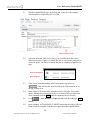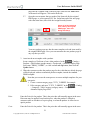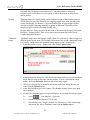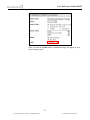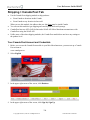
1
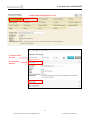
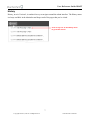
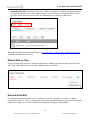
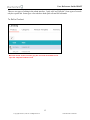
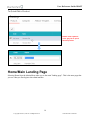
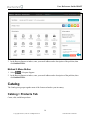
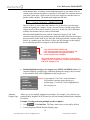
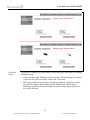
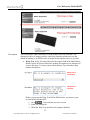
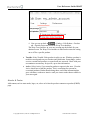
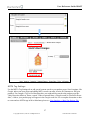
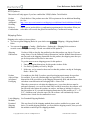
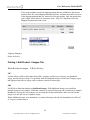
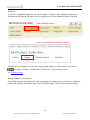
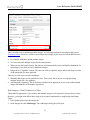
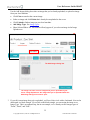
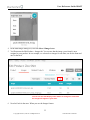
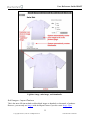
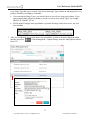
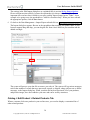
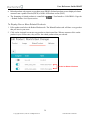
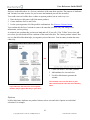
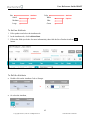
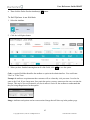
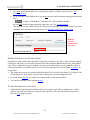
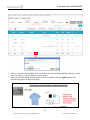
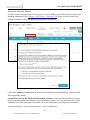
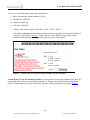
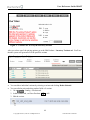
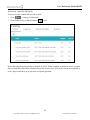
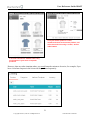
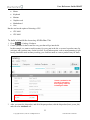
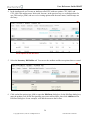
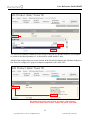
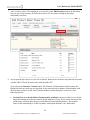
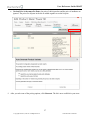
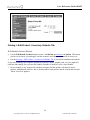
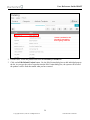
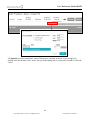
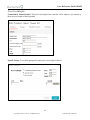
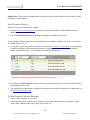
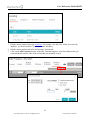
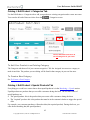
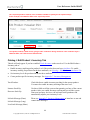
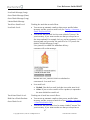
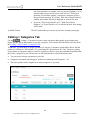
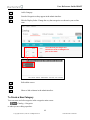
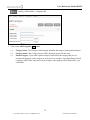
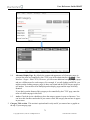
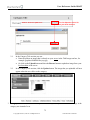
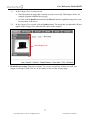
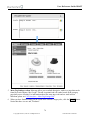
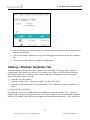
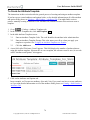
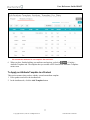
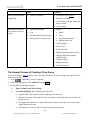
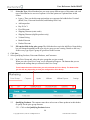
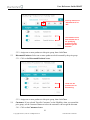
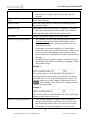
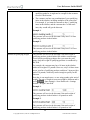
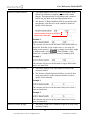
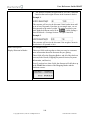
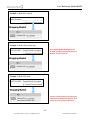
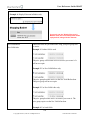
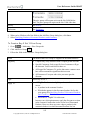
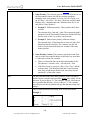
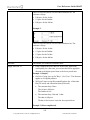
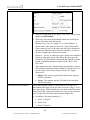
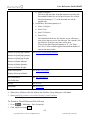
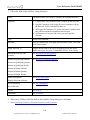
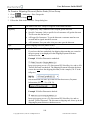
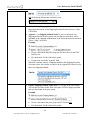
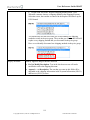
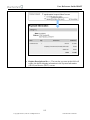
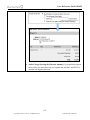
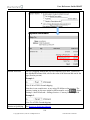
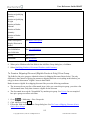
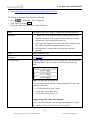
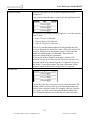
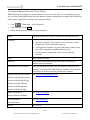
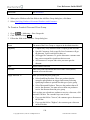
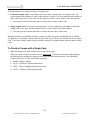
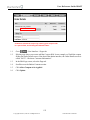
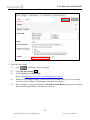
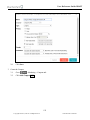
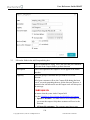
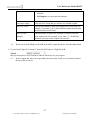
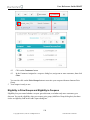
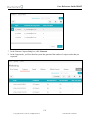
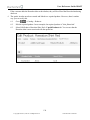
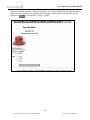
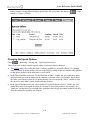
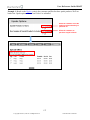
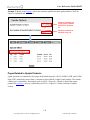
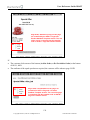
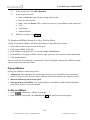
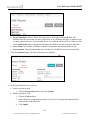
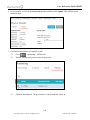
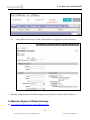
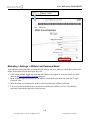
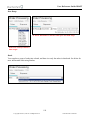
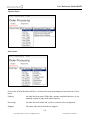
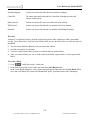
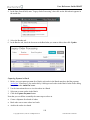
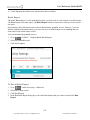
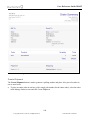
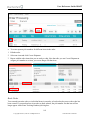
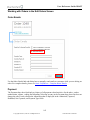
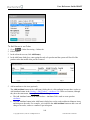
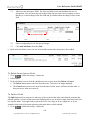
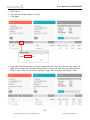
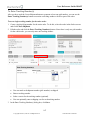
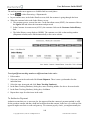
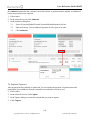
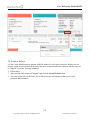
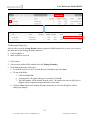
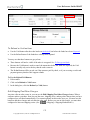
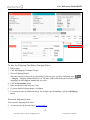
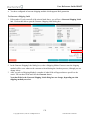
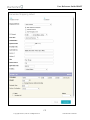
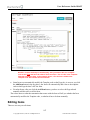
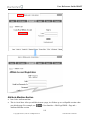
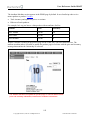
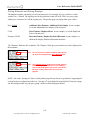
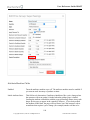
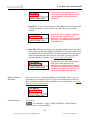
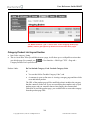
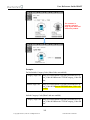
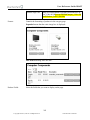
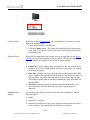
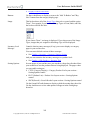
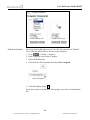
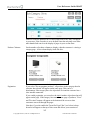
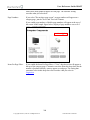
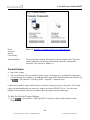
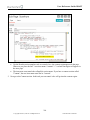
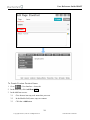
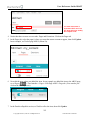
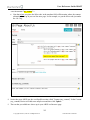
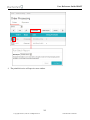
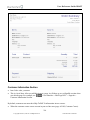
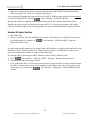
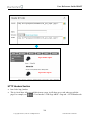
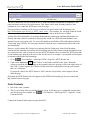
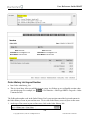
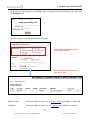
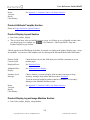
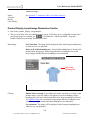
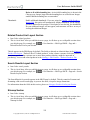
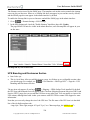
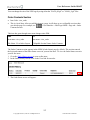
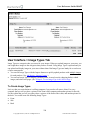
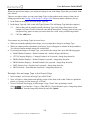
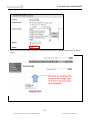
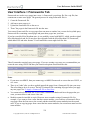
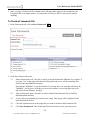
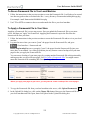
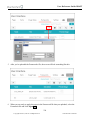
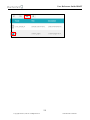
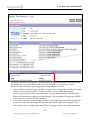
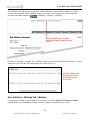
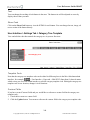
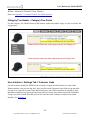
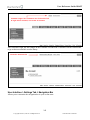
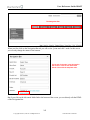
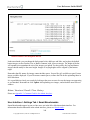
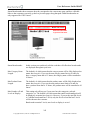
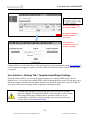
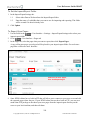
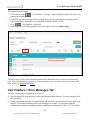
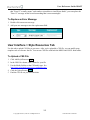
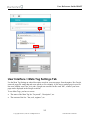
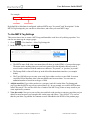
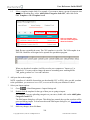
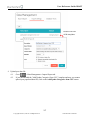
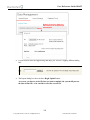
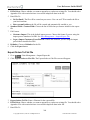
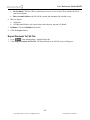
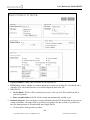
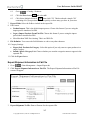
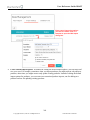
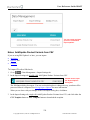
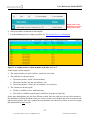
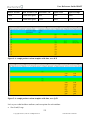
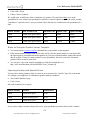
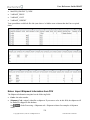
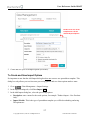
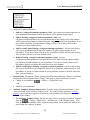
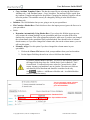
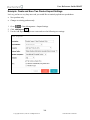
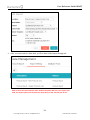
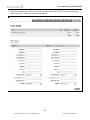
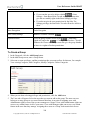
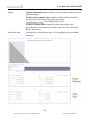
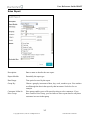
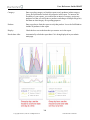
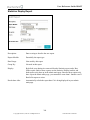
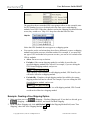
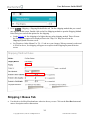
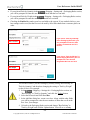
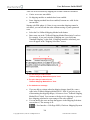
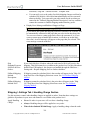
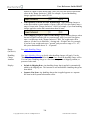
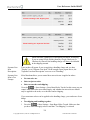
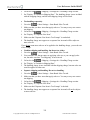
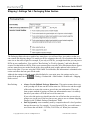
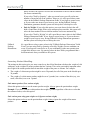
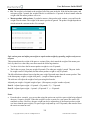
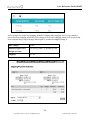
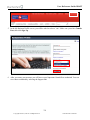
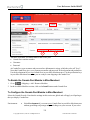
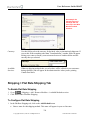
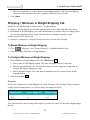
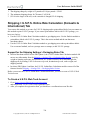
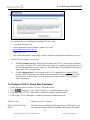
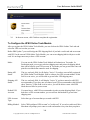
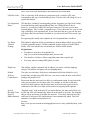
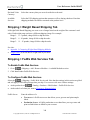
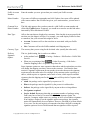
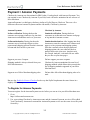
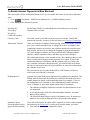
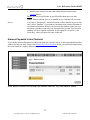
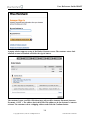
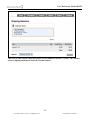
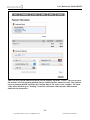
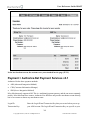
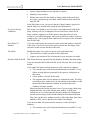
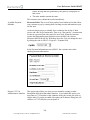
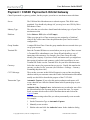
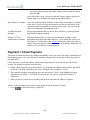
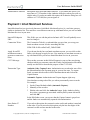
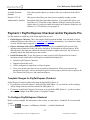
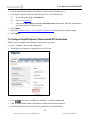
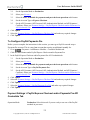
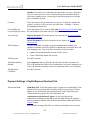
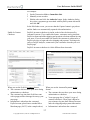
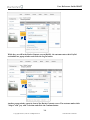
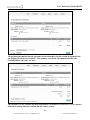
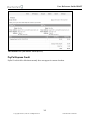
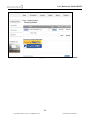
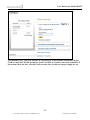
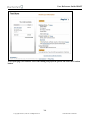
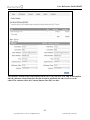
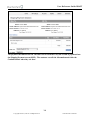
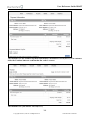
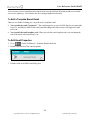
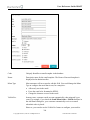
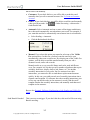
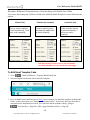
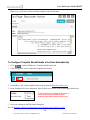
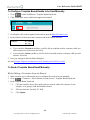
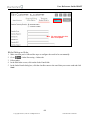
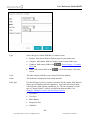
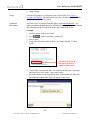
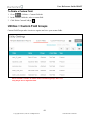
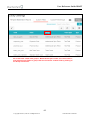
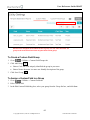
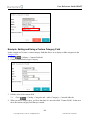
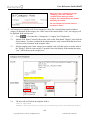
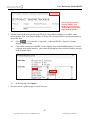
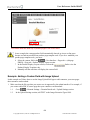
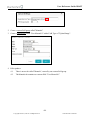
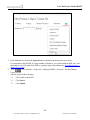
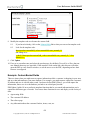
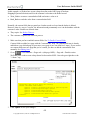
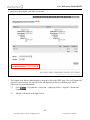
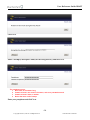
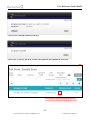
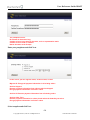
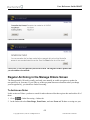
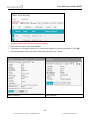
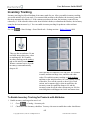
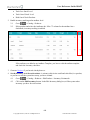
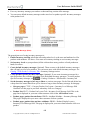
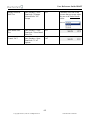
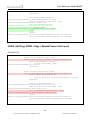
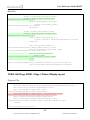
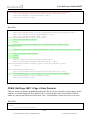
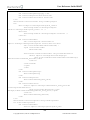
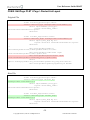
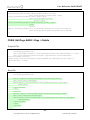
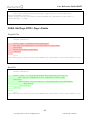
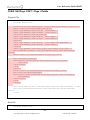
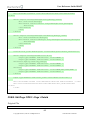
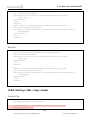
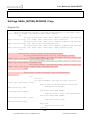
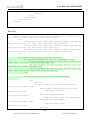
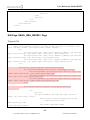
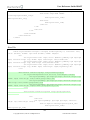
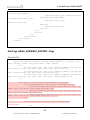
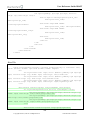
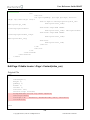
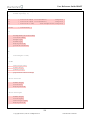
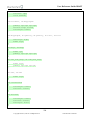
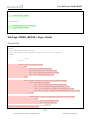
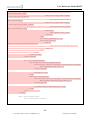
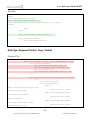
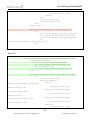
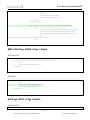
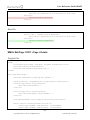
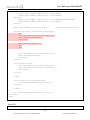
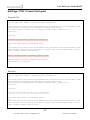
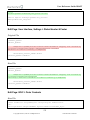
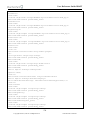
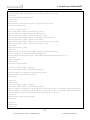
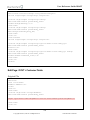
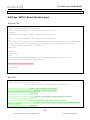
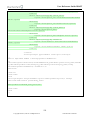
User Reference Guide DRAFT To Configure Template Based Emails to be Sent Manually 1 2 Go to > Order Fulfillment > Template Based Emails tab. Click on the slider icon to enable the template based email. 3 Now double-click on the template based email to open the Edit Email dialog box. 4 In the Visible For field, check the Customers and/or the Orders checkbox. If you check the Customers checkbox, you'll be able to send this email to customers while you edit a customer account record. See below. 5 If you check the Orders checkbox, you'll be able to send this email to customers while you edit an order. See below. Save your changes in the Edit Email dialog box. See also Example: Different Combinations of the Sending and Visible For Fields. To Send a Template Based Email Manually While Editing a Customer Account Record 1 Make sure that you've followed the steps to configure the email to be sent manually. 2 3 Go to > Customers > Edit a customer account record > Template Based Emails tab. In the Template Based Emails tab 3.1. Click the checkbox next to the email(s) that you want to send to the customer. In our example, we're going to send the Backorder Notice. 3.2. Fill out at least the "Override To" field 3.3. Click Update. 400 Copyright 2005-2015, Miva Inc. All Rights Reserved. Publication Date: 02/28/2015