1
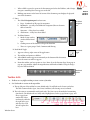
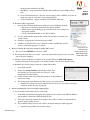
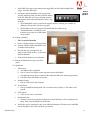
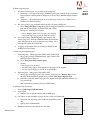
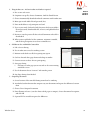
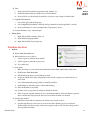
vi. Then add the other person’s ID from where you saved it
vii. Can edit the permissions of the second person
6. Managing security policies
Intro to
Acrobat
Fall 2012
A.User can develop other policies and save them for re-use
i.
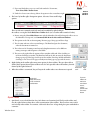
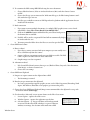
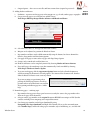
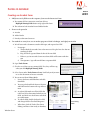
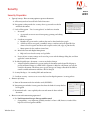
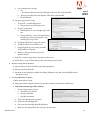
Click Tools>Protection>Encrypt>Manage
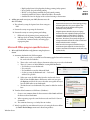
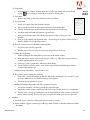
ii. Click on Encrypt with Password to see all the things that are possible within a policy – can edit
any of them
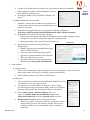
B. Click New to create new policy and click Use passwords
i.
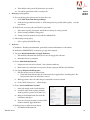
Enter name of policy, description, and whether to always use same password
ii. Choose settings and finish saving policy
iii. Setting is saved in Acrobat, not just with the individual file
C. Edit existing security policy
i.
Select a policy and click Edit at top
7. Redaction
A.Definition – blacking out information, particularly sensitive information, in a document
B. Redaction is PERMANENT, so always keep a copy of the original
C. Two steps; Mark for Redaction and Apply Redaction
i.
First mark for redaction and when you are sure, then apply the redaction
ii. Remember that it is permanent
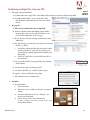
D.Choose Mark for Redaction tool
i.
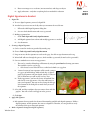
Drag mouse over text to be redacted – box is drawn around text
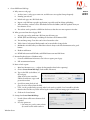
ii. Hover mouse over redaction area to preview what it is going to look like (the black box)
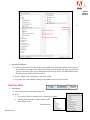
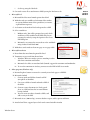
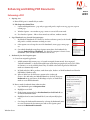
E. Can change Redaction Tool Properties
i.
Fill color of what covers the redacted text
a. If you look under this box after the redaction has been applied, there is nothing there. The
box just shows where the redaction occurred
ii. Mark appearance color -the color that goes around the text to be redacted
iii. Codes (FOIA, Privacy Act) – advanced topic
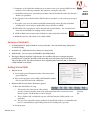
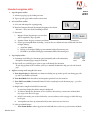
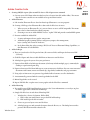
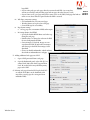
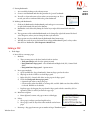
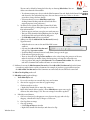
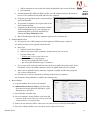
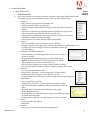
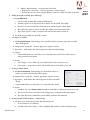
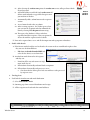
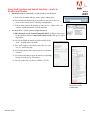
F. Choose Search and Remove Text tool
i.
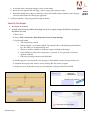
Don’t rely entirely on the Search function
ii. Search for single word or phrase, multiple
words or phrases, patterns (SSN, dates, etc.)
iii. Must put checkmark beside the results for
redaction to take place
iv. If you are sure that you want to remove all the
instances marked, Apply Redaction
G.Redact pictures or other non-text objects
i.
Windsor Green
Use Mark for Redaction tool
43