1
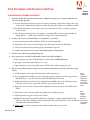
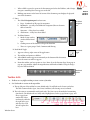
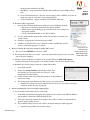
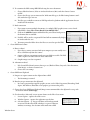
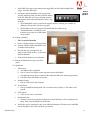
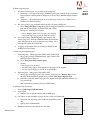
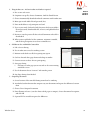
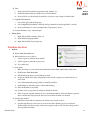
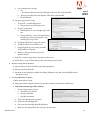
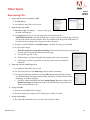
• The Clip icon (scissors) appears
• Drag a selection handle to crop
iii. Edit an object with the Edit Object tool
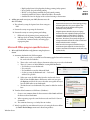
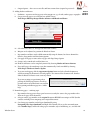
a. Right click/Control click and choose one of the option. Here are a few options
• Place image - to embed an image
• Set clip, delete clip
• Edit Image, Edit Object - to open an editor as Photoshop or Illustrator
• Properties - to edit content, tags, text and color space
Intro to
Acrobat
Fall 2012
F. Editing links
i.
Fully stated links (absolute URL) in source documents are automatically included in the PDF
(from Acrobat and Reader 8 on) when they are created in the original application
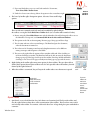
ii. If link doesn’t render properly, create the link as follows:
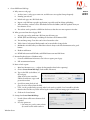
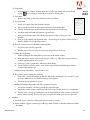
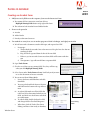
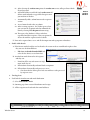
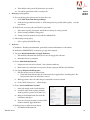
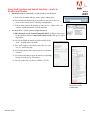
a. Go to Tools>Content>Add or Edit Interactive Objects
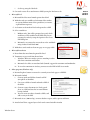
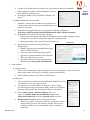
b. Select Link tool, marquee around text or object to be turned into a
link. The Create Link dialog box opens
c. Choose appearance and link action (page view, file, web page, or
custom), and then enter URL (or navigate to other destination)
d. Use Hand tool to test link
G.Add multimedia
i.
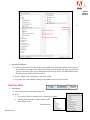
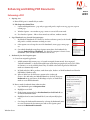
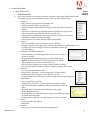
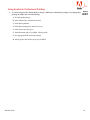
Use Add or Edit Interactive Object>Multimedia
ii. Choices are: Video, Sound, SWF or 3D
iii. Will support FLV, F4V, MP3, h.264 formats for video options
iv. Other formats can be changed in Adobe Media Encoder CS5 which installs with the Suite
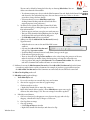
v. Drag a box over the area where you want the video to be positioned
vi. Advanced options gives more control
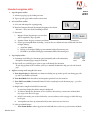
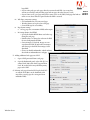
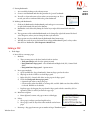
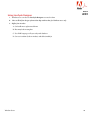
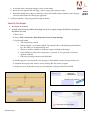
a. Select the multimedia file by browsing
b. In the Launch settings tab, under Enable when menu, choose
The content is clicked
c. Under the Disable menu choose
Page Containing the Content is Closed so that the video doesn’t
show up when the page is closed
d. For Playback Style choose Play Content on Page
e. Retrieve Poster from Media
f. From the Controls tab, can choose what the viewer can do with the video, as Play, stop Set
Volume
vii. Choose OK
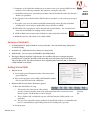
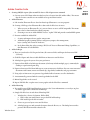
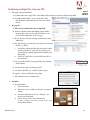
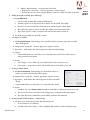
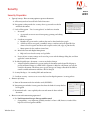
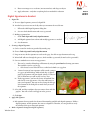
Movie inserted into a PDF
Windsor Green
29