1
Iris - HPLC Spectral Processing Software
Summary of Operation: Apex Optimized Chromatogram
The summary below illustrates how to create a chromatogram with the optimum wavelength
set for each peak.
To create a chromatogram with the optimum wavelength set for each
peak in a chromatogram:
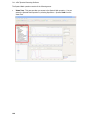
1. Expand the Operations node on the Views Tree and select Apex Optimized
Chromatogram.
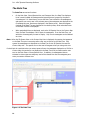
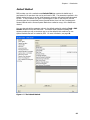
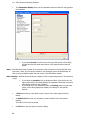
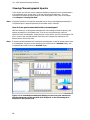
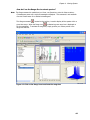
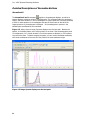
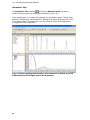
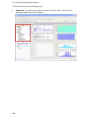
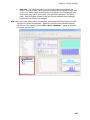
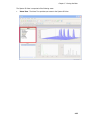
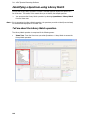
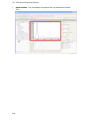
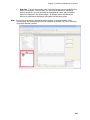
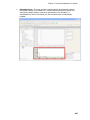
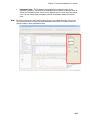
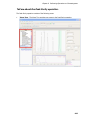
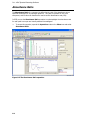
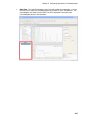
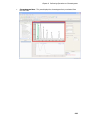
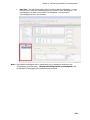
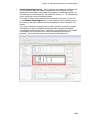
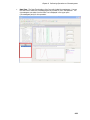
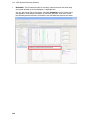
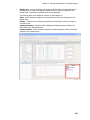
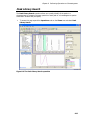
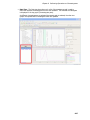
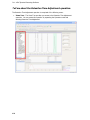
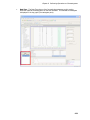
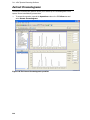
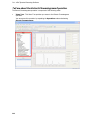
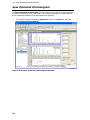
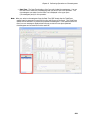
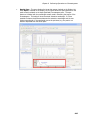
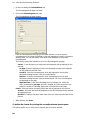
The Apex Optimized Chromatogram operation is displayed.
2. Select a chromatogram from the Data Tree.
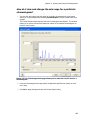
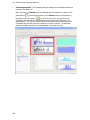
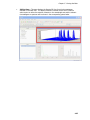
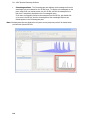
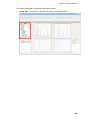
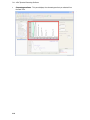
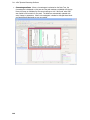
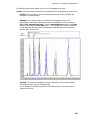
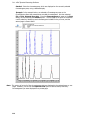
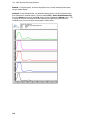
The chromatogram is displayed on the Sample Chromatogram pane with the first peak
selected; and IRIS calculates the optimum wavelength for each peak, extracts the
chromatogram at these different wavelengths and displays the apex optimized
chromatogram in the pane directly below the sample chromatogram.
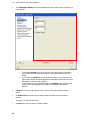
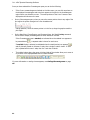
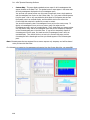
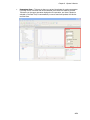
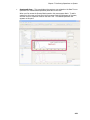
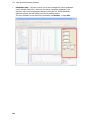
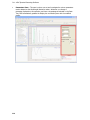
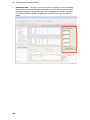
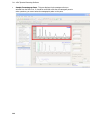
3. If you are interested in viewing the apex spectrum for a specific peak in the apex
optimized chromatogram, click on the peak.
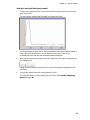
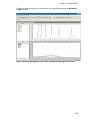
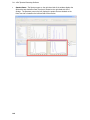
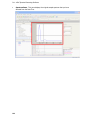
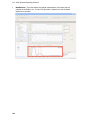
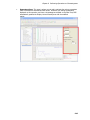
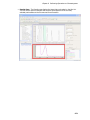
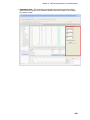
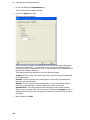
The apex spectrum for the currently selected peak is displayed in the bottom Spectra
Pane; the peak maximum of the displayed spectrum is labeled with the wavelength and
absorbance.
Note: If you select a different chromatogram the apex optimized chromatogram is recalculated and
re-displayed. If you change any of the parameters used in this calculation, the apex
optimized chromatogram is updated.
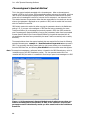
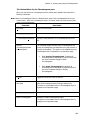
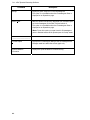
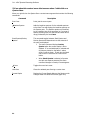
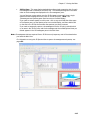
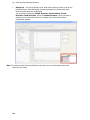
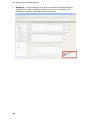
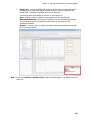
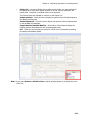
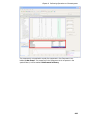
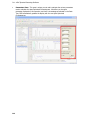
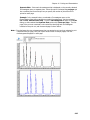
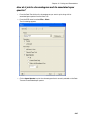
4. You can add result spectra to the Data Tree by checking Apex and or Baseline on the
Display List and then selecting Actions > Add All to view.
The selected spectra is added to the Data Tree under the parent chromatogram. The
added spectra is labeled on the data tree with the Retention Time followed by "-Apex"
or "-Baseline".
To create a TotalChrom chromatogram from the apex optimized
chromatogram:
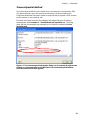
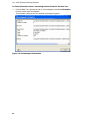
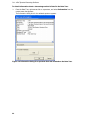
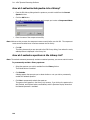
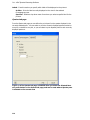
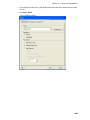
1. From the menu bar select File > Save Results.
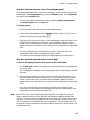
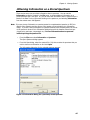
A save dialog appears that asks you to confirm whether or not you want to save the
changes to the chromatogram's result file (.RST) and the changes to its associated
spectral method files (.TSM).
2. Click Yes.
If the TotalChrom method is present, a result file is generated. The apex optimized
chromatogram that is generated is named after the original .raw file name followed by
“_Apex Optimized” plus a time/date stamp if the name already exists.
Note: The conditions used to create the chromatogram can only be found on the Apex Optimized
Chromatogram View and are not stored with the chromatogram in any way. Therefore, if
you use the Save Results… command, it is your responsibility to ensure that you have
documentation on how the chromatogram was created. For this reason this operation cannot
be performed by AutoCalc.
308