1
18
Click on the green “Save” button when finished.
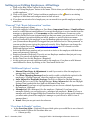
“Pay Rates” Tab (Optional)
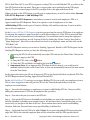
In this section you will set the pay rates for the different options. (Optional) Note: This feature
is just used as a basic Gross Pay calculator. There is no option for multiple pay rates, pay rates
by department or pay rates by job.
Click on the green “Save” button when finished.
“Automation” (Optional)
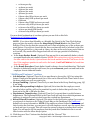
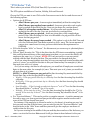
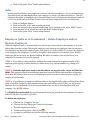
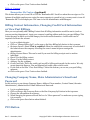
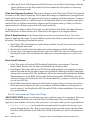
Auto Punch Out: This feature will automatically punch out the employee at the time you
specify below.
NOTE: For ethical reasons and to avoid labor law issues, we highly recommend checking the
"Notify Employee On Auto Punch Out" below, this requires entering the employee mobile
number.
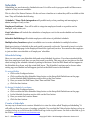
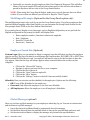
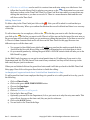
If you want to use SMS message alerts you will need to Enable SMS Messaging. NOTE: There
is a charge to us the SMS Messaging and you will need to confirm that you want to use it. You
can get SMS texts when the employee Punches In and/or Out. You will need to put in the
Mobile phone number in the General Tab to send the text to.
How do I calculate SMS(text) message fees?
We charge $2 per month to activate SMS(text) messaging on your account, and $0.01
per sent SMS message. A SMS message can be sent for various reasons such as sending
an employee their welcome message, auto punch out notifications, punch reminders
etc.
Why is there a charge for SMS(text) messaging?
Unlike email which is basically free, the wireless carriers have decided to charge for
every text message sent or received. Most consumer and business mobile plans include
this in the monthly bill, so you never see it. So OnTheClock.com is required to setup a
SMS gateway for each carrier and the carriers then charge us a fee for each SMS
message.
Click on the green “Save” button when finished.
Table_of_Contents
Departments
Departments can be used in various ways. Some use them as departments such as Accounting,
Office, Shop, etc. to distinguish what area of the company the employee works in. Others who have
multiple locations have used them to distinguish the different locations their employees work. The
Department filter in the Time Cards will only show which department an employee is assigned to
and not what hours they worked in a department.
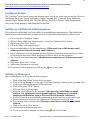
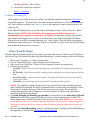
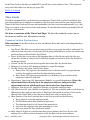
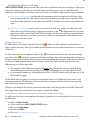
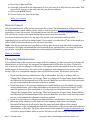
1. Click on the Configure button.
2. Click on the blue “Departments” button in the top menu or the Setup Departments on the
page.
3. Here you add any Departments you wish to assign employees to by clicking on the green
“NEW” button.
4. If you misspell a department, just delete it with the Red X and start again.
Rev. 7 – December, 2015
Copyright © 2003 - 2016 Paradigm Information Services LLC