1
Importing Articles into Salesforce Knowledge
• .csv files can’t have more than 10,000 rows, including the header row. Therefore, you can have a maximum of 9,999 articles and
translations.
• .csv file rows can’t exceed 400,000 characters.
• .csv file cells can’t exceed 32 KB.
• Each article in the .csv file can’t have more than 49 translations.
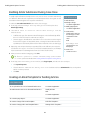
2. In the first row, specify the article type's fields and metadata (such as language data categories or channels). Enter one item in each
column. You can use the following fields and metadata to import content:
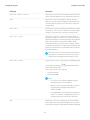
• isMasterLanguage—identify the article as a master (1) or translation (0). Required to import articles with translations,
however, it can’t be in a .csv file to import articles without translations. Translations must follow their master articles so that they
are associated with the master article preceding it.
• Title—the article or translation’s title. Required for all imports.
• Standard or custom fields—refer to an article type's standard fields using field names and refer to custom fields using API names.
Leaving a row cell empty may cause your articles to be skipped if the related article-type field is mandatory.
• Rich text area field—use the rich text area custom fields to import .html files or images. Refer to an article type's rich text area
field using its API name.
• File field—use the file custom fields to import any file type (.doc, .pdf, .txt, etc.). Refer to an article type's file field using its API
name.
• To categorize the imported articles, use category groups; refer to a category group using its unique name prefixed with
datacategorygroup. For example, use datacategorygroup.Products to specify the category group Products.
• To specify where the imported articles are available, use the keyword Channels.
• Language—specify the articles' language. Required to import articles with translations. Optional to import articles without
translations. If you don't include this column, the articles will automatically belong to the default knowledge base language and
you can’t import translations along with the master articles.
3. In subsequent rows, specify the articles you want to import. Use one row per article and enter the appropriate information in each
article type field column or metadata column.
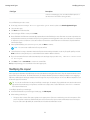
• Standard or custom fields—enter the articles' data for each field, except for rich text area fields where you must enter the relative
path to the corresponding .html file in your .zip file.
Note: The article importer does not support sub-fields. If you have fields within fields, you’ll need to adjust your structure
and content before importing into Salesforce Knowledge.
• Rich text area field—always enter the .html file path relative to the location of the .csv file. Never enter raw text. If the specified
path doesn't exist, the related article isn't imported. Note the following information about importing HTML and images:
– We recommend that you create separate folders for the .html files (for example, /data) and the images (for example,
data/images).
– To import images, include the images in an .html file using the <img> tag and src attribute. Ensure that the src value
is a relative path from the .html file to the image folder.
– Images must be .png, .gif, or .jpeg files.
– Each image file can’t exceed 1 MB.
– .html files can’t exceed the maximum size for their field.
– If a date doesn't match the date format specified in the property file, the related article isn't imported.
– If an .html file references a file that isn't allowed, the related article isn't imported.
– If an .html file references an image that's missing, the related article is imported without the image.
50