1
Importing Articles into Salesforce Knowledge
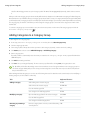
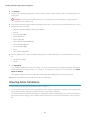
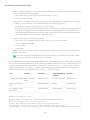
• The .zip file name can’t contain special characters.
• The .zip file can’t exceed 10 MB and the uncompressed files can’t exceed 100 MB.
• .csv files can’t have more than 10,000 rows, including the header row. Therefore, you can have a maximum of 9,999 articles and
translations.
• .csv file rows can’t exceed 400,000 characters.
• .csv file cells can’t exceed 32 KB.
• Each article in the .csv file can’t have more than 49 translations.
Upload your .zip file:
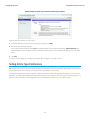
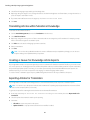
1. From Setup, enter Import Articles in the Quick Find box, then select Import Articles.
2. Select the appropriate Article Type for the imported articles.
3. Click Browse to select the .zip file, and click OK.
4. If your import contains translations, select the Contains translations? checkbox.
Note: If this checkbox is selected, your .csv file must contain the isMasterLanguage, Title, and Language columns. If this
checkbox is not selected, your csv file can’t contain the isMasterLanguage column but must contain the Title column. The
Language column is optional for imports of articles without translations.
5. Click Import Now.
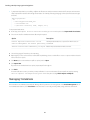
When the import is complete you receive an email with an attached log that provides details about the import.
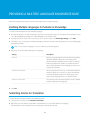
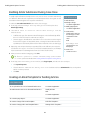
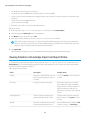
Viewing Salesforce Knowledge Import and Export Status
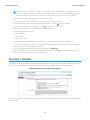
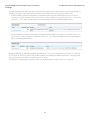
To check the status of your imports and exports, from Setup, enter Article Imports in the Quick Find box, then select
Article Imports. If you've enabled multiple languages for Salesforce Knowledge, you see two tables: one for article and translation
imports and another for exports for translation.
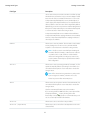
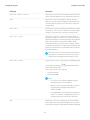
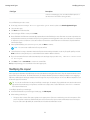
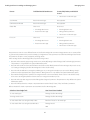
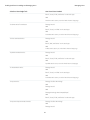
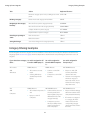
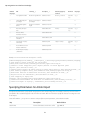
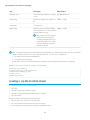
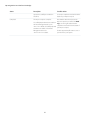
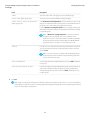
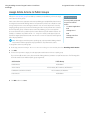
Status descriptions are as follows:
Status
Description
Possible Action
Pending
The import or export will start as soon as
the previous pending import or export
completes.
You can click Cancel to cancel the import
or export.
Processing
The import or export is processing.
If you want to stop the process, or if the
process has been stopped, call Salesforce
Support. Salesforce may stop an import or
export if a maintenance task has to be
performed or the import or export exceeds
one hour.
Stopping/Stopped
Salesforce Support is stopping or has
already stopped the import or export.
Contact Salesforce Support to restart the
import or export, or click Cancel to cancel
an entry.
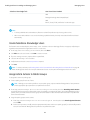
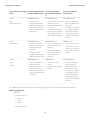
Aborted
The import or export has been canceled.
The articles that already imported or
You can restart an import or export, click Del
to delete an entry, or click Email Log to
54