1
7
Configuring a Power Supply for a Booster Base
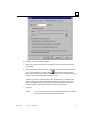
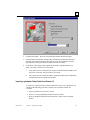
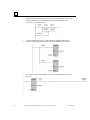
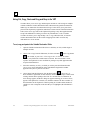
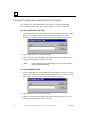
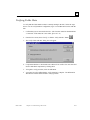
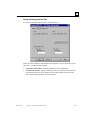
Power Supplies can be added throughout your VersaMax system. To add or replace a
configured power supply on a Booster Base:
1.
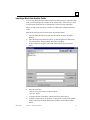
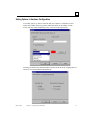
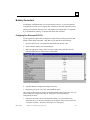
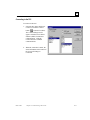
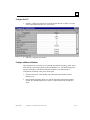
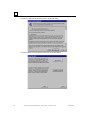
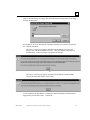
Double-click the empty booster base. For booster bases with configured power
supplies, click the right mouse button and select Replace Module. The Power Supply
Module Catalog dialog box will appear.
2.
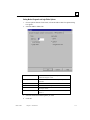
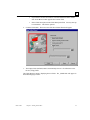
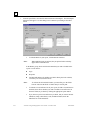
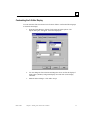
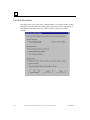
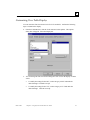
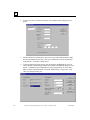
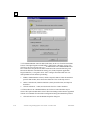
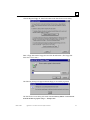
Click the catalog number of the power supply you want to configure, then click the
OK button. The Parameter Editor will display.
3.
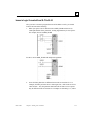
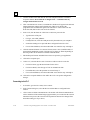
You can view information about the power supply. Click OK to complete power
supply configuration.
Adding/Configuring Modules
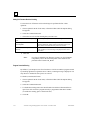
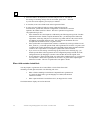
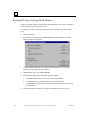
Once a carrier is configured, the module may be added to the system:
1.
Highlight the carrier which will house the module.
2.
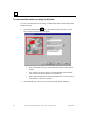
Double-click on the empty carrier or click the right mouse button and choose Add
Module. (If you are replacing a previously configured module, click the right mouse
button and choose Replace Module.)
3.
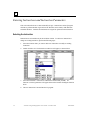
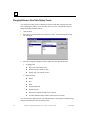
Click the tab describing the I/O module type you need (Discrete Input, Discrete
Output, Analog Input, Analog Output, etc.).
4.
Click the catalog number and description of the module in your system, then click the
OK button.
Configuring Module Parameters
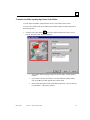
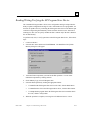
To configure the module’s parameters:
1.
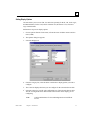
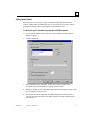
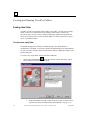
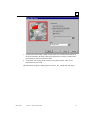
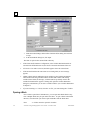
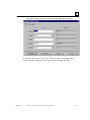
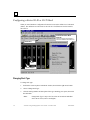
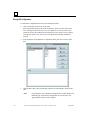
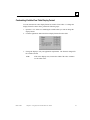
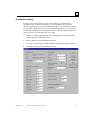
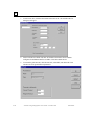
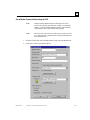
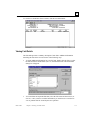
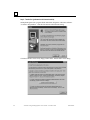
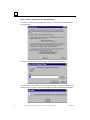
When you add or replace a module, the Parameter Editor appears. You can also
access this window by double-clicking the module slot from the Rack window.
2.
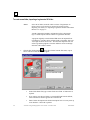
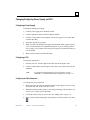
Within the Parameter Editor, click the tab pertaining to the parameters you want to
view or modify (where applicable).
3.
Click in the Values fields you want to edit. (See "Editing Tips" on page 7-4.)
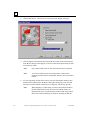
4.
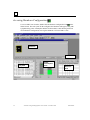
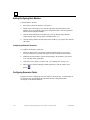
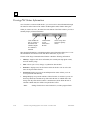
When you have finished configuring module parameters, click the window close
button
7-22
.
VersaPro™ Programming Software User's Guide – November 2004
GFK-1670D