1
3
7.
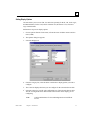
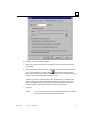
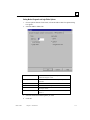
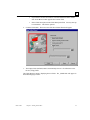
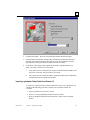
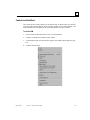
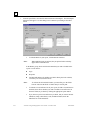
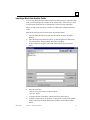
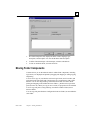
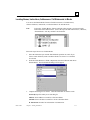
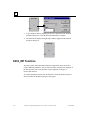
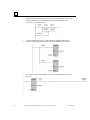
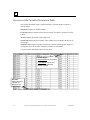
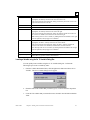
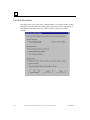
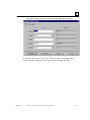
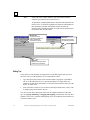
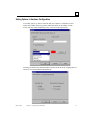
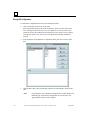
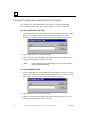
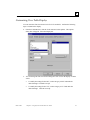
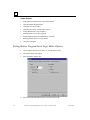
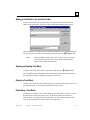
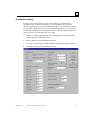
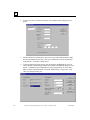
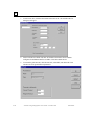
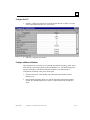
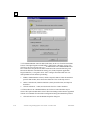
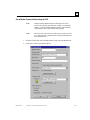
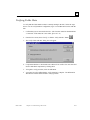
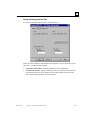
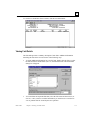
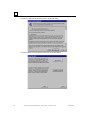
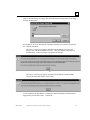
Make the needed changes in the Define Variable Offsets dialog box and click
Accept.
8.
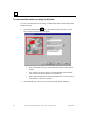
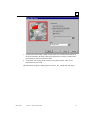
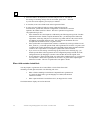
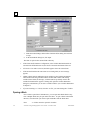
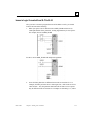
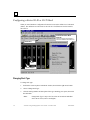
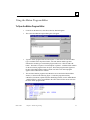
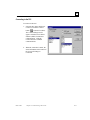
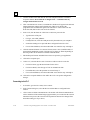
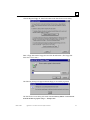
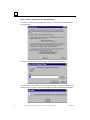
In the Insert Block dialog box, click Open.
The block is copied to the current folder's directory.
•
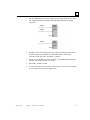
If the Folder itself, Hardware Configuration, or the Variable Declaration table are
selected in the Folder Browser tree, the block is inserted at the bottom of the tree.
•
If a block or view table is selected, the block appears above the selected item.
•
If the inserted block has the same name as an existing block, an error message
appears.
•
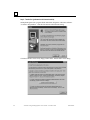
Adding a block includes adding the block's variables to the Variable Declaration
Table. If the block being inserted contains variables that conflict with existing
variables in the folder, the message, "Variable name/scope already exists in the
variable declaration table" appears. Clicking OK, opens the Variable Resolution
dialog box, which allows you to resolve variable conflicts. (See "Variable Resolution"
in chapter 6.)
•
If you are inserting a “C” block, select the .exe file you created using the C Toolkit.
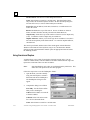
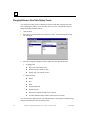
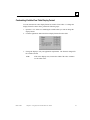
Opening a Block
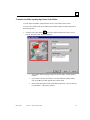
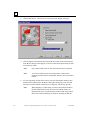
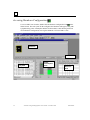
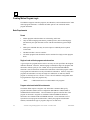
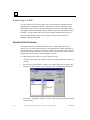
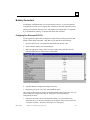
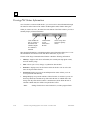
Once a block is part of the Folder Browser, you can open and edit the block at any
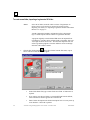
time. Multiple blocks may be open at the same time. To open a block in the Folder
Browser, select the block you want to open and double-click the block name.
Note:
3-6
“C” blocks cannot be opened in VersaPro.
VersaPro™ Programming Software User's Guide – November 2004
GFK-1670D