1
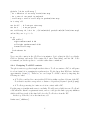
The ‘right angle’ command turns your turtle to the right by angle degrees. Here, instead
of specifying the exact angle, we use ‘random-normal 0 90’ which will pick a random angle
from a normal distribution of mean zero and standard deviation 90◦ .
Now, create a button as before, but this time enter ‘go’ in the ‘Command’ and check the
‘Forever’ checkbox. Click the button: wow, look at these T cells go! You can adjust the
speed with the slider.
But perhaps you’d like to create a button to see the T cells move by one step only.
Sure, create a button as before, enter ‘go’ in the ‘Command’, but this time, do not check
the ‘Forever’ checkbox and you might want to change the display name to ‘one step’ or
something similar to distinguish it from the other ‘go’ button.
2.2.3
Let’s get Physical
Alright, we have nice little balls moving around a grid, travelling at a speed of one patch
per time step. What is that?! We need to map the time and space in our model to REAL
physical time and space. Here is how to do this.
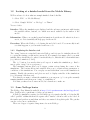
Since we did not specify the size of our tcells, NetLogo created them with a diameter of
one (1). So without even noticing, we have decided that a distance of 1 in our simulation
space corresponds to a physical distance of 8 µm in real life, i.e. the diameter of a T cell.
This seems like a good choice so we’ll leave it like that. As for time, let’s decide that each
time step of our simulation corresponds to 0.5 min (or 30 s). So let’s define
0.5 min
1 time step
8 µm
ds =
1 patch
dt =
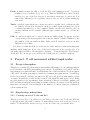
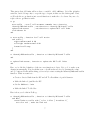
Based on the two-photon microscopy literature, we know T cells move at a speed of about
16 µm/min. How do we convert that to units of patch per time step for use in NetLogo?
16 µm
0.5 min
1 patch
vNetLogo =
×
×
1 min
1 time step
8 µm
8 µm
1 patch
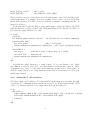
=
×
1 time step
8 µm
1 patch
=
1 time step
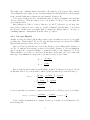
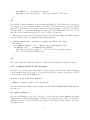
So, more generally, if you want to convert your real speed to a NetLogo speed, you’d write:
vNetLogo = vreal life ×
real time
1 patch
dt
×
= vreal life ×
1 time step real space
ds
So let’s adjust our simulation accordingly. At the top of our file, above all functions, add
the following line
5