1
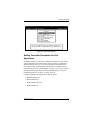
Preparing the Array
Manual Configuration
Select this option to manually configure the disk array for the first time or to
reconfigure the array. This option will create a new configuration,
overwriting any existing array configuration. To change the write policy of
an existing configuration, add additional drive packs, or add capacity to the
last configured drive pack, use the View/Update Configuration item on the
Main menu (see Chapter 3, “Administering the Array”).
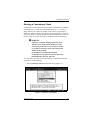
, WARNING
Overwriting an existing configuration will result in
the complete and irreversible loss of all data stored
on disk drives in the array. Use this option with
caution.
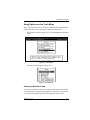
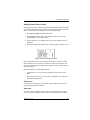
Defining and Creating Drive Groups
To define drive groups, follow the procedure below:
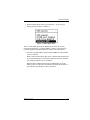
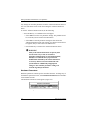
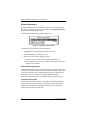
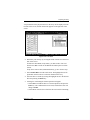
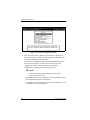
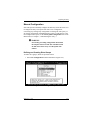
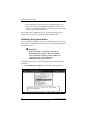
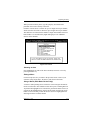
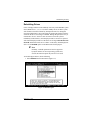
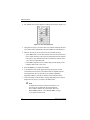
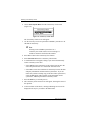
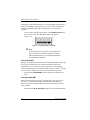
1. Select New Configuration from the Main menu (Figure 2-16).
Figure 2-16. New Configuration Option
Manual No. 771953
2-21